
Spawn Sur-vehicle (NPC vehicle)
This section describes how you spawn the Sur-vehicle (NPC vehicle) provided by MORAI SIM: Drive and how to set a path.
Spawn Sur-Vehicle (NPC Vehicle)
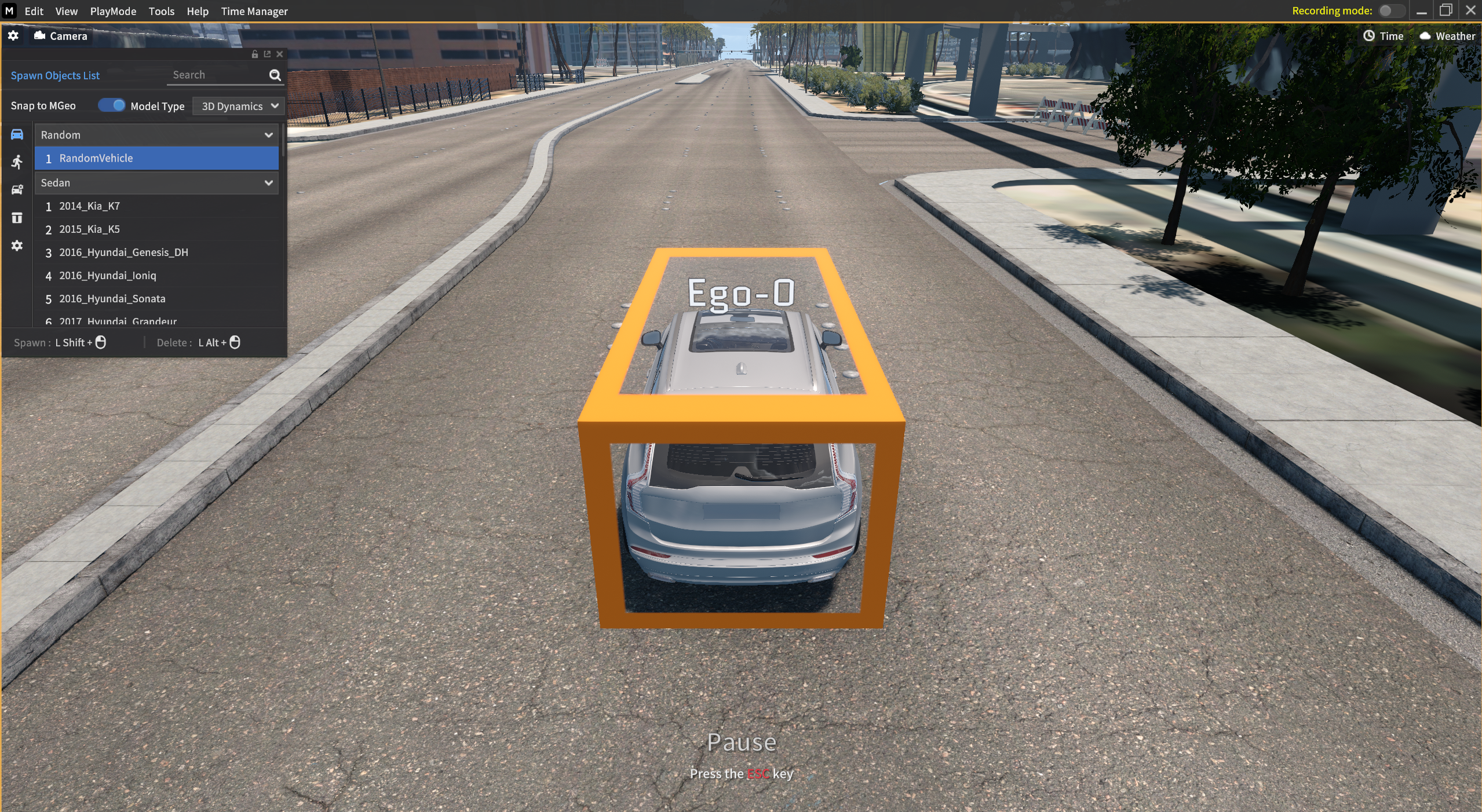
1) Click  icon to spawn the Sur-vehicle (NPC vehicle) in Spawn Objects List.
2) Select the Vehicle you want to spawn.
3) Press Shift + mouse left-click to spawn it. (Press Alt + mouse left-click to delete it.)
4) Place the Sur-Vehicle to the desired position.
5) Snap to MGeo (toggle switch)
On
When the Sur-vehicle is near the MGeo on the current map, it aligns with its position and heading.
Off
You can set the Sur-vehicle position when MGeo is not activated.
Also can spawn the vehicle to the side, not in the center of the lane.
6) Set a position of the vehicle via mouse drag & drop.
Spawn Sur-vehicle (NPC vehicle)
Sur-Vehicle Setting
When the spawn Sur-vehicle completes, NPC Setting is activated on the bottom left of the Object Setting.
You can set the below factors via NPC Setting.
Closed Loop Mode (Toggle Switch)
Current Speed
Desired Speed
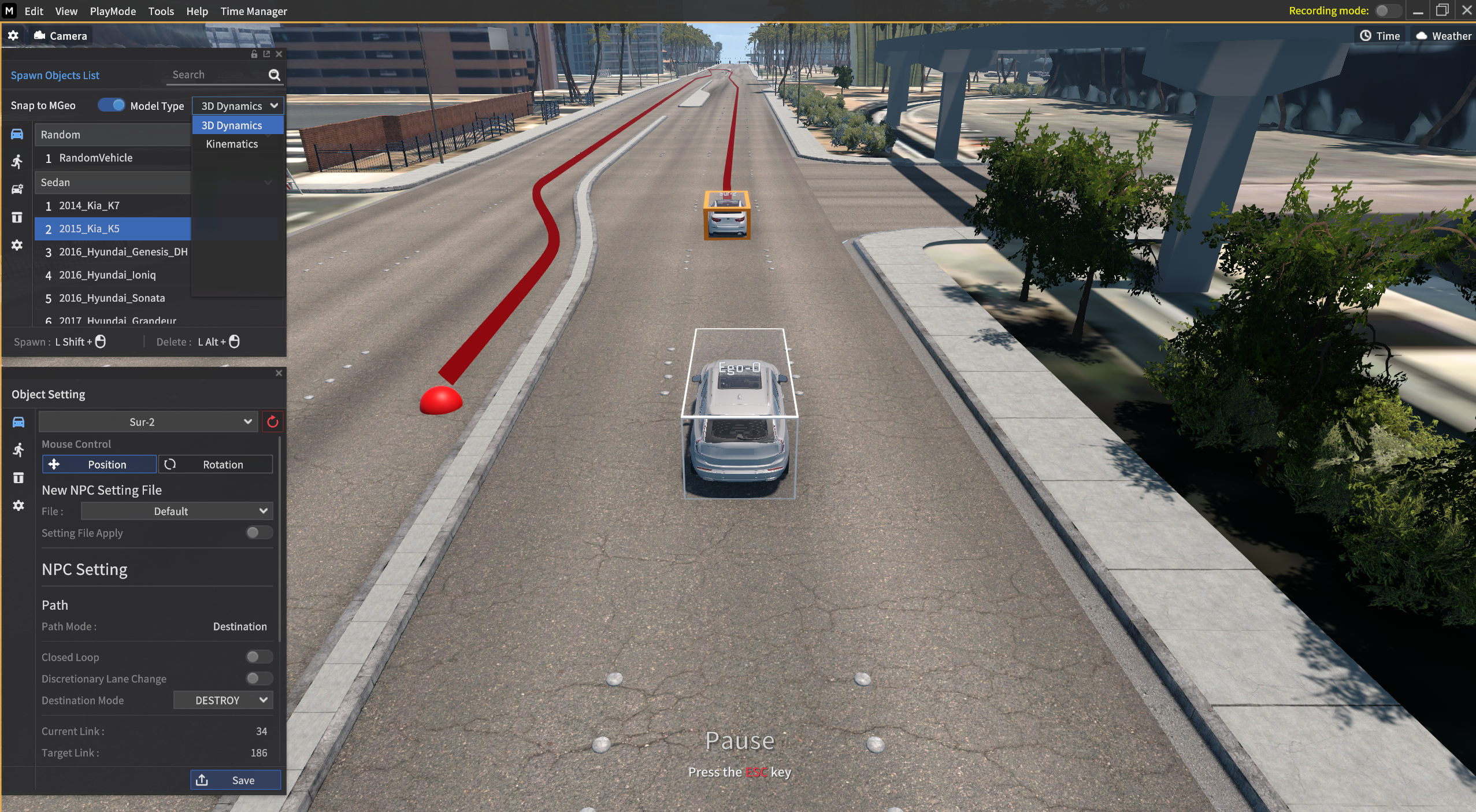
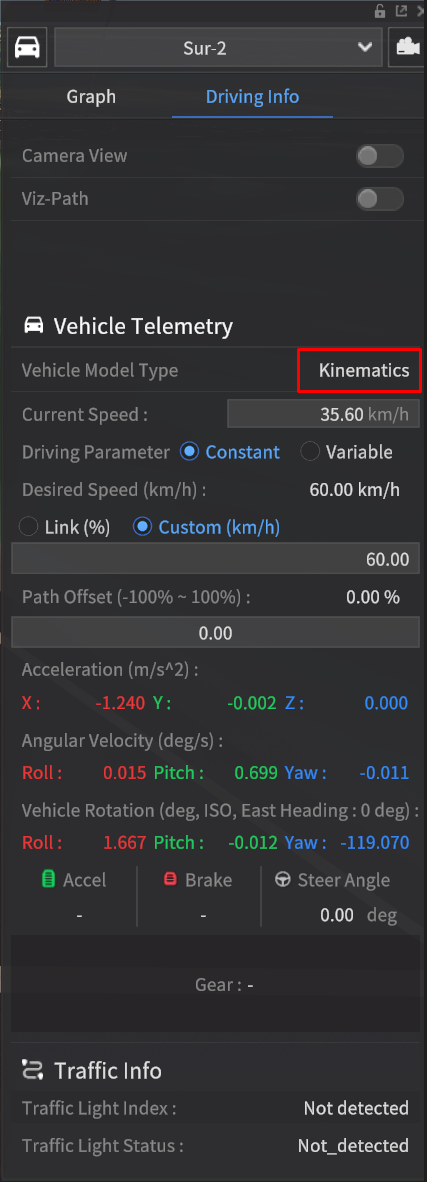
Model Type
3D Dynamics for NPC (Sur-vehicle)
A Dynamics model calculates the vehicle behavior based on acceleration, braking, and steering forces from user input.
Kinematics for NPC
A dynamics model that moves a 3D vehicle within defined limits (Max Speed, Max Acceleration, Max Steering) to reach the user's desired position and velocity. (No need to calculate the acceleration, braking, and steering forces)
Block Diagram
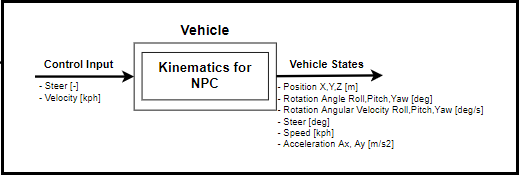
Comparison of 3D Dynamics & Kinematics (Input and Output Perspective)
3D Dynamics | Kinematics | |
|---|---|---|
Input |
|
|
Output |
|
|
Note | ** Calculate the map's bank and slope and apply them to the vehicle body (roll, pitch, and yaw). |

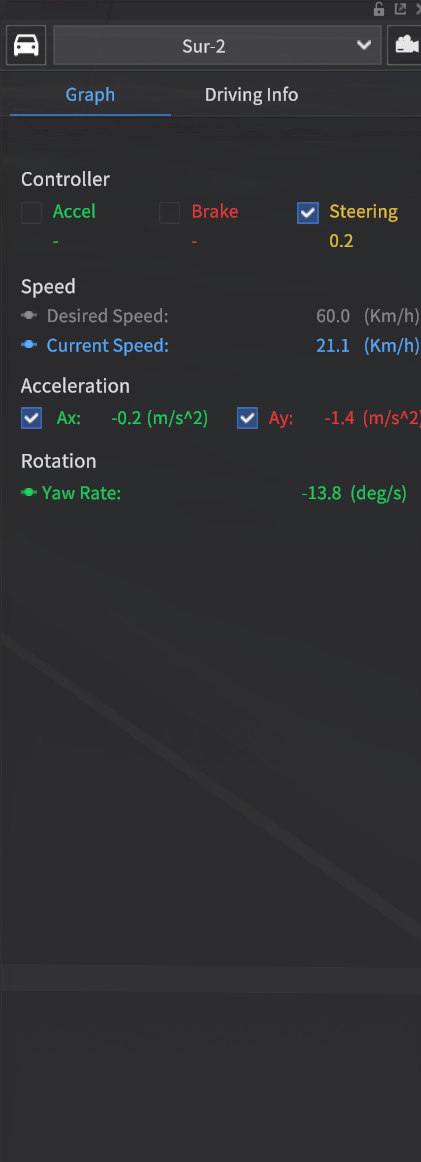
Since the Accel, Brake, and Gear are not available in the Kinematics mode,
Accel, Brake, and Gear information do not appear in the Driving Info.
Random Vehicle
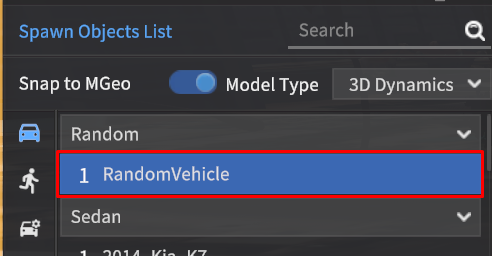
Select RandomVehicle in the Spawn Objects List and press
Shiftto spawn any random vehicle which available in the vehicle models.
Setting File
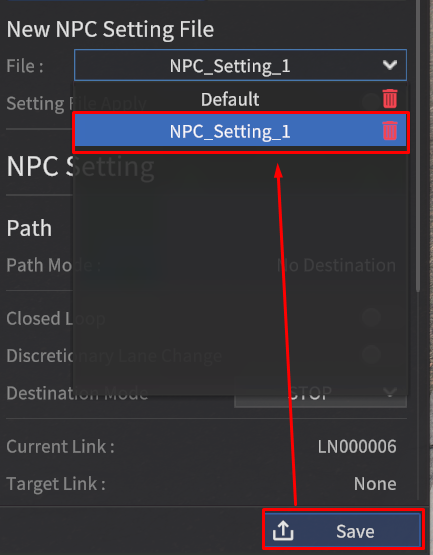
You can set the setting values (Path, Driving Parameters) of Sur-vehicle (NPC Vehicle) as a preset.
Save Setting File
enter or select the each of the vehicle options and click Save button.
Your setting preset is saved as “NPC_Setting_N” form.
Path
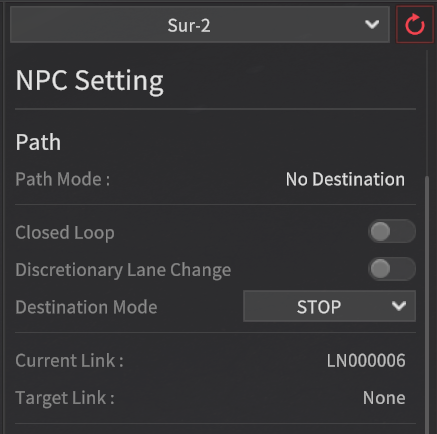
Path Mode
Destination : This mode activates when you press
Ctrl+mouse left-clickto set the destination of the Sur-vehicle to the desired point. Once reached its destination, the vehicle disappears or stops according to its Destination Mode option.No Destination : The default value of all Sur-vehicles (NPC vehicles). No set destination point and randomly drives around the map.
Closed Loop : When this mode is activated, setting the destination node automatically calculates the optimal path to the destination and back to the starting node.
Discretionary Lane Change : When toggle switch on, The Sur-vehicle randomly changes the lane.
Destination Mode
DESTROY : The vehicle disappears after it reaches its destination.
STOP : The vehicle stops after it reaches its destination.
Current Link : Displays the current link ID the Sur-vehicle is driving.
Target Link : Displays the target link ID the Sur-vehicle reaches.
Driving Parameters
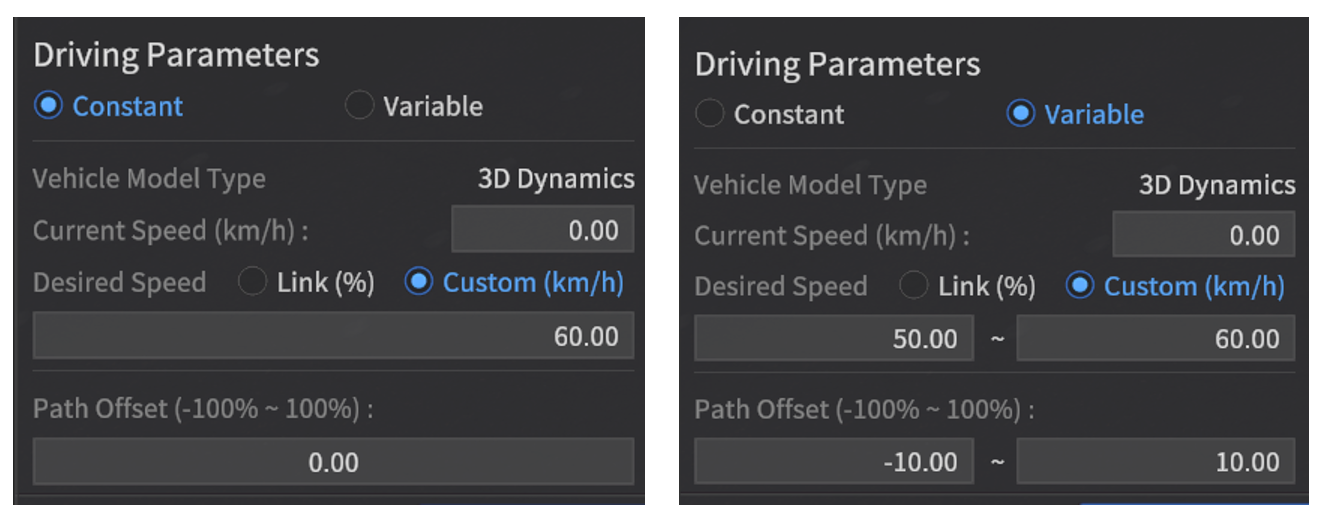
Constant : Enter the desired value
Desired Speed (km/h) : Sets the target speed of the Sur-vehicle. The vehicle may not be able to reach the target speed depending on the road condition.
Link (%) : The Sur-vehicle desired speed is set to a percentage value.
When this field set to 80%, the desired speed is set to 40 km/h when the link speed is 50 km/h.
Custom (km/h) : User customizes the Sur-vehicle’s speed.
Path Offset (-100% ~ 100%) : Sets how far from the centerline of the lane the Sur-vehicle drives. If the path offset value indicates 0, the vehicle drives the centerline. (left - , right +)
Variable : Same as the factors in Constant, but enter the range values.
Vehicle Model Type : 3D Dynamics / Kinematics
Current Speed (km/h) : Displays the current speed when the Sur-vehicle starts to drive.
Set a destination point
: By default, all MORAI Sur-vehicles follow random paths for each map when spawned.
But, you also can set a specific destination if you want your sur-vehicle to drive to the desired point.
When Sur-vehicles reach the destination, they either disappear or stop based on the Destination mode set in NPC Settings.
Select the Sur-vehicle to set a destination point
: Follow the below instructions if you want your Sur-vehicle to drive to the specific destination point.
1) Spawn Sur-vehicle (NPC vehicle) (Follow the above Spawn Sur-vehicle (NPC vehicle) step)
2) Select vehicle model (To select a vehicle model, click the vehicle and ensure Vehicle Info is displayed correctly to confirm selection.)
3) Press Ctrl, then you will see the red sphere (destination point) follows your mouse cursor. Mouse left-click to determine the destination point, at the same time, the red line is created as a path on the road.
4) Press Alt key to delete the destination point you set. Then, the Sur-vehicle follow random path as a default.
5) Press ESC key to apply the Sur-vehicle setting, and you can check that the vehicle drives properly based on the target point.
+) You can also move its destination point and the process is the same as 3). If you move the destination point, the former path is removed and the new path is created.
Set a path of Sur-vehicle (NPC vehicle)