
User Interface
This section explains the UI configuration provided by MORAI SIM: Drive.
The Basic UI
When you run the simulator, the default screen, including the selected map and vehicle, appears as shown below.
The basic UI of the simulator is divided into two sections:
Top Menu: This menu provides simulator functions and external integrations.
Bottom Menu: This menu allows for the adjustment of simulator screen settings.
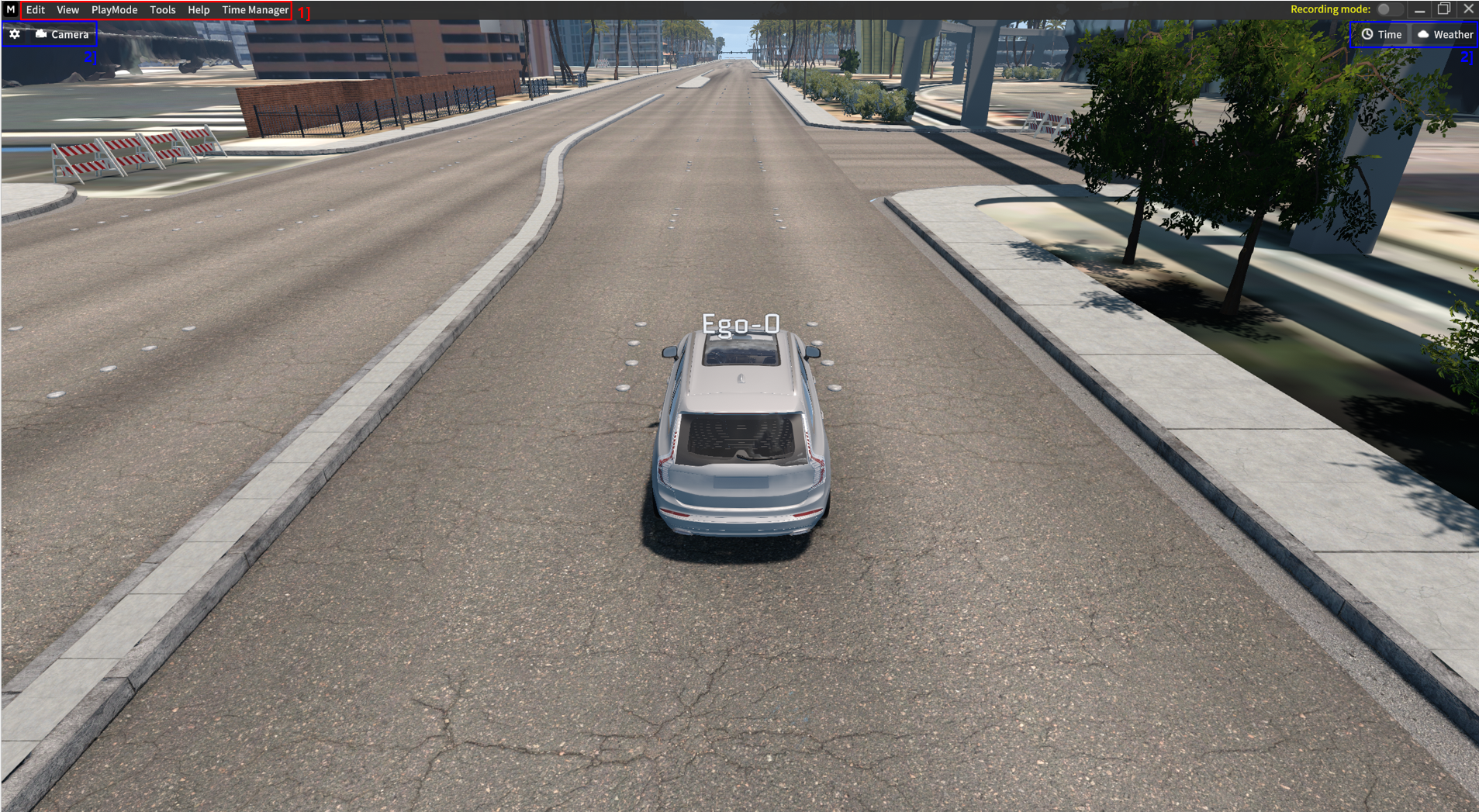
Default UI in the MORAI SIM: Drive
1] Top Menu
Edit: This menu includes all settings related to vehicle driving tests, such as vehicle, map, sensor, scenario, network, and dynamics control.
View: This menu displays a list of sensors, networks, and obstacles currently in use by the driving vehicle, as well as viewing the HD map format applied in the simulator, such as MGeo Viewer.
PlayMode: This menu provides advanced features that can be used during driving tests, such as Replay and Ghost modes.
Tools: This menu includes communication functions between the vehicle and surrounding objects, such as Occupancy Grid.
Help: This menu offers shortcuts and system information related to vehicle control (keyboard mode) and the simulator's main functions.
Time Manager: This menu features Real-time mode and Simulation time mode, enabling automatic updates for MORAI SIM and synchronizing the operation cycles of sensors.
2] Bottom Menu
Viewport Setting: Configuration for displaying vehicle clusters and performance, as well as map information (Refer to: Tips)

Camera: Settings for the camera perspective and performance that views the simulator driving screen (Refer to: Tips)

Time: Time settings for the simulator driving session

Weather: Weather settings for the simulator driving session


You can change the driving environment of the simulator according to user conditions using the Time and Weather settings (Example: Rainy and dark conditions).
Refer to the Tips related to driving environment settings.
Vehicle Info UI
When you left-click on the Ego-vehicle on the screen, the Vehicle Info UI opens.
The Vehicle Info window displays the status of the Ego-vehicle, including speed, acceleration, and control output values.
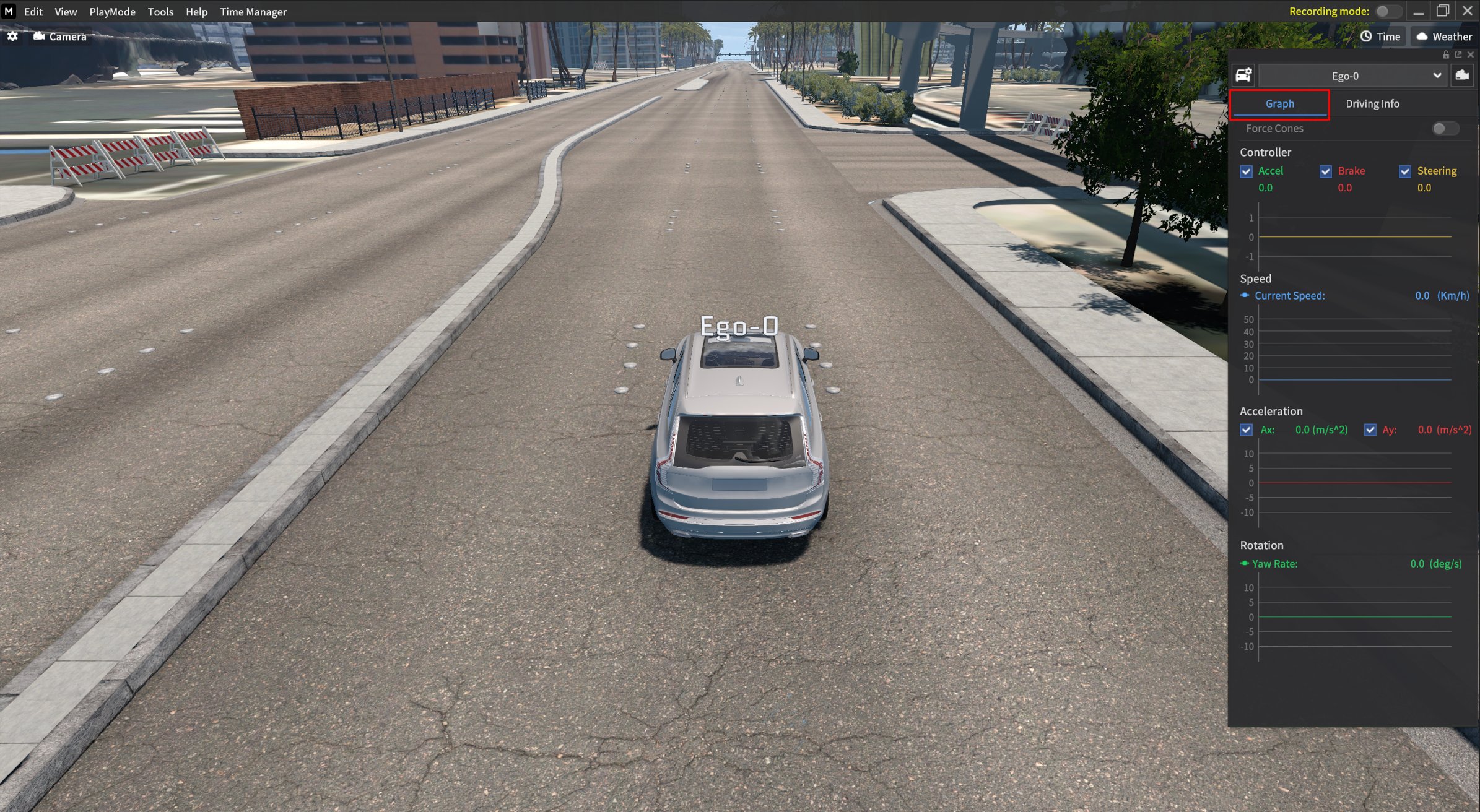
Driving Info(Ego)
The Vehicle Info consists of the Graph and Driving Info menus.
In the Driving Info, it displays the control mode and detailed driving information of the Ego-vehicle as follows:
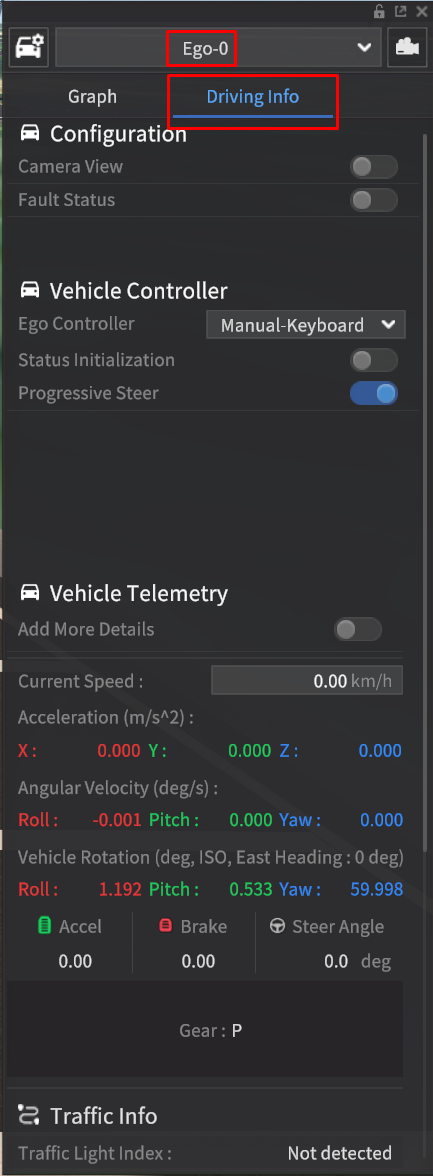
Camera View
When the toggle is activated, a UI is created to show the selected vehicle from a rear view.
Vehicle Position
This indicates the current position information of the vehicle (X, Y, Z).
Ego Controller
This represents the methods for controlling the Ego vehicle.
The modes include Manual-Keyboard, Manual-GameWheel, AV-MORAI Built-In, and AV-ExternalCtrl.
Vehicle Telemetry
The Vehicle Telemetry in the Driving Info shows the driving status of the Ego-vehicle as follows:
Add More Details: Information related to the state of the Ego-vehicle is displayed.
Current Speed: This indicates the speed of the vehicle, measured in kph.
TIP The user can input a number and press theEnterkey to instantaneously set the vehicle to that speed.Acceleration: This indicates the acceleration of the vehicle, measured in m/s².
Angular Speed: This indicates the angular velocity of the vehicle, measured in deg/s.
Vehicle Rotation: This indicates the rotational state of the vehicle in the Global ENU coordinate system, measured in degrees.
Accel: This represents the input level of the vehicle's accelerator pedal (0 to 1).
Brake: This represents the input level of the vehicle's brake pedal (0 to 1).
Steer Angle (deg): This indicates the degree of rotation of the vehicle's front wheels. Specifications vary between vehicles (-Max Wheel to Max Wheel).
Gear: This indicates the gear status of the vehicle (
P/R/N/D).

Add More Details Toggle:
When the toggle button is turned On, information related to the vehicle's status is displayed, and the following items have been added.
Side slip angle: This indicates the difference between the direction the wheel is actually traveling and the steering angle when a tire steering angle (steer angle) occurs.
Tire force: This indicates the lateral force generated by the tire based on the Local coordinate system.
Tire concerning stiffness: This indicates the lateral force generated by the tire per side slip angle based on the Local coordinate system.
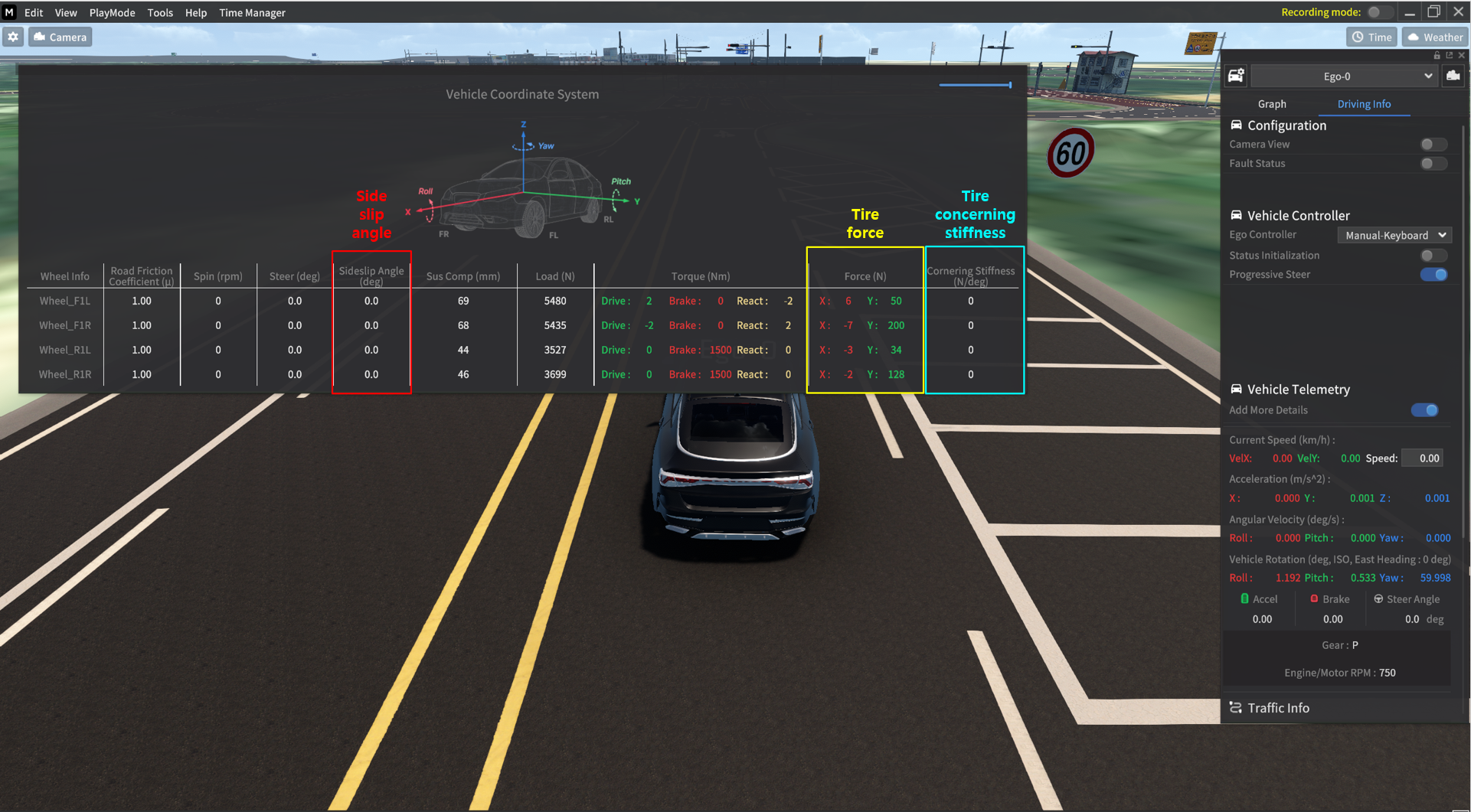
NOTE If the vehicle's speed is “0,” the Tire Concerning Stiffness value is not displayed.
NOTE In the AV-MORAI Built-In mode (formerly known as Cruise mode), the Add More Details toggle button is not activated, so the corresponding values are not displayed.
Traffic Info
In the Driving Info, the Traffic Info configuration displays information about the surrounding traffic related to the Ego-vehicle as follows:
Traffic Light Index: This indicates the index of the traffic light that the vehicle should be observing from its current location. If the traffic light to be observed is ambiguous (in cases where multiple traffic lights are available from the current location) or if there is none, it is displayed as Not detected.
Driving Info (NPC)
This window is similar to the Driving Info (Ego) window but opens when selecting Sur-vehicles instead of the Ego-vehicle.
The detailed descriptions below will omit functions or status information that is same as the Ego-vehicle’s window and will only describe the additional features.
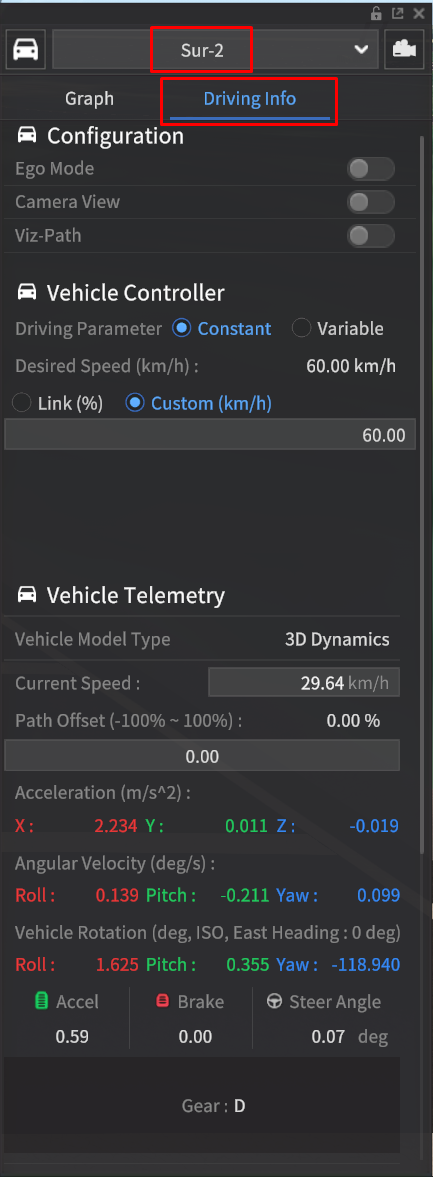
Ego Mode
This feature converts a Sur-vehicle into an Ego-vehicle.
It is used when multiple Ego-vehicles are operated in the simulator.
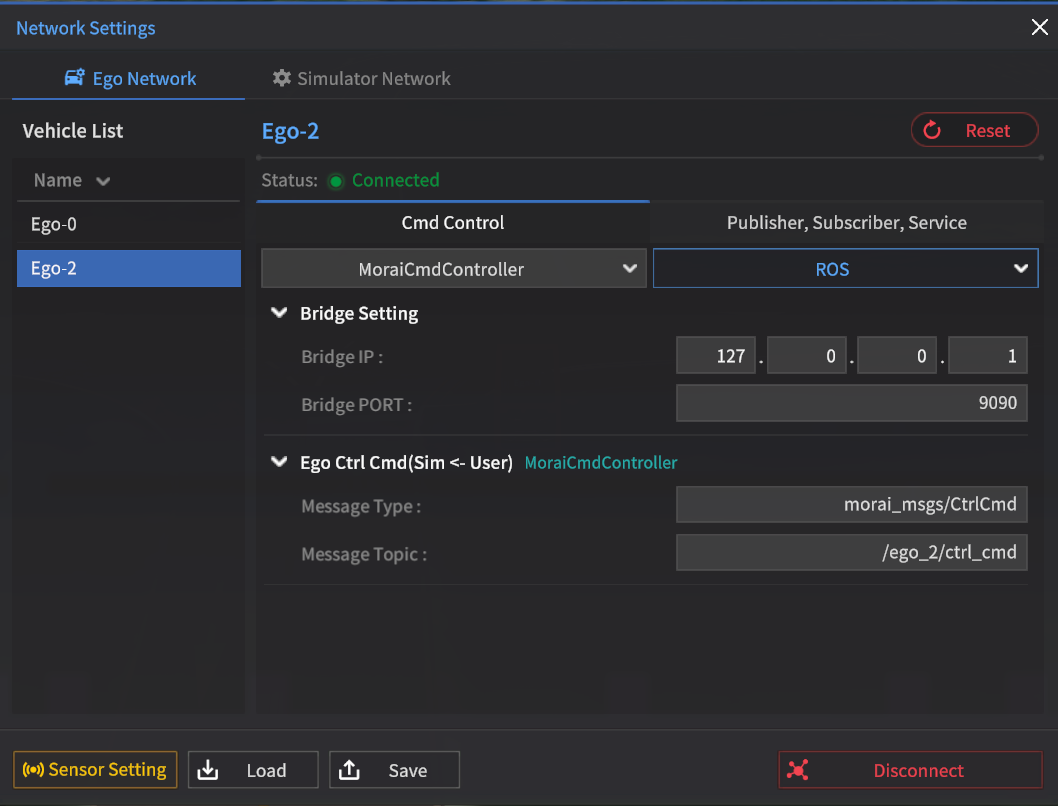
When the Ego Mode is activated on a Sur-vehicle, a Network Settings appears for the converted Ego-vehicle (Ego-2), allowing vehicle control via network connections for each Ego.
Viz-Path
This function visualizes the driving path of the Sur-vehicle.
In this case, the Sur vehicle operates in AV-MORAI Built-In.
Vehicle Telemetry
The Vehicle Telemetry that shows the driving status of the Sur-vehicle in Driving Info is as follows:
Desired Speed Mode: Indicates the target speed mode for the NPC vehicle.
Link Speed (unit: %): Takes the target speed as a specific percentage of the speed assigned to each link.
Constant Speed: Sets a fixed target speed. In this case, deceleration due to ACC or curvature is automatically determined by an internal algorithm.
This refers to the maximum speed that can be set for that vehicle and does not imply the target speed for all driving conditions.
Traffic Info
The Traffic Info that shows the surrounding traffic information of the Sur-vehicle in Driving Info is as follows:
Target Link: Displays the link index that the vehicle aims to drive toward.
Stop Line Index: Displays information about the stop line that should be observed from the current position. If none, it is indicated as Not detected.
Stop Line Distance (m): Displays the distance between the recognized traffic light and the vehicle.
Collision Distance (m): Displays the distance to potential collision objects (vehicles, obstacles, etc.) in front. If not found, it is represented as 999.