Spawn Custom Object
This section describes the process how to create your own custom object besides the objects provided by MORAI SIM: Drive.
Network Configuration (Same as the Spawn Scene process)
1] Click the link to download the UNITY HUB
: Click here to download the UNITY HUB
2] Copy & Paste the UNITY 2020.3.6 link below
: unityhub://2020.3.6f1/338bb68529b2

To create the Extra Asset Bundle, install the UNITY HUB.
When the UNITY HUB installation is completed, copy and paste the 2] 2020.3.6 download link and complete the overall installation.
3] Download DLL
: Click here to download the Extra AssetBundle DLL
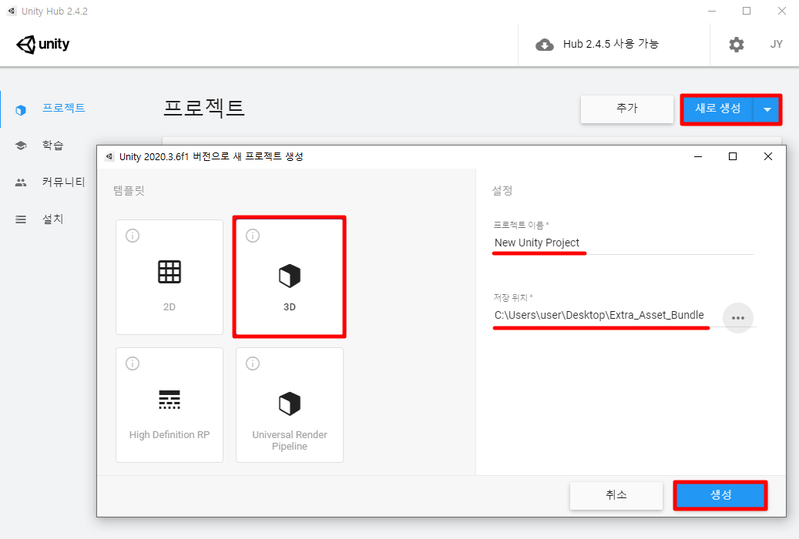
Create the New Unity Project. (Click the red boxes in the picture below)
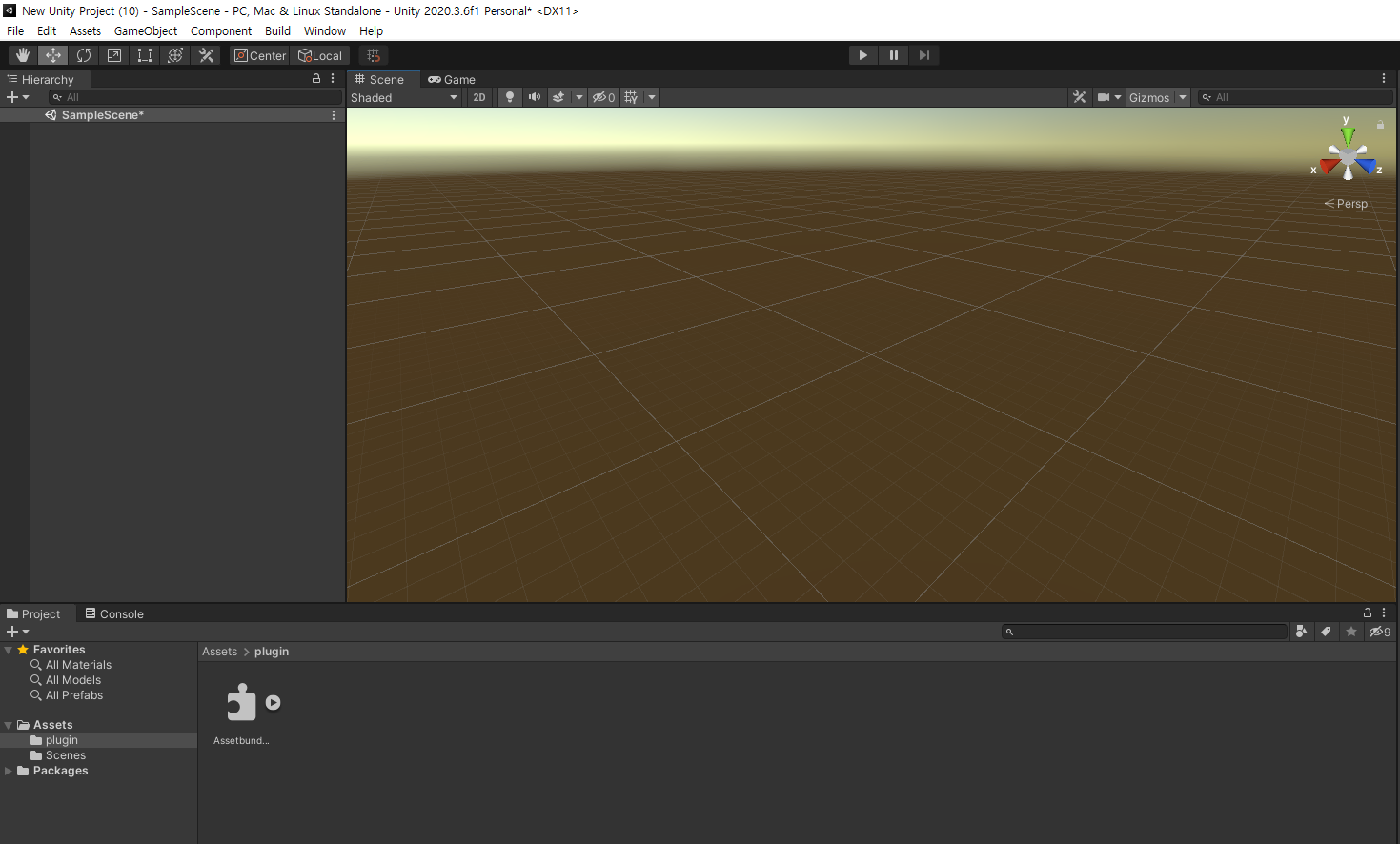
Create a plugin folder in your Project Asset folder, and place the downloaded AssetbudleEditor.dll inside.
Go to Build > AssetBundles > AssetBundle Editor to display the AssetBundle Editor.
When the AssetBundle Editor is displayed, multiples folders to create the Extra Asset Bundle are automatically created.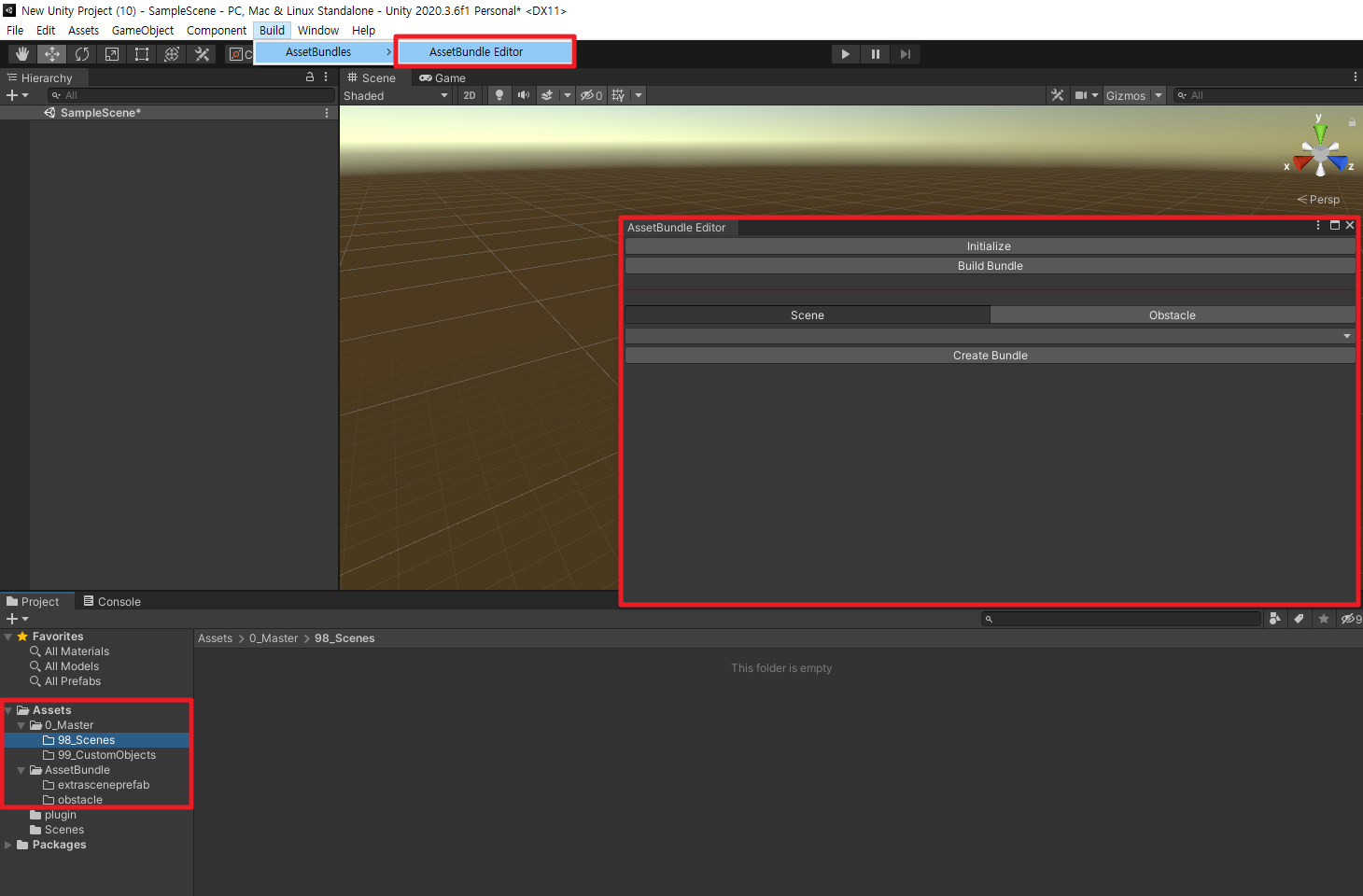
Initialize: Editor initialization. Initialization is automatically operated when opening the editor. Click the Initialize button again to reset when the data is added while the editor is on.
Build Bundle: Run Build Bundle.
Scene: Tab for creating the objects that will make up the Scene.
Obstacle: Tab for creating the objects for the Obstacles.
Spawn Custom Object
Create another folder with the desired name of the Object (should be in small letters) and put the Object file (Cube) in the folder (test1).
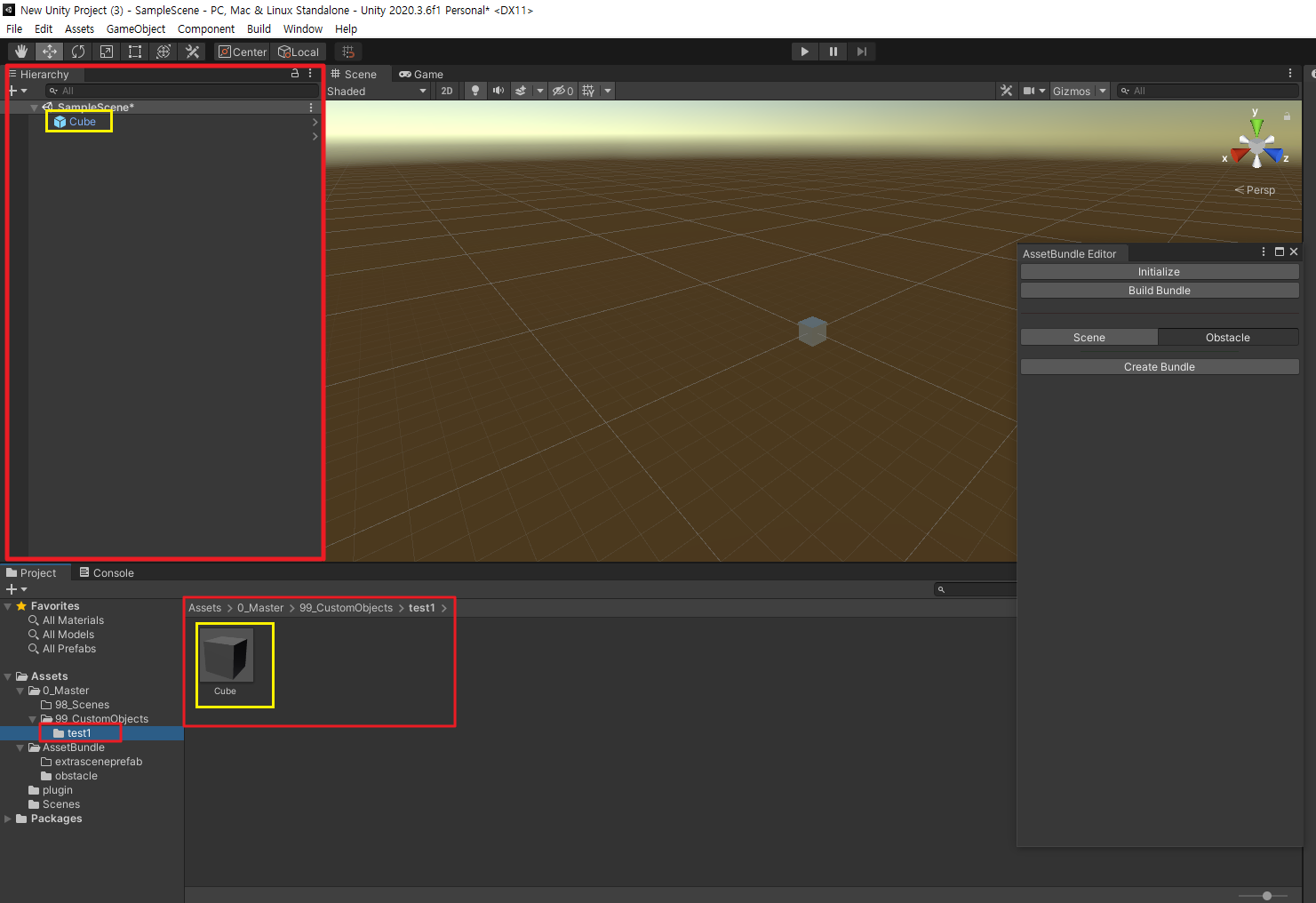
Go to Build > AssetBundles > AssetBundle Editor, then click 1) Initialize tab and 2) Obstacle tab, and 3) Create Bundle button.
Test1 file (Prefab Asset) has been created in the Obstacle folder
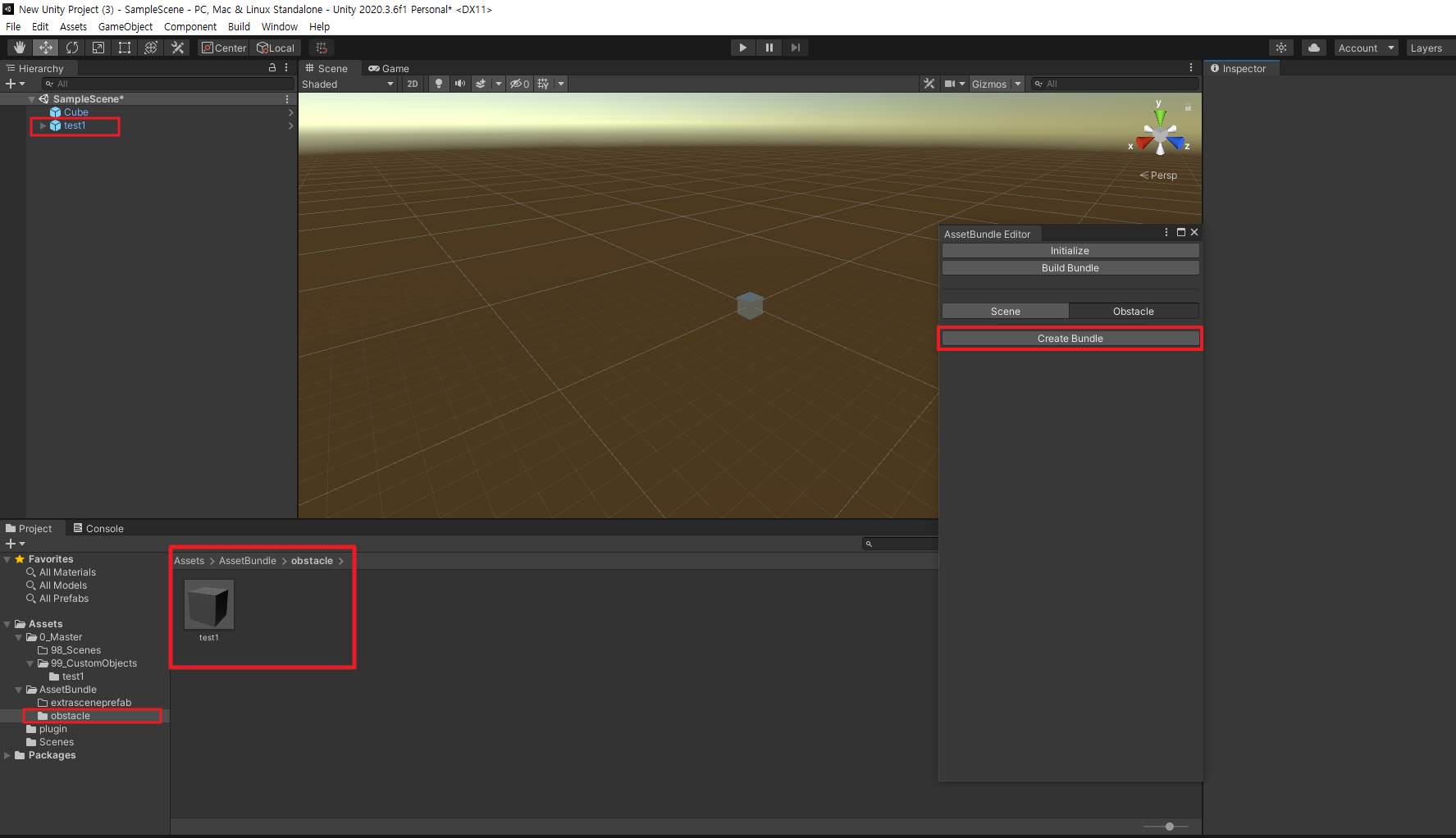
Click Build Bundle button to create Bundle.
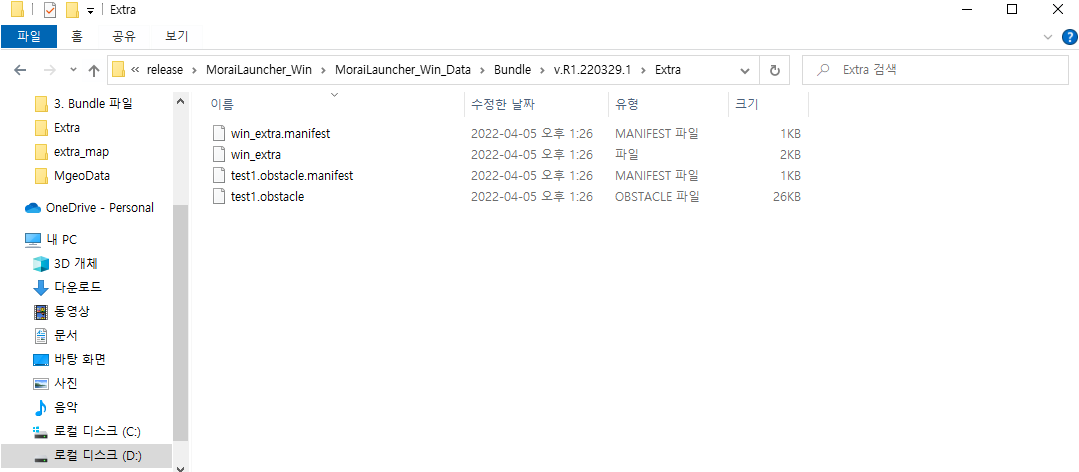
You can confirm the created Bundle in C:/ExtraAssetBundle/win_extra/.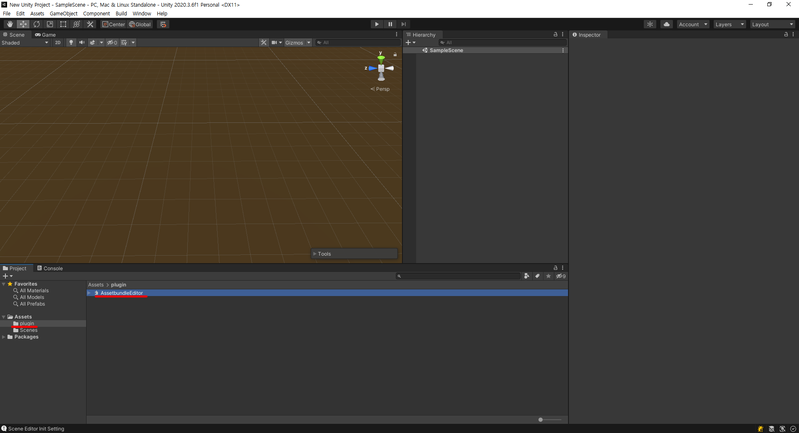
Move the created Bundle file to the path \MoraiLauncher_Win_data\Bundle\(Version)\Extra in the folder where the Launcher is installed.
Go to Edit > Scenario > Scenario Edit Mode in the MORAI SIM: Drive simulator.
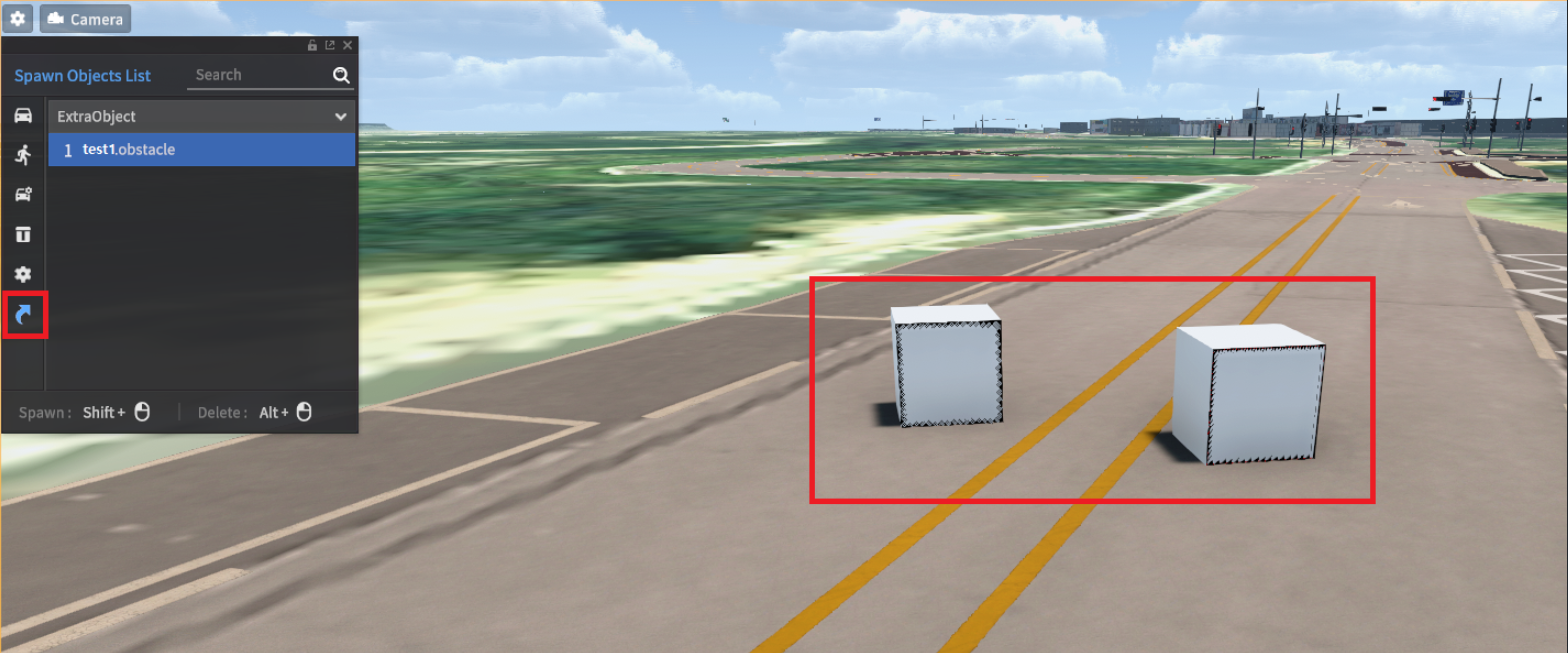
Select the test1.obstacle in the ExtraObject, then pressShift+mouse left-clickto spawn obstacle. PressAlt+mouse left-clickto remove the active obstacle.