
Simulator Screen Control
This section explains how to control the overall view of the simulator screen, including the camera view of the driving vehicle.
Set Cam
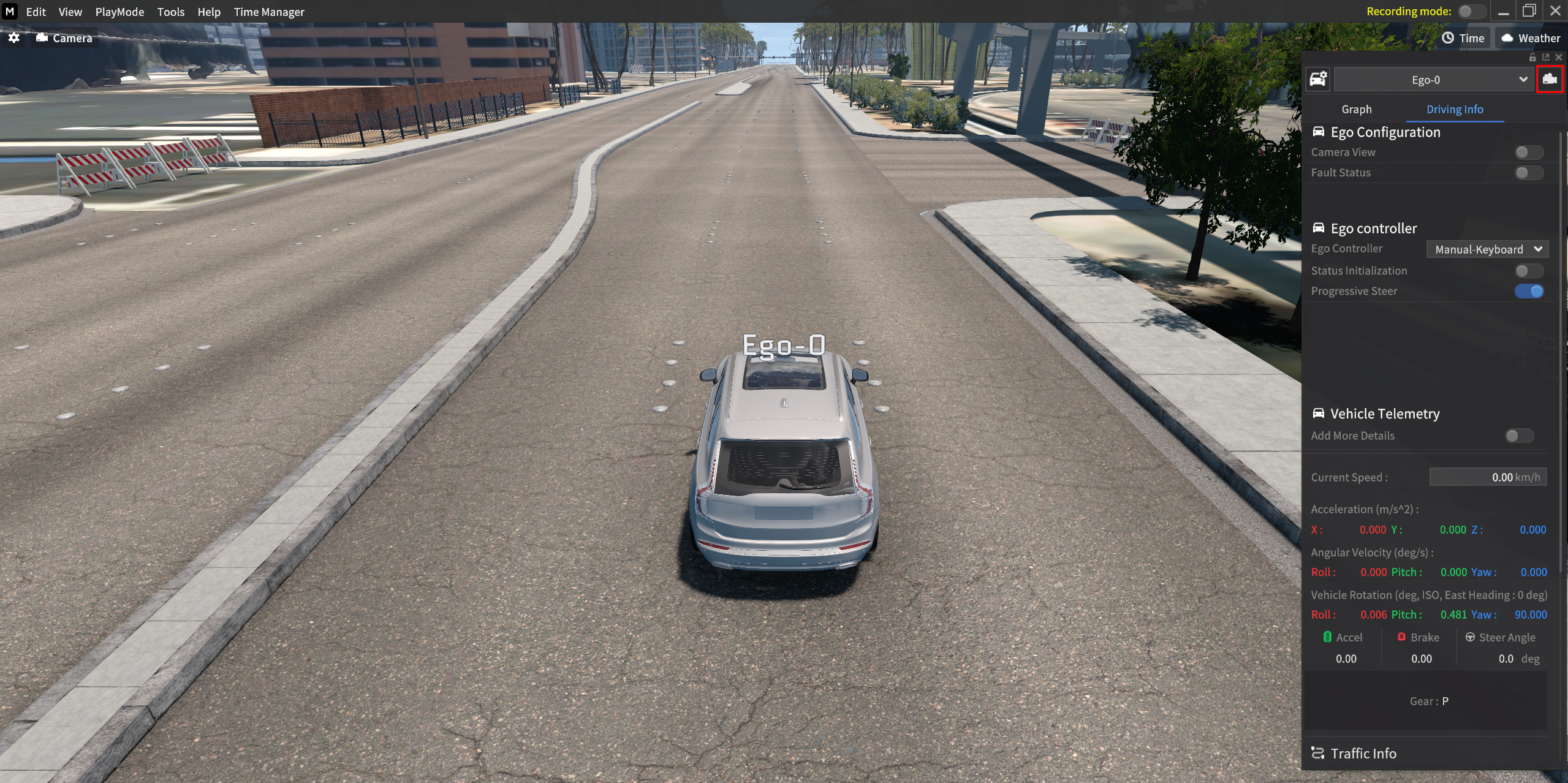
By clicking the camera icon at the top-right of the Vehicle Info window, you can switch to the perspective that views the driving vehicle.

If you cannot find a specific vehicle, you can select the desired vehicle using the dropdown menu located immediately to the left, and then click Set Cam to switch to the driving view of that vehicle.
Viewport Setting
Displays simulator performance, vehicle, and map information on the simulator screen.
Show Performance
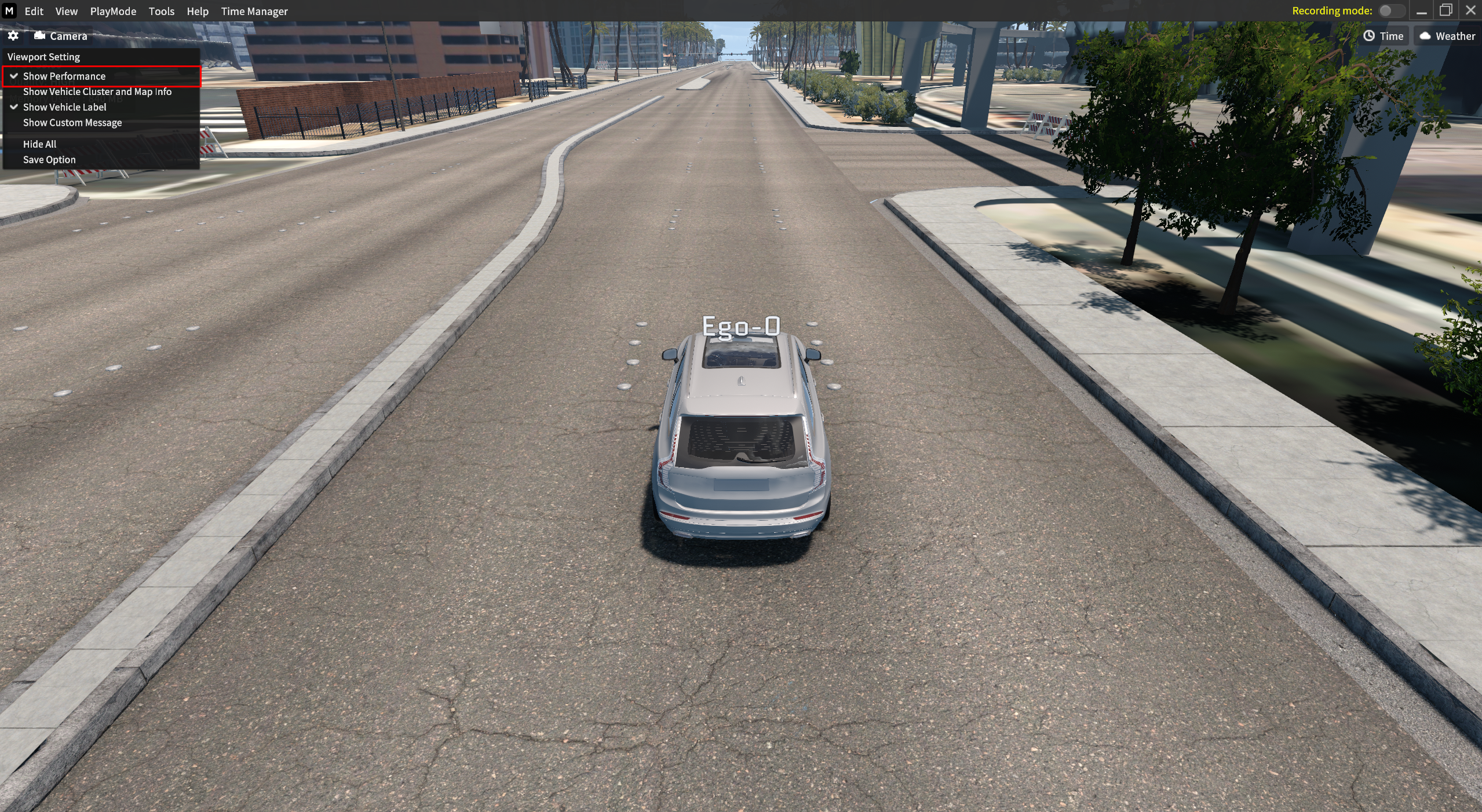
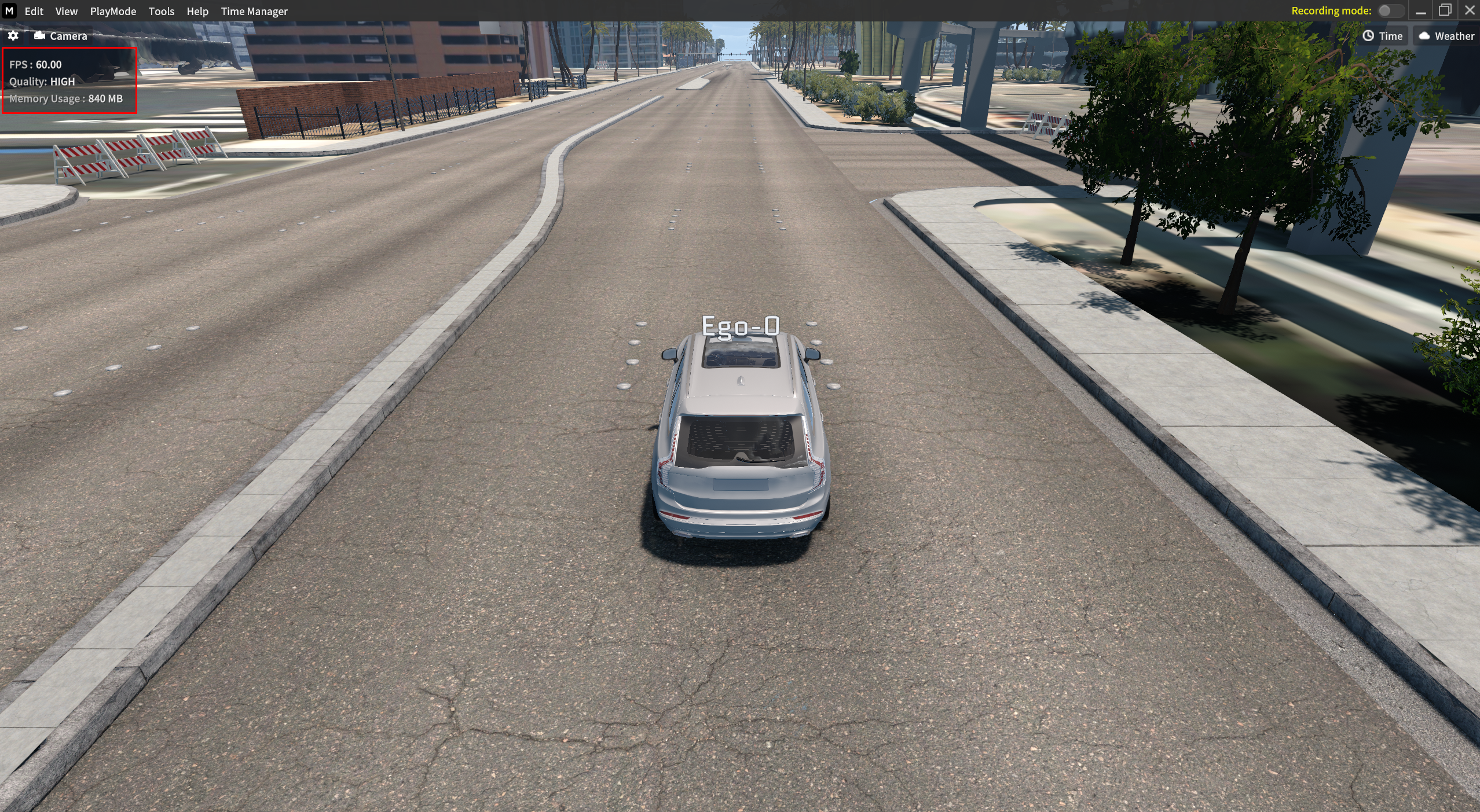
To confirm the vehicle’s performance, go to
 icon > Show Performance.
FPS : FPS currently measured on the simulator.
Quality : The Graphics Quality of the simulator.
Memory Usage : Memory usage while running the simulator.
Show Vehicle Cluster and Map Info
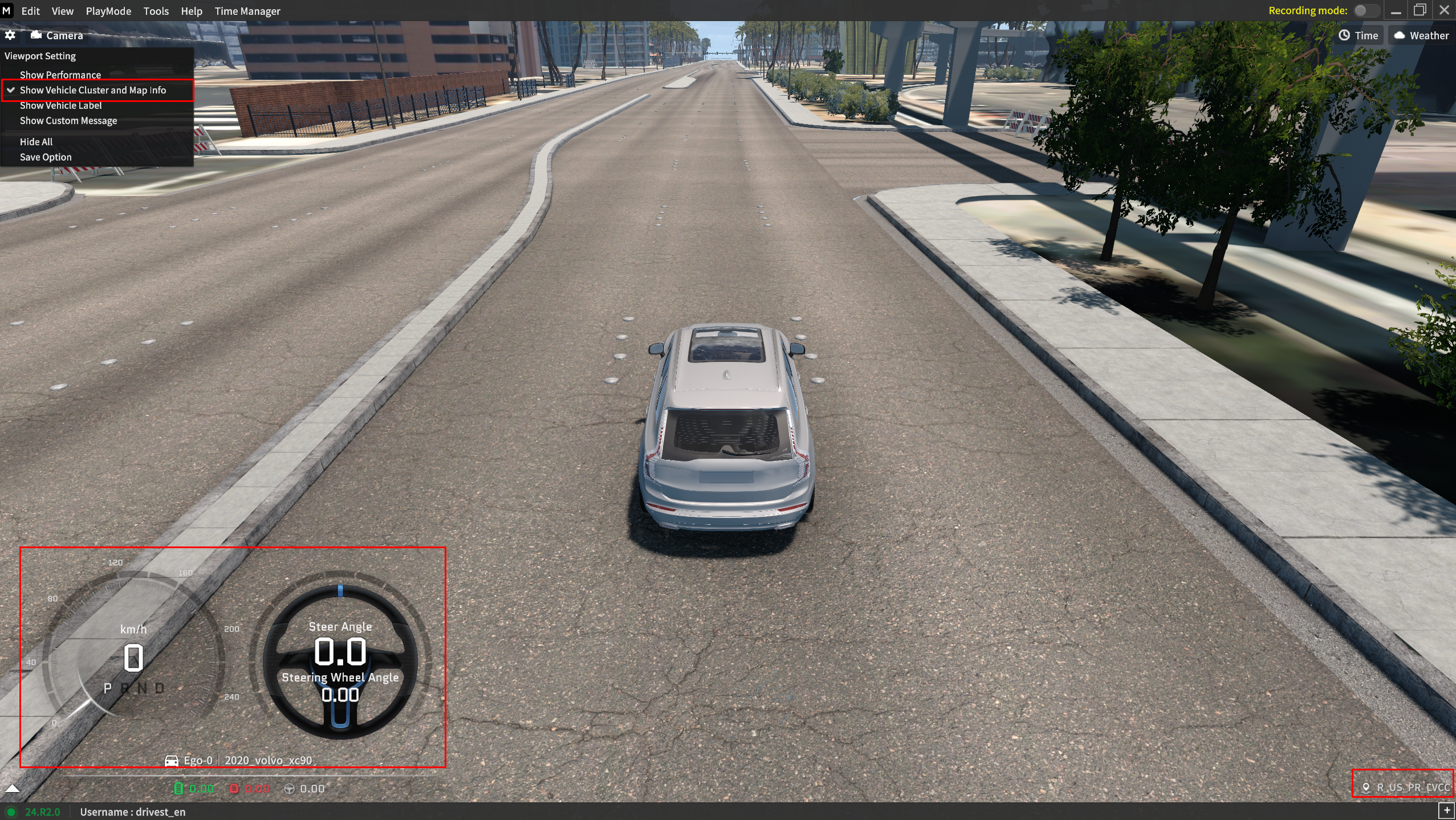
Go to
icon > Show Vehicle Cluster and Map Info to find out the information about Dashboard, Steering Wheel, Ego, Map, and etc.Click to view the current vehicle's cluster information based on its steering.
When you click the Map name on the bottom-right, you can copy and paste the current map information.
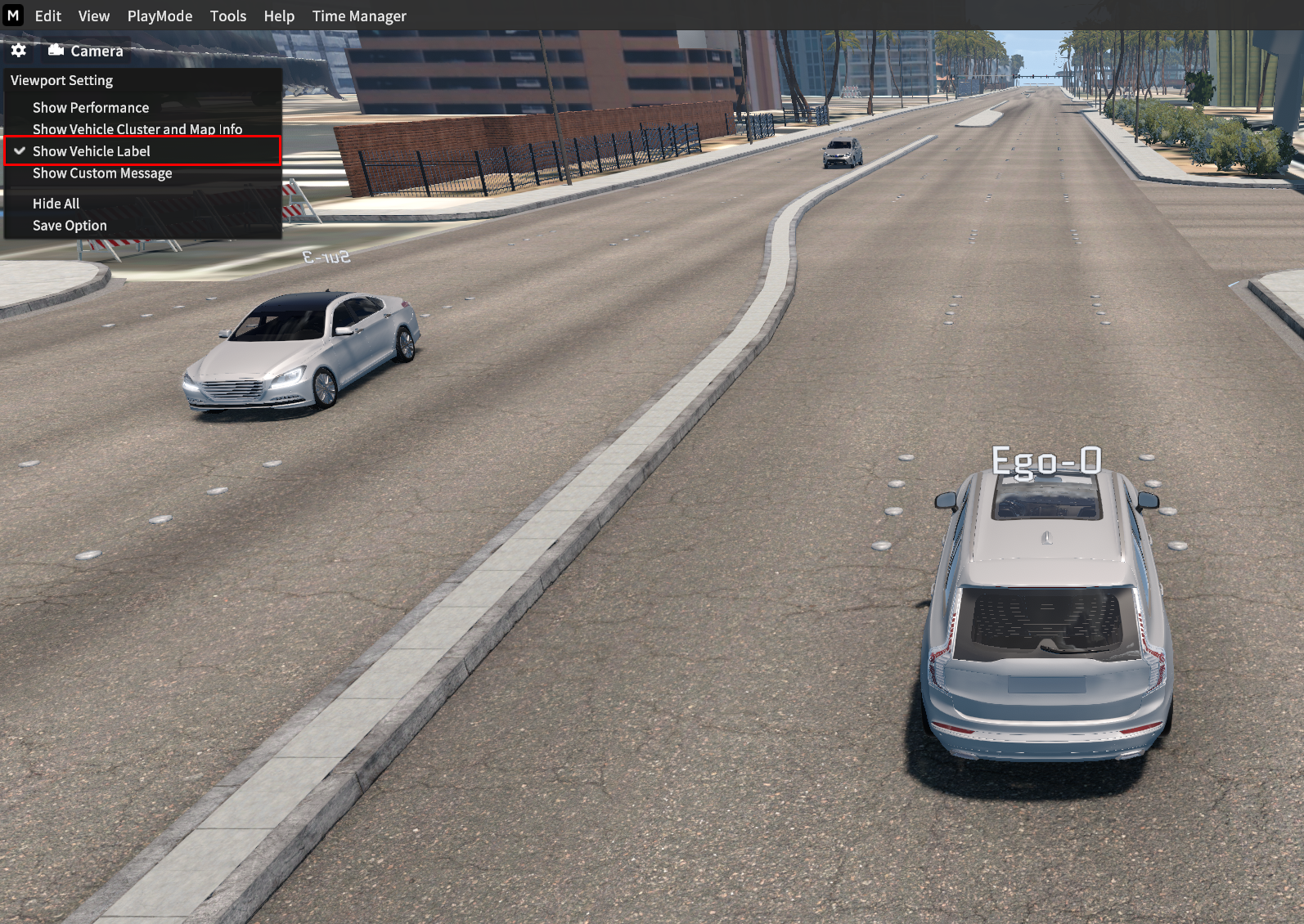
Show Vehicle Label
Go to
icon > Show Vehicle label to display or hide the vehicle’s label. (both Ego-vehicle and Sur-vehicle).
Camera Setting
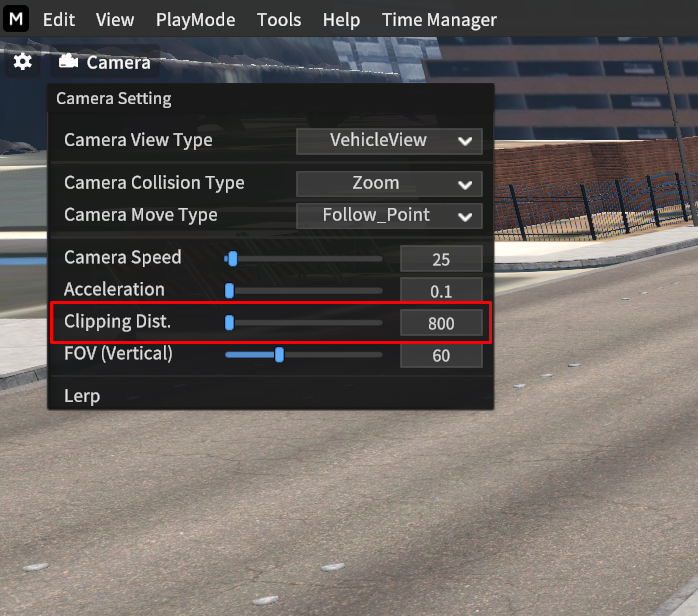
Switch the simulator screen viewpoint from various angles and adjust the camera distance.
Click the icon to open the Camera Setting.
Camera Setting
Switch Camera View Type
Perspective View: In this mode, the camera moves independently of the vehicle, and you can control its view direction with
W,A,S, andDkeys.Top View: The camera switches to a top-down perspective.
Vehicle View: The camera follows and rotates around the main vehicle (Ego-0 vehicle) in focus.
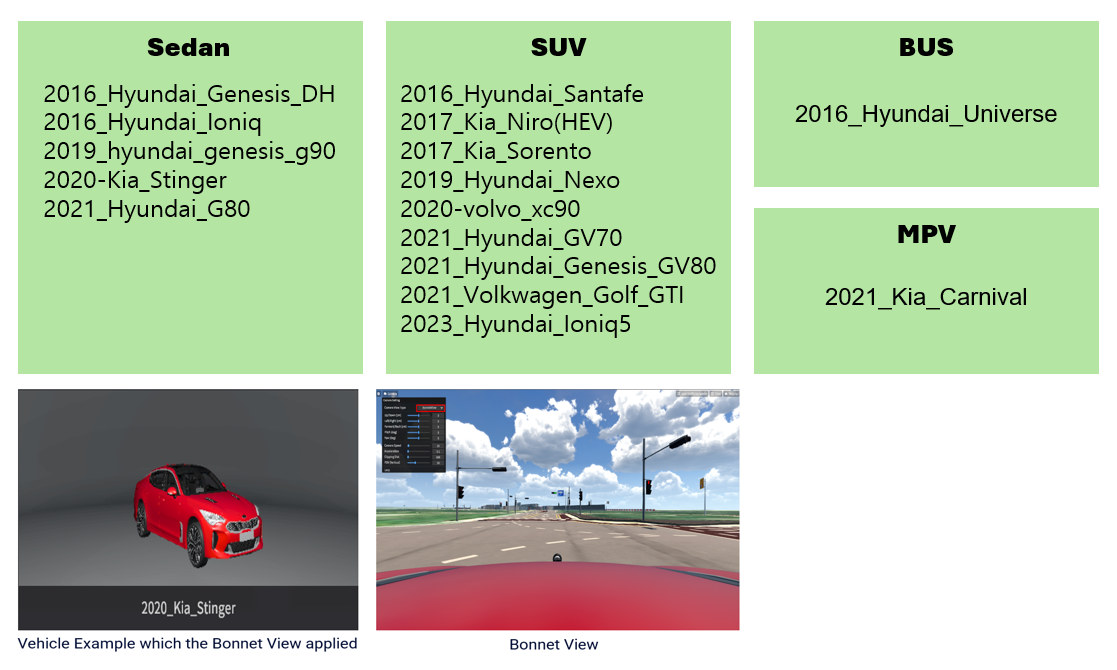
Bonnet View: The camera switches to a bonnet view, looking down from the front of the vehicle. (Check out the below vehicle list)
Camera Collision Type: This feature is for whether the camera perspective intersects with the surrounding terrain.
Zoom: If the camera perspective is zoomed-in and close to the surrounding terrain, the camera view does not penetrate it.
None: If the camera perspective is zoomed-in and close to the surrounding terrain, the camera view penetrates it.
Camera Speed: This features is to adjust the camera speed.
Acceleration: This features is to adjust the camera acceleration when the camera moves.
Clipping Dist.: This feature is for adjusting the main camera's viewing distance.
FOV (Vertical): This feature is for zooming-in and out the camera view based on the vertical FOV.
Lerp: Smooths the movement of the camera when using the mouse to change the POV of the camera.