
Shaded Area
This section describes how to spawn the Shaded Area.
1. Shaded Area
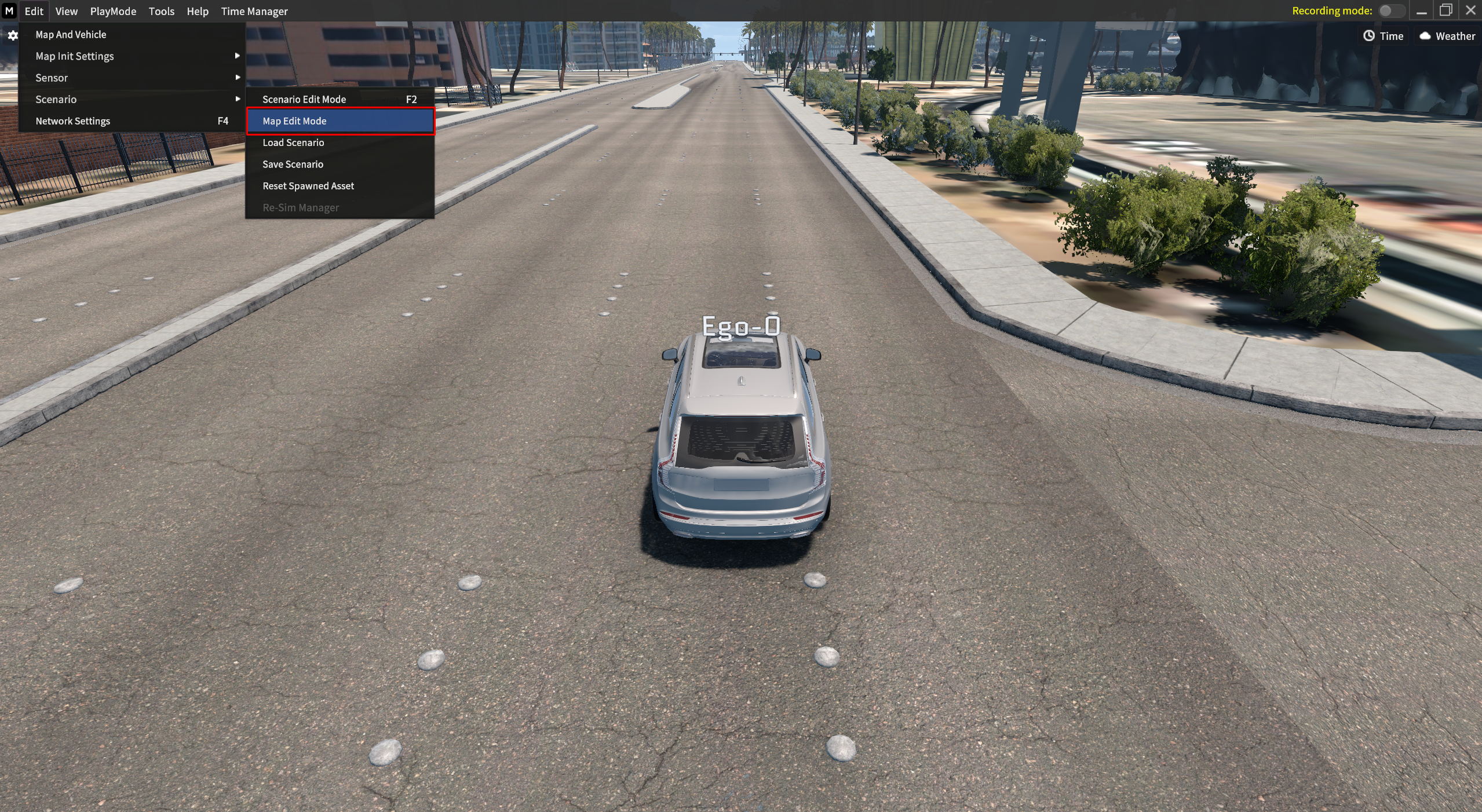
Go to Edit > Scenario > Map Edit mode to access Map Edit mode and spawn the shaded area.

The term has been changed as below.
Denied Area → Shaded Area
2. Spawn & Remove Shaded Area
Click the Shaded Area in the Map Object List, then follow the below process.
Press
Shift+Mouse left-clickto spawn the Shared area.Press
Alt+Mouse left-clickto delete the active Shared area.
3. Position, Rotation, and Scale Setting
There are 2 different ways to set the Position, Rotation, and Scale of Shared Area.
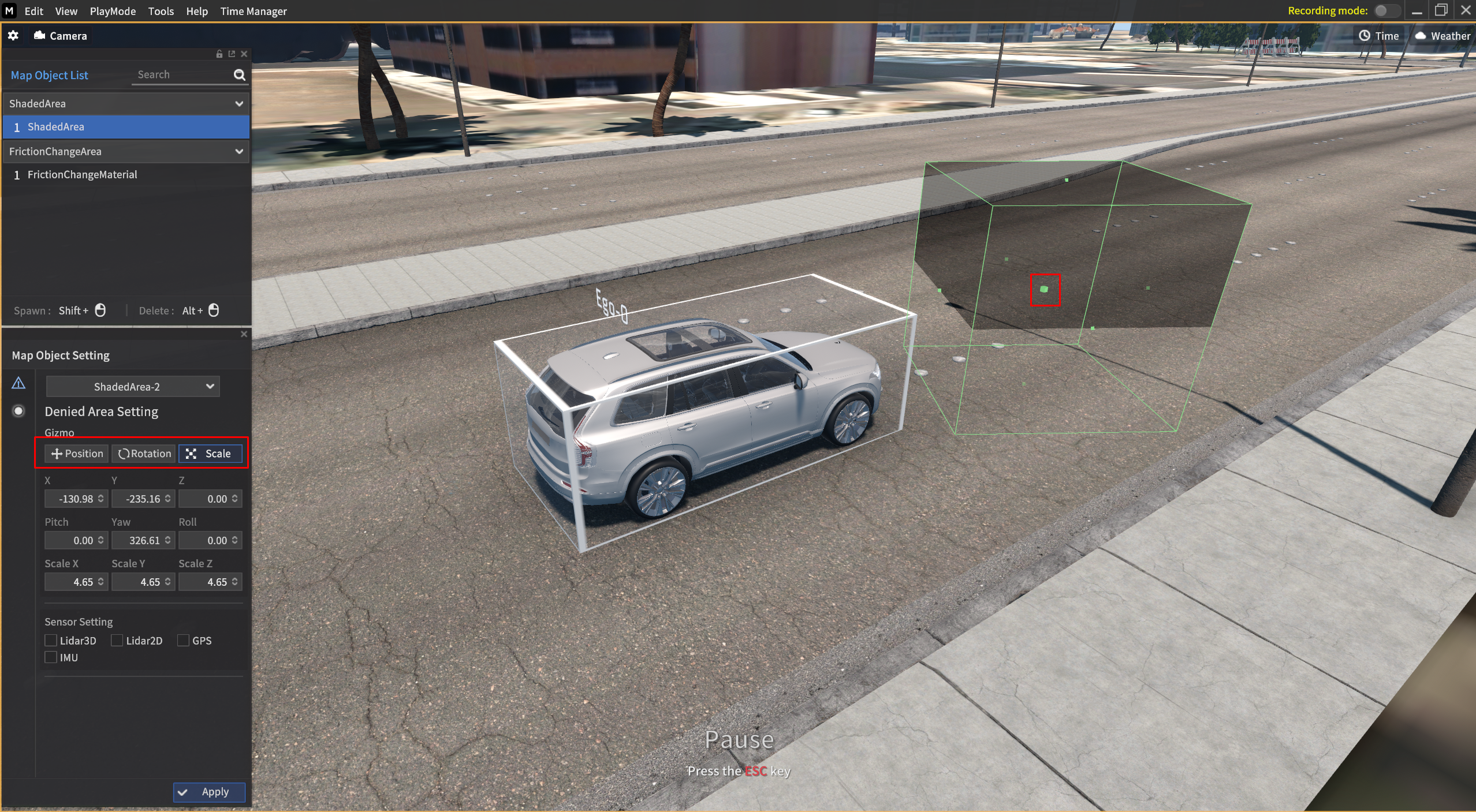
1) Select Position/Rotation/Scale in the Gizmo factor & Mouse Drag and Drop
Click Position/Rotation/Scale you want to set, then mouse drag and drop the Shared area to adjust each of them.
2) Directly input each of the desired values
Position (X,Y,Z)
Directly input the X,Y, and Z values
Example: Enter the X value to 10
Rotation (Roll, Pitch, Yaw)
Directly input the Roll, Pitch, and Yaw values
Example: Enter the Pitch value to 45 (Rotate 45 degrees)
Scale (Scale X,Y,Z)
Directly input the Scale X,Y, and Z values
Example: Enter the Scale X values to 2.0 (m) (Adjust the Scale)
4. Map Object Setting > Sensor Setting
Tick each sensor's name in the checkbox in Sensor Setting in the Map Object Setting.
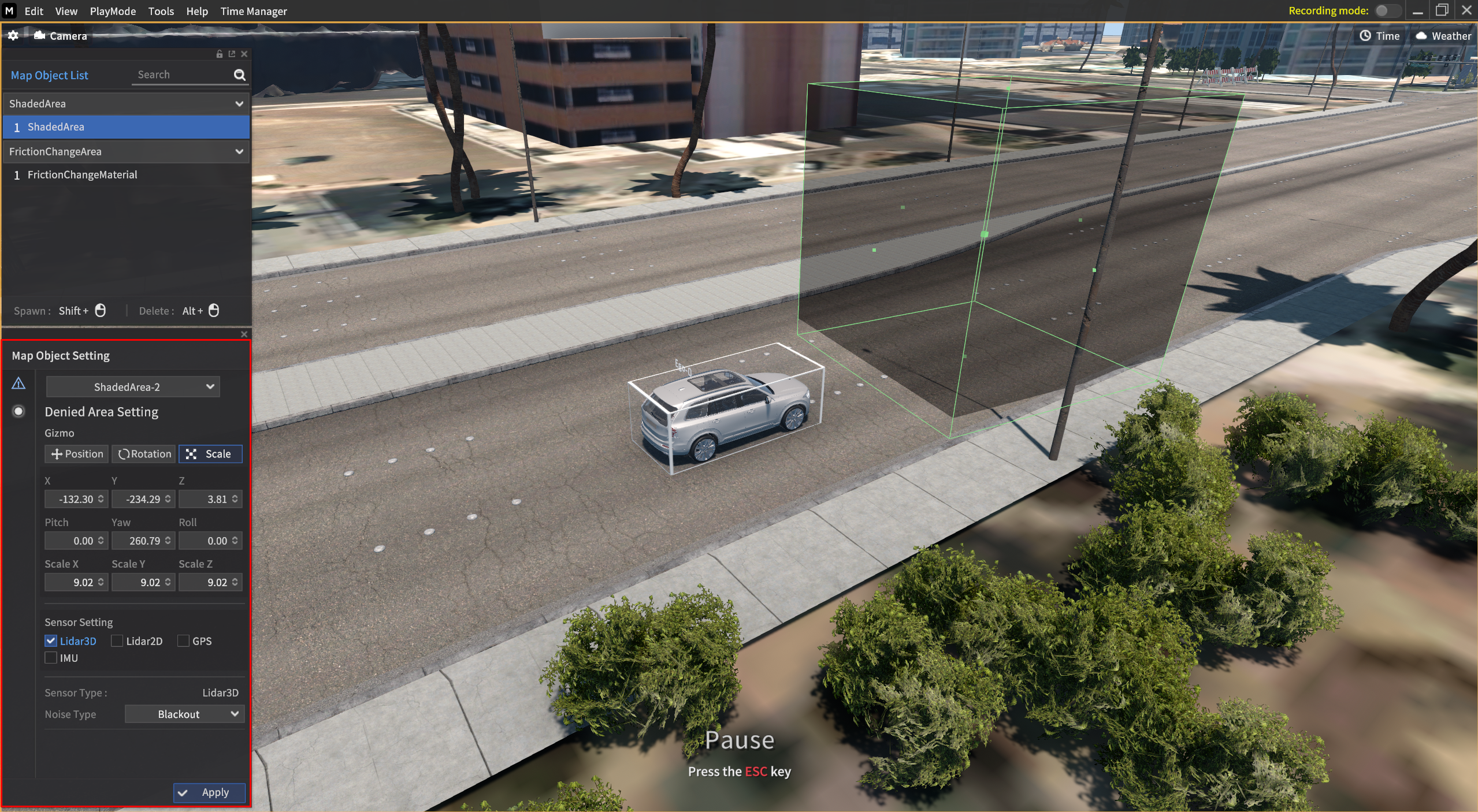
When ticked the sensor in Sensor Setting,
below selected sensor parameter is activated on the bottom of the Map Object Setting.
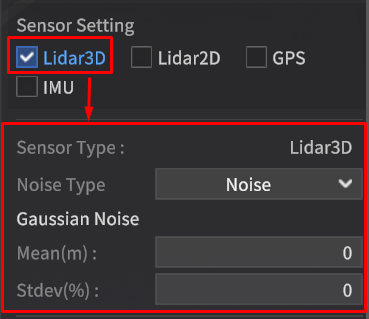
Noise Type
2D/3D LiDAR
Black out: When select the noise type to Blackout, Point Cloud values are output as bin values.
Noise: When select the noise type to Noise, LiDAR output value is modified depending on the parameters in Gaussian Noise.
GPS
Black out: When select the noise type to Blackout, Latitude, Longitude, and Altitude values output as 0.
Noise: When select the noise type to Noise, GPS output value is modified depending on the parameters in Gaussian Noise.
IMU
Black out: When select the noise type to Blackout, Orientation, Angular Velocity, Linear Acceleration values output as 0.
Noise: When select the noise type to Noise, IMU output value is modified depending on the parameters in Gaussian Noise, Bias-Instability Noise, and Random Walk Noise.