
MORAI SIM Time Manager
The current MORAI simulator has two modes for controlling time: Real Time Mode and Synchronous Mode. In Real Time Mode, the simulation operates in real-time, but irregular issues such as interface data delays can occur depending on the PC's specifications and conditions.
The Synchronous Mode provides time control features that allow synchronization with an external user's PC, but there is an issue where all data is synchronized based on a single external trigger point.
Therefore, based on the time managed internally by MORAI SIM, the Time Manager was designed to expand the functionality of Synchronous Mode, allowing it to operate as follows.
Sensors and messages provided by MORAI SIM send and receive data according to the frame rate interval.
Use the external user algorithm in sync with MORAI SIM according to the algorithm's operating cycle without any modifications.
MORAI SIM Time Mode
There are 2 types of MORAI SIM operation modes as follows:
Real Time Mode
Simulation Time Mode
Synchronous Mode On
Synchronous Mode Off
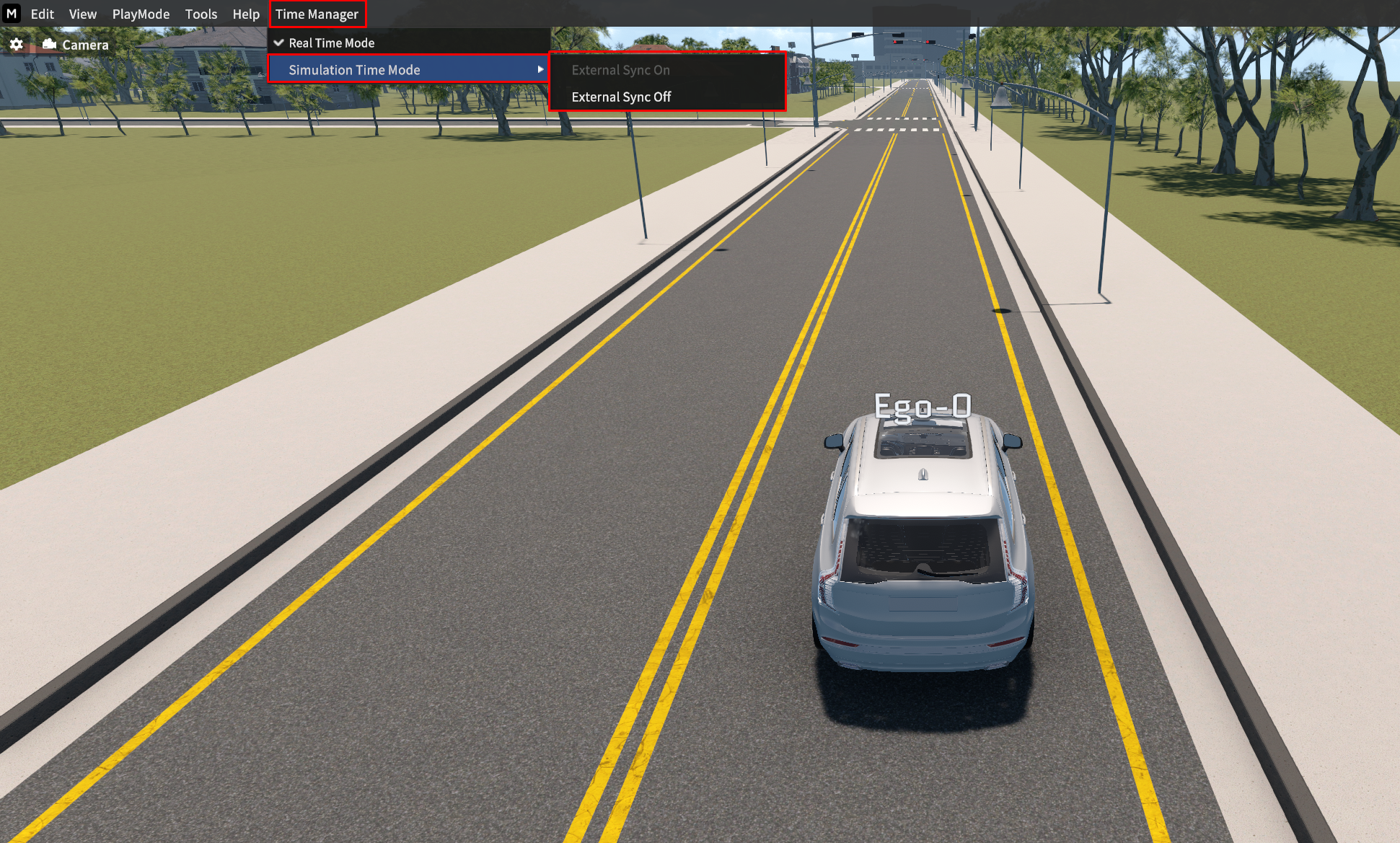
Sync mode ON in map “V_RHT_Suburb_02”
Real Time Mode
It operates based on real time, and its performance is affected by the specifications of the PC on which MORAI SIM is installed.
To set the MORAI SIM frame for Real Time Mode, go to Tools > Option > System > Target FPS.
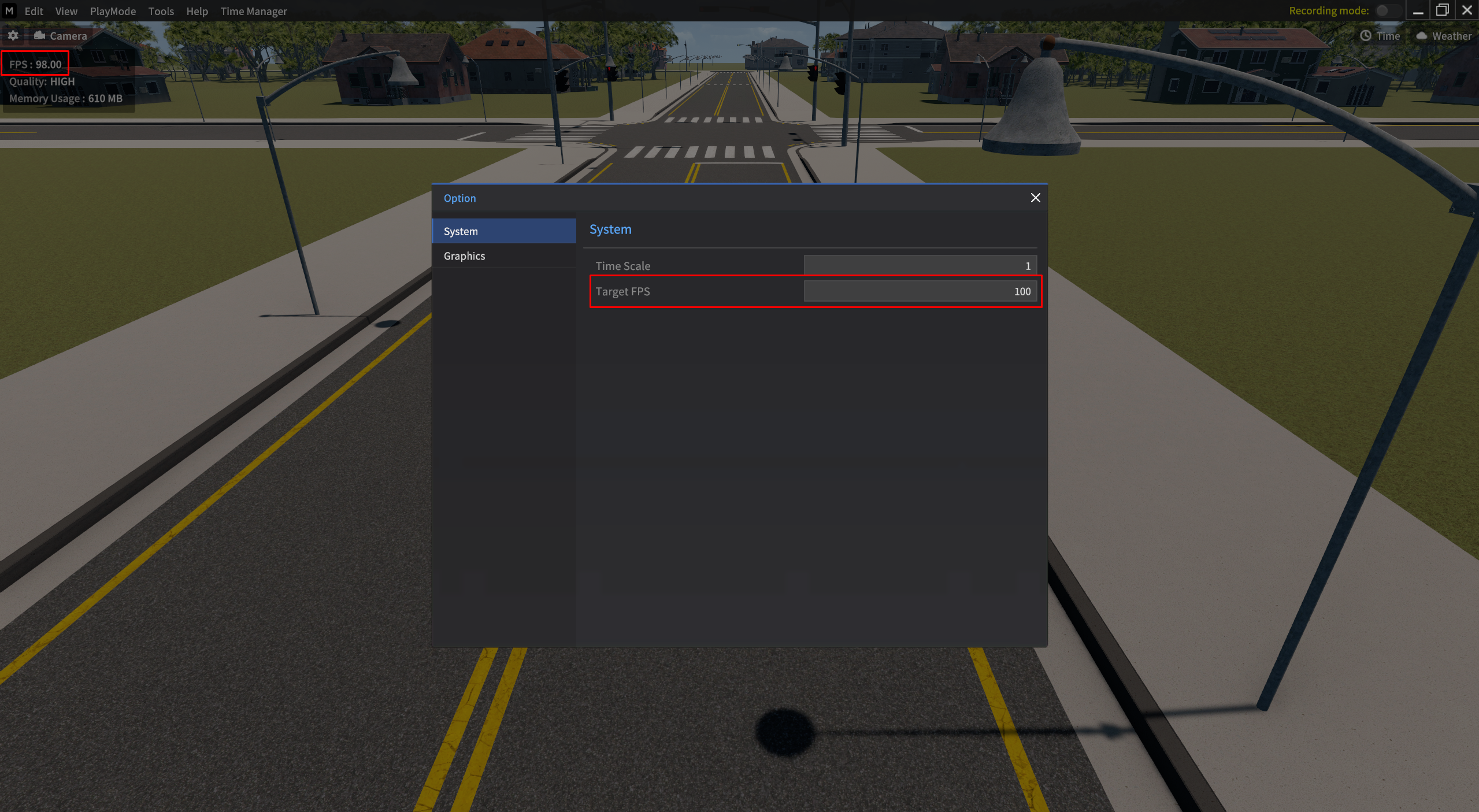

Even if you followed the same settings with this user manual (sensor, scenario spawn, etc),
there could be a difference between the target FPS and the actual output FPS depending on your PC's specification.
When the user integrates an algorithm running on a separate PC with MORAI SIM, there are no additional considerations for the user. However, since the interaction interval between the user algorithm and MORAI SIM varies depending on the processing frame, the reliability of the operation results cannot be guaranteed.
Simulation Time Mode
In Simulation Time Mode, the MORAI SIM minimum update interval is always defined as 1ms.
Therefore, as the frame is updated by 1 ms, the simulation playback speed decreases compared to real-time mode. However, interface data corresponding to the defined timestamp can be sent and received in this mode.
MORAI SIM updates continuously every 1 ms. Data transmission and reception for each module's interface occur when the user activates the interface. Once the data transmission/reception and frame update are complete, the system proceeds to the next frame.
%20Update.png?inst-v=8346d6e7-5ad5-451f-b374-ed704e723b6e)
When using the ROS communication interface in Simulation Time Mode, MORAI SIM publishes its time on the "/clock" topic. This allows the ROSTIME to be synchronized with the simulator.
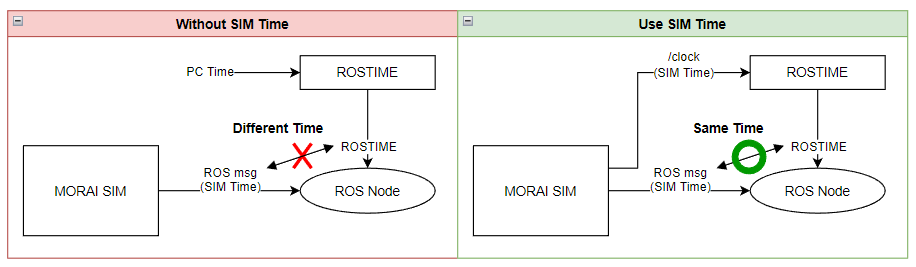
ROS clock topic User Guide (Refer to ROS SIM Time)
run roscore, then set the use_sim_time “TRUE” in rosparameter as below.
CODErosparam set use_sim_time trueSet to publish “/clock“ in MORAI SIM.
Synchronous Mode On & Off
In Synchronous mode, the simulator remains in a paused state until the external trigger signal is received. Also, access to the Synchronous Mode is only available through a trigger via the ROS message, SyncModeCmd Service Provider. On the MORAI SIM UI, you can only select 2 modes.
Simulation Time > Synchronous Mode Off
Real-Time Mode
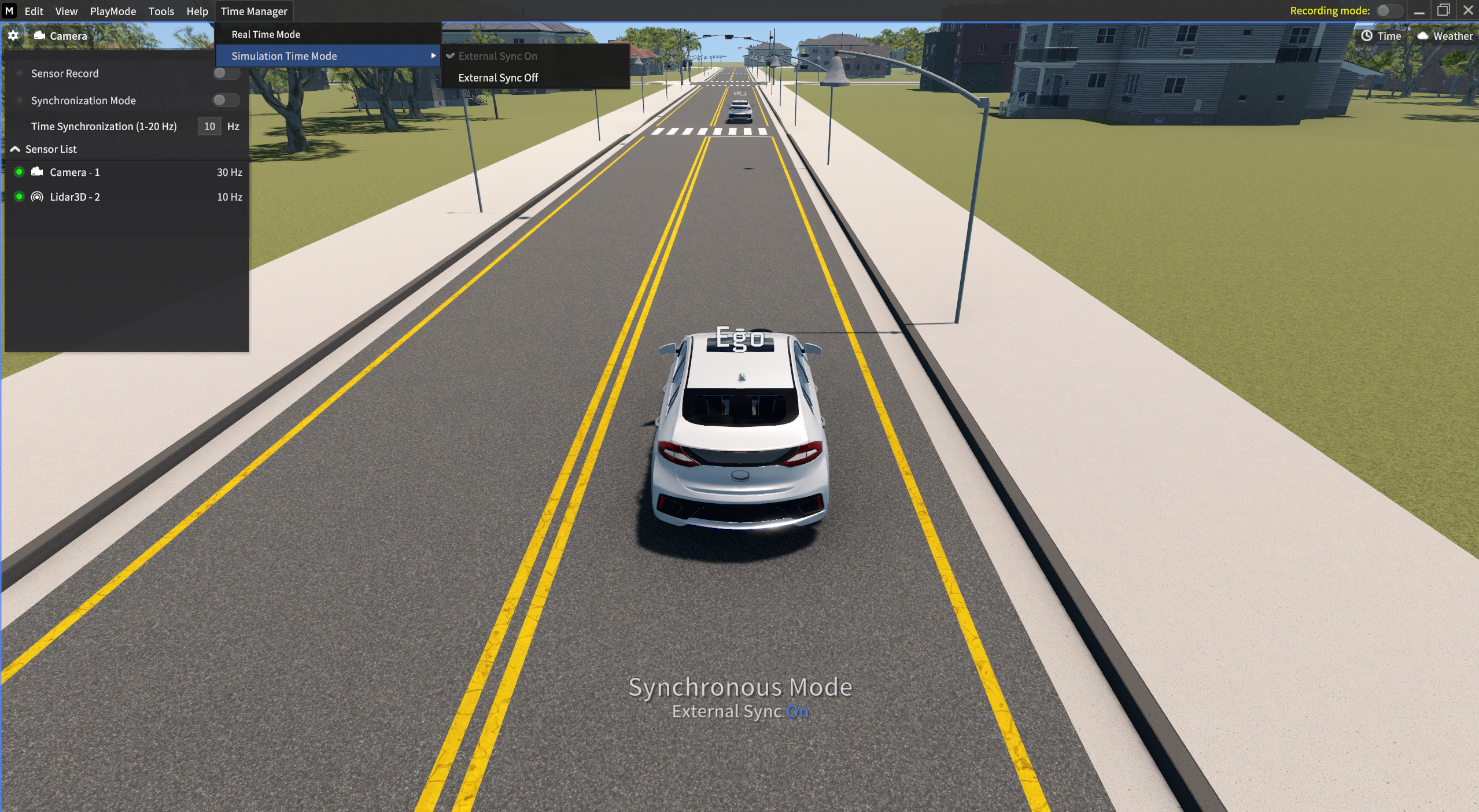
External Sync On
MORAI SIM Operation Mode Transition
These two operating modes can be switched by the user on the simulator.
When you change the mode, the simulation time is initialized as follows:
Time initialization rules when the user switches modes in Time Manager.
Real Time Mode -> The time is reset when the user changes the mode to Simulation Time Mode, (regardless of the Sync mode is on/off).
In Simulation Time Mode, when changing from “Sync On → Off” or “Sync Off → On,” the time is reset.
When the time is reset, MORAI SIM reset its time to “0.“
To enable Synchronous mode in the Time Manager, it can only be activated as a trigger through a ROS message.
Switching from Synchronous mode On to other mode is available in MORAI SIM.
MORAI SIM Time Manager Mode: Other features
Sensor Record
Time Synchronization
Above 2 features in Time Manager are not available in Real Time Mode.
Instead, you can set up in Simulation Time Mode first, and then set up and activate above features via separate UI window.
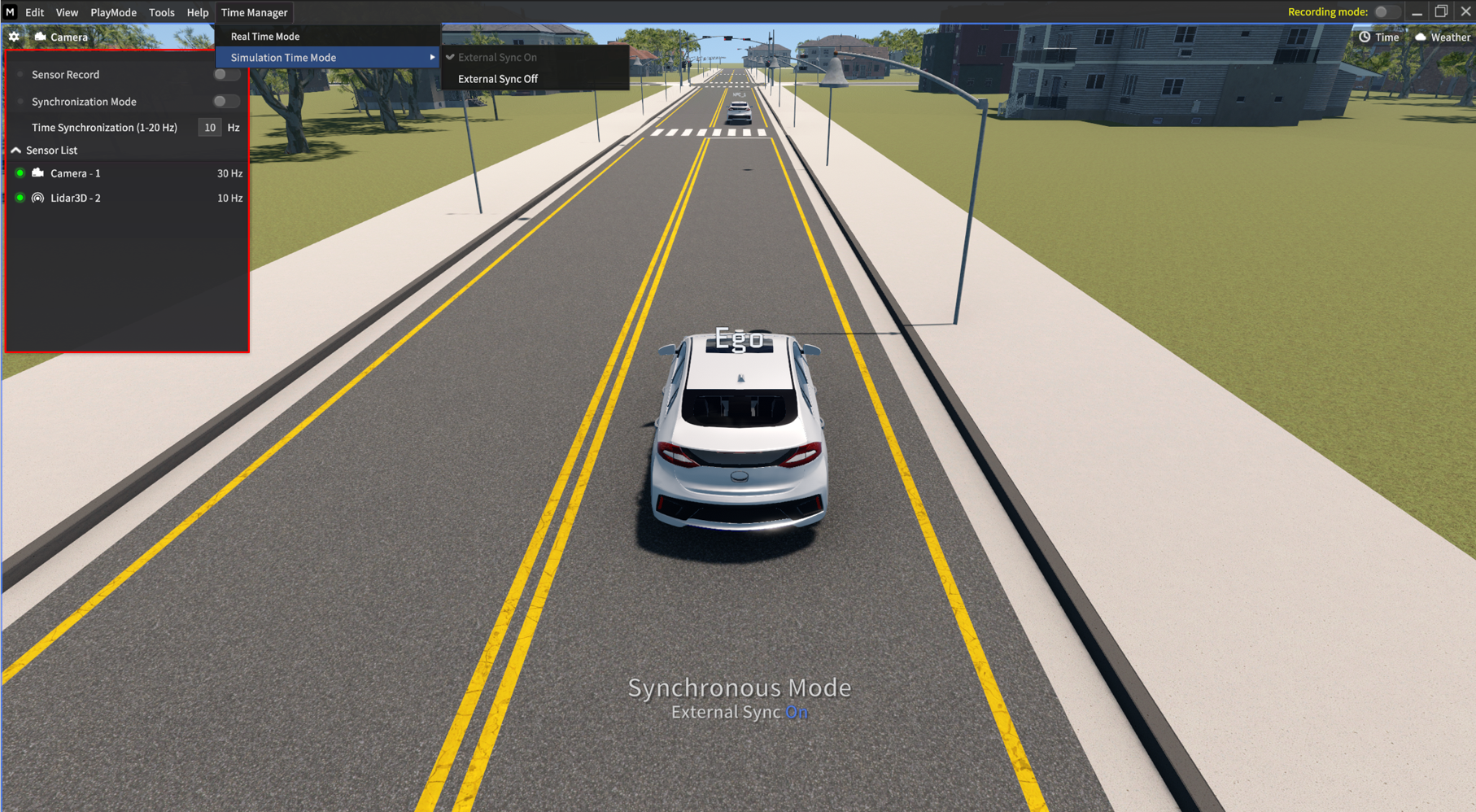
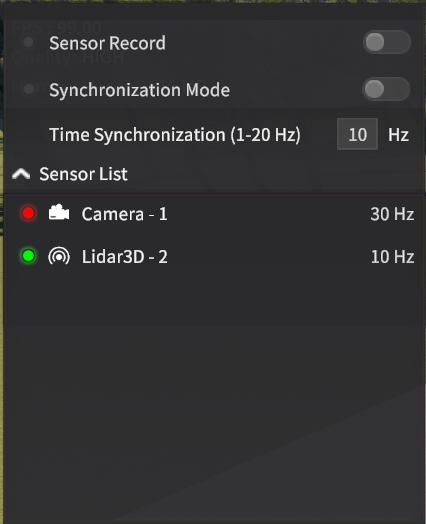
Sensor Record
This feature automatically saves sensor data according to the configured cycle of each spawned sensor or the user-defined cycle. The timestamp of the sensor data in the saved file is output based on simulation time. When a trigger signal occurs in Real-Time Mode, all sensor data is saved at the same point in time, based on the trigger occurrence.
Time Synchronization
This feature synchronizes the time of all active sensors on the vehicle. When this feature is activated, the sensors are synchronized according to the Frame Rate set by the user.
When it is not activated, each sensor operates according to the Frame Rate set by the user for each sensor.