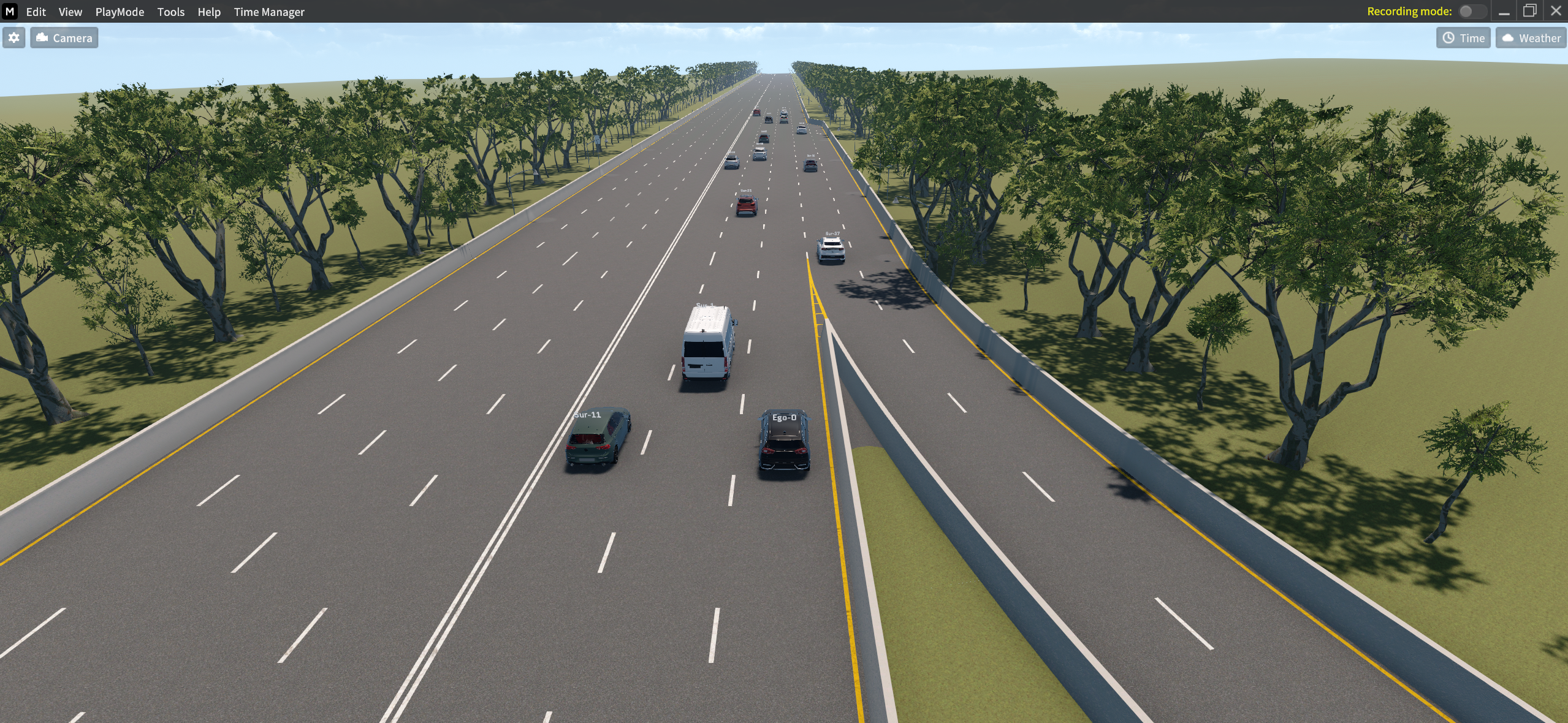
Load Scenario Sample
This section describes several scenario samples provided by each MORAI map.
Scenario Sample
Map name
Scenario file name : Scenario description
V_RHT_HighwayJunction_1
Trafficflow : A highway traffic scenario where several NPC vehicles are spawned in some lanes on the map.
HWJC1_Sample01 : A cut-in scenario where the Ego-vehicle drives on the junction to access the congested main road.
HWJC1_Sample02 : A cut-in scenario where the Ego-vehicle drives on the ramp to access the main road while giving way to or overtaking multiple NPC vehicles.
HWJC1_Sample03 : A scenario where the Ego-vehicle leaves the highway by changing lane to the right. (with multiple NPC Vehicle)
V_RHT_StraightHighway_1
Trafficflow : A straghtway traffic scenario where several NPC vehicles are spawned in some lanes on the map.
Load Scenario Sample
Each MORAI map listed as above has its own default Scenarios.
You can check the Scenario Sample information above and load it in the simulator.
1] Go to Load Scenario
To open the Load Scenario, go to Edit > Scenario > Load Scenario.
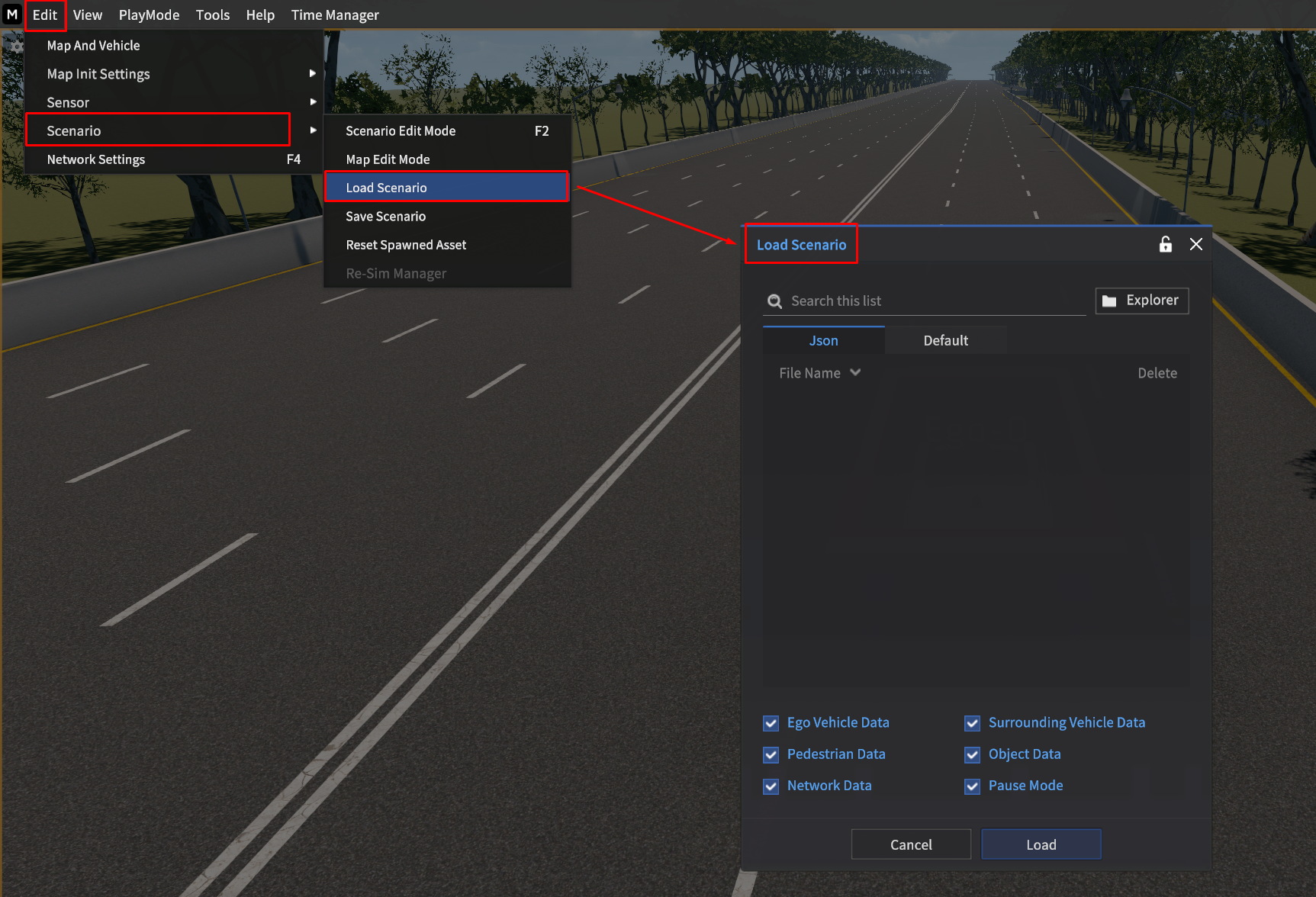

The term has been changed as below.
Scenario File Manager → Load Scenario
2] Select the sample Scenario
Select the default scenario (JSON file format) you want to load, then click Load on the bottom of the Load Scenario.
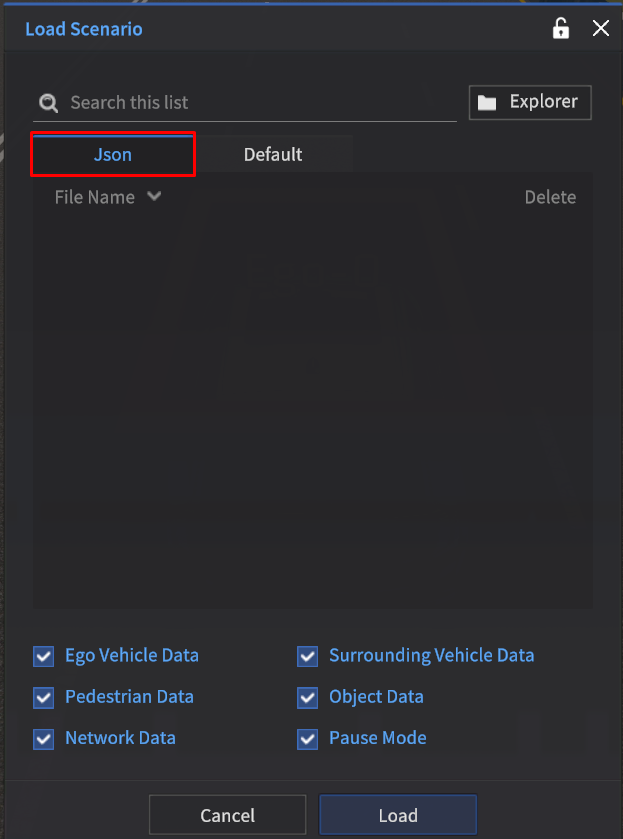
Json tab in Load Scenario
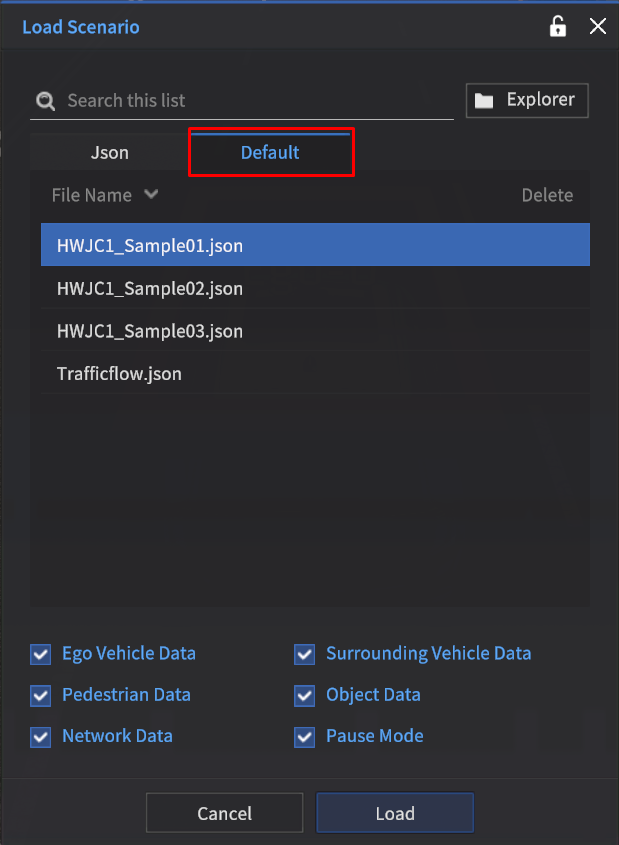
Default tab in Load Scenario
When opening the Load Scenario, Json tab is activated as a default.
When clicked Default tab, Default Scenarios provided by the selected map are listed.
3] Load Default Scenario
Loaded Default Scenario sample in the map V_RHT_HighwayJunction_1.