
Control with the Game Wheel Device
This section describes how to use Game Wheel mode in the MORAI SIM: Drive.
Connect Game Wheel
This section describes connecting a game wheel with MORAI SIM: Drive, using Logitech's G29 Driving Force racing wheel.
To control MORAI SIM: Drive with the G29 Driving Force racing wheel, follow the steps below to connect your game wheel.
Before you start
Supported OS Versions for Installation: Windows 10, Windows 11
Game Wheel Device (Refer to the official system specification)
Wheel
Pedal
Step 1: Install the Game Wheel Driver
1] Download the Logitech G HUB software, including the G29 Driving Force Racing Wheel driver.
2] As shown below, click the blue button to install the already downloaded lghub_installer.exe file.

Step 2: Run the Game Wheel Driver and connect the Game Wheel Device
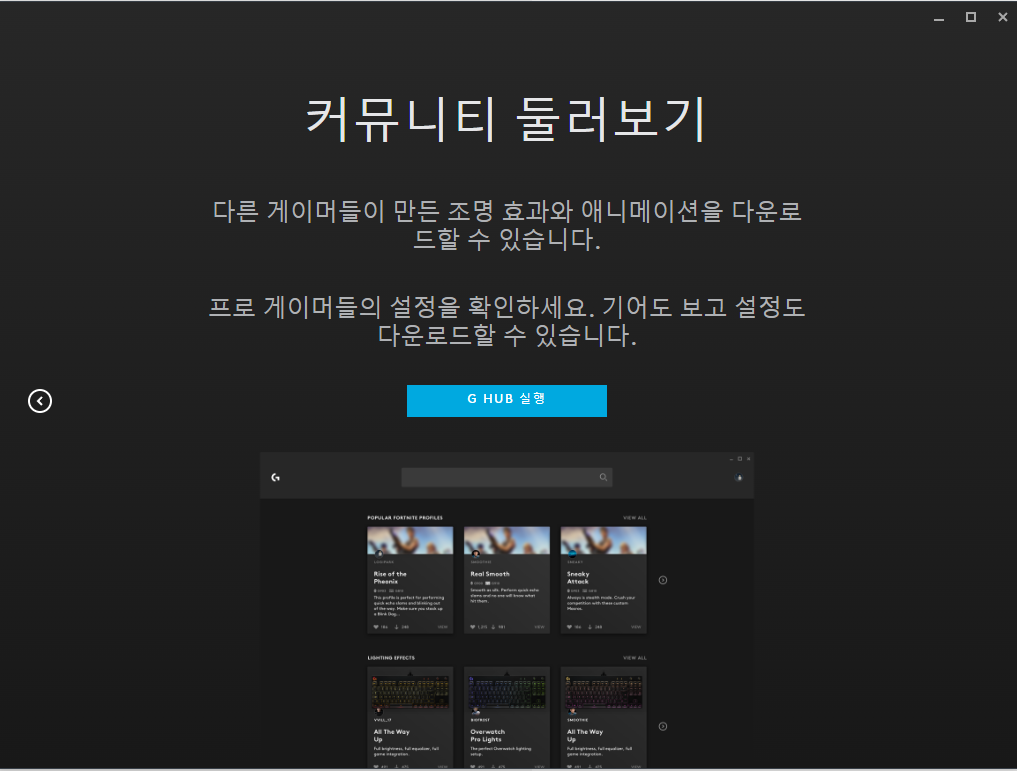
1] Click the blue button to launch G HUB from the start screen as shown below.
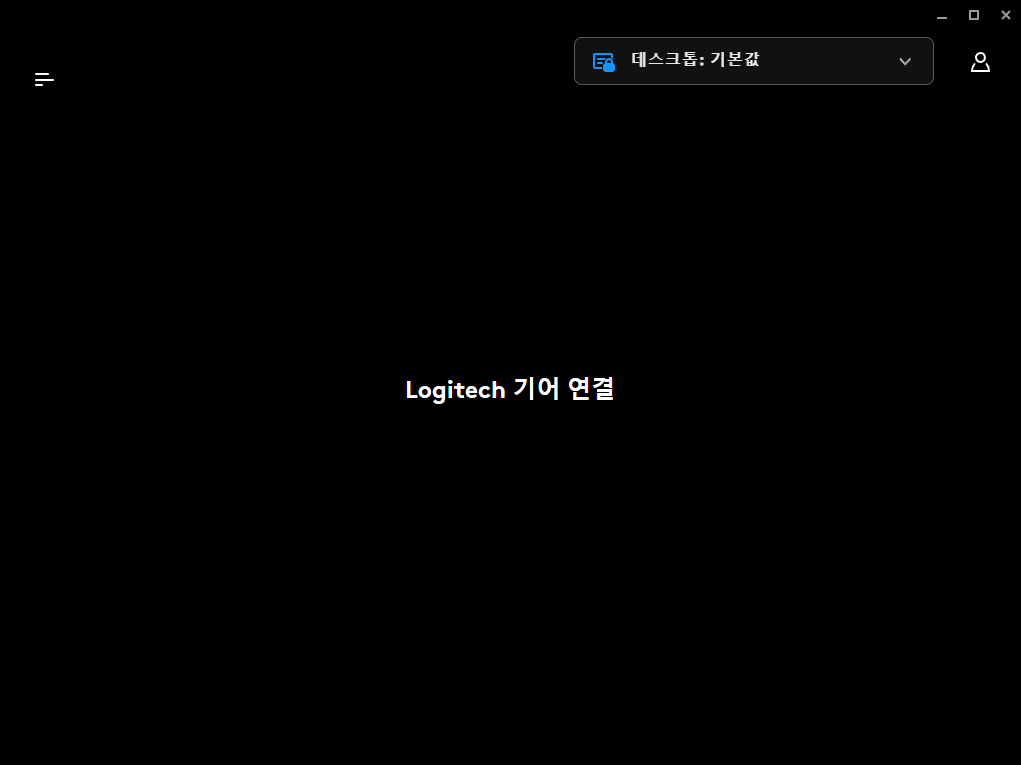
2] When the following message (Connect your Logitech Gear) appears on the G HUB launch screen, connect the G29 Driving Force racing wheel to your PC.

When connecting the game wheel to the PC for the first time, it is safer to exit the MORAI Simulator.
While the MORAI Simulator is running, the PC may not properly recognize the game wheel.
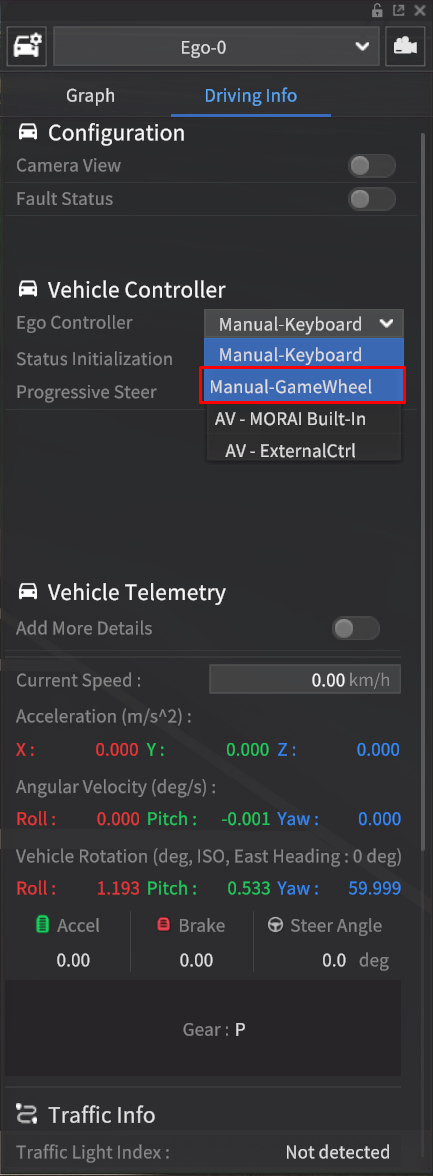
3] To switch to Game Wheel mode after launching the MORAI Simulator, press the Q key on the keyboard or set the Ego Controller to Manual-GameWheel in the Ego vehicle's Driving Info.
For more detailed information on switching control modes, please refer to the link below.

When the Logitech G29 Game Wheel is connected to the MORAI SIM,
a new feature is added that physically synchronizes the steering control values of the Game Wheel with the Ego-vehicle, even in AV-MORAI Built-in and AV-ExternalCtrl modes.
Step 3: Adjust the Game Wheel Control Value
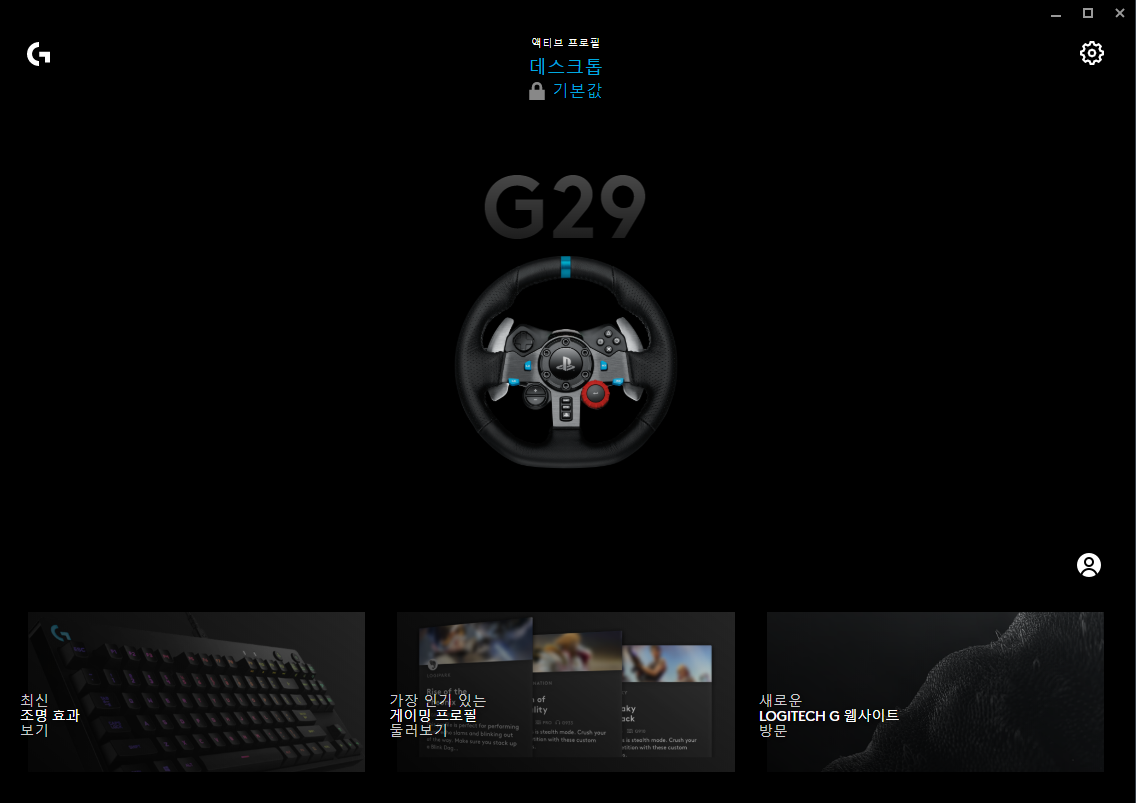
1] Click the G29 racing wheel that appears on the G HUB screen.
2] Adjust the steering wheel's operating range and sensitivity in the Steering Wheel menu on the left side of the G HUB screen.
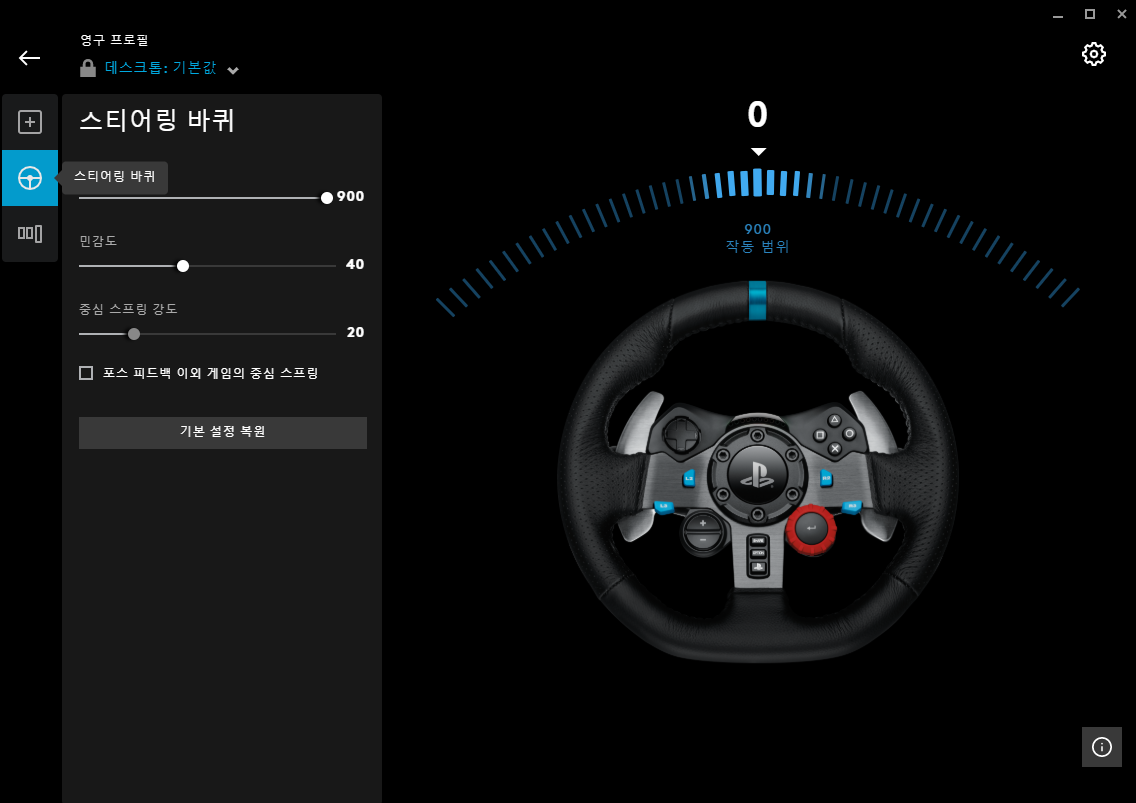
Operating Range: The Steering Wheel Operating Range can be set up to a maximum of 900º left and right, but it should be configured according to the actual steering wheel angle of the vehicle.
Sensitivity: The sensitivity to changes in the steering wheel angle: as it approaches 0, it becomes less sensitive, and as it approaches 100, it becomes more sensitive.
Centering Spring Strength: This refers to steering feel: as it approaches 0, the steering feel becomes lighter, while as it approaches 100, the steering feel becomes heavier.

To adjust the Centering Spring Strength,
you need to check the “Centering Spring in force feedback games” item in advance.
3] Control Pedal Sensitivity
Adjust the clutch, brake, and accelerator in the Pedal Sensitivity menu on the left side of the G HUB screen.
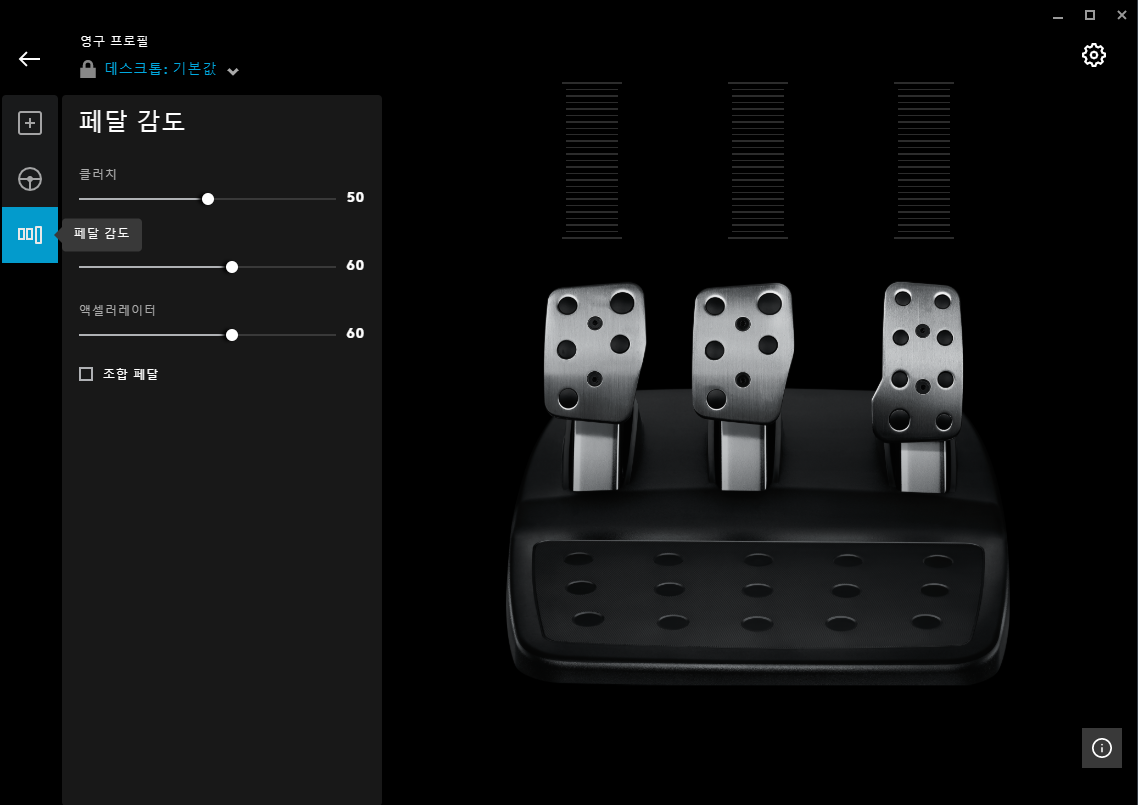
Clutch: Ignore this field as you do not have to use this in the simulator.
Brake: This refers to the sensitivity to angle changes: as it approaches 0, it becomes less sensitive, while as it approaches 100, it becomes more sensitive.
Accelerator: Same as the Brake.
Pressing the MODE + L3 + R3 buttons for more than 5 seconds changes the order of the accelerator and clutch pedals.
Game Wheel Key
This section describes the key information for configuring the game wheel of the Logitech G29 Driving Force racing wheel model.
The keys of the G29 Driving Force racing wheel are primarily composed of the wheel controller, gear controller, and pedal controller.
Wheel Controller
The main keys used in the wheel controller include the D-pad, left/right turn signal buttons, and the hazard light button.
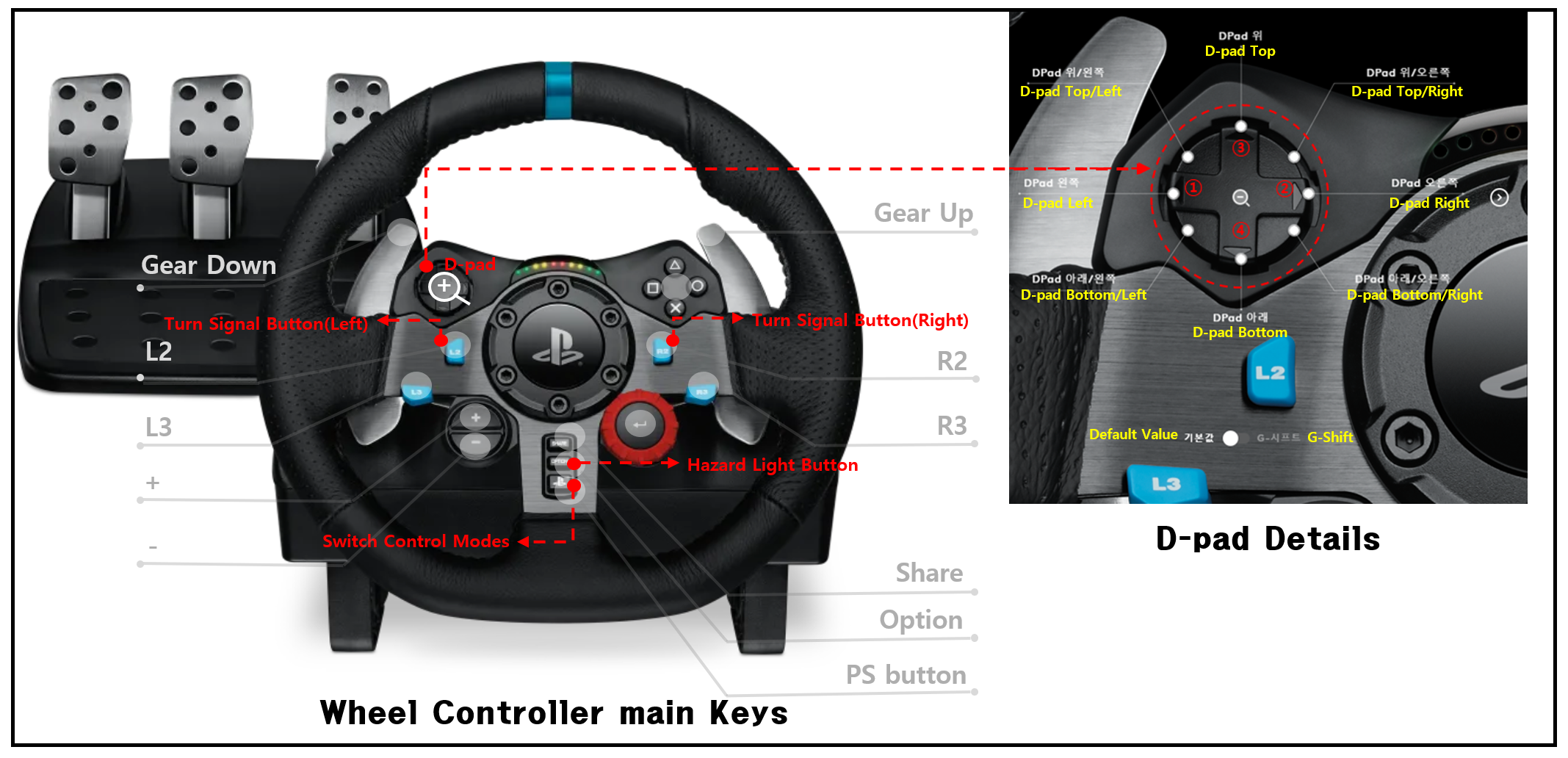
The simulator vehicle button information mapping with the D-pad details are as follows.
Parking Brake: D-pad Bottom ④
The functions of the rear brake and parking brake have been integrated into the parking brake function, with the D-pad top/bottom buttons unified as the D-pad bottom (parking brake button).
The left/right turn signal buttons and the hazard light button on the wheel controller can be linked to the simulator vehicle.

In the version of 23.R1.0, D-pad Left ① / Right ② buttons will not be used for the On/Off ignition function.
The control mode can be changed using the PS button, and the related modifications to the control modes are as follows:
In AV-MORAI Built-in mode or AV-ExternalCtrl mode, it can be switched to Game Wheel mode.
In Game Wheel mode, it can be changed to Manual-Keyboard mode (note that the PS button will not function in Manual-Keyboard mode, so use the
Qkey to switch modes).
Gear Controller
You can use the Gear Controller below to change the gears of your simulator vehicle.
The gear information for the simulator vehicle that is mapped with the Gear Controller is shown below.
1st Gear : Parking (P)
3dr Gear : Reverse (R)
4th Gear : Drive (D)
When there is no gear input : Neutral (N)
Gears can be changed in the following order: P - R - N - D.
Pedal Controller
You can control the speed and braking of the simulator vehicle using the pedal controller shown below.
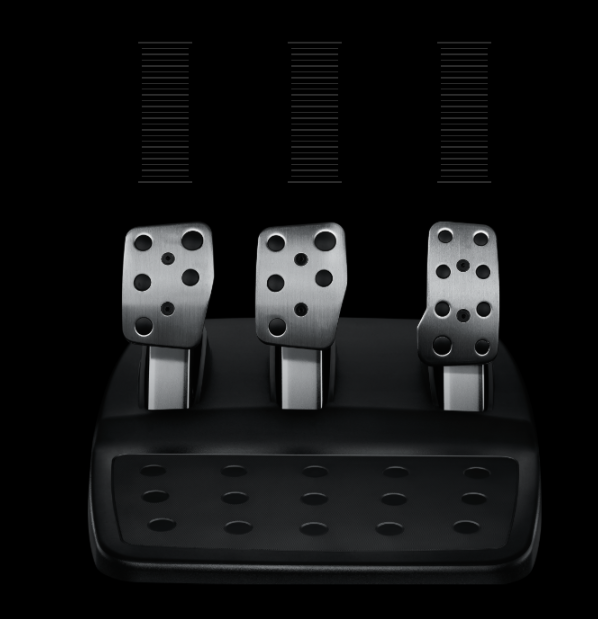
The pedal information for the simulator vehicle that is mapped with the Pedal Controller is shown below.
Center pedal: Brake
Right pedal: Accelerator
Left pedal: Clutch pedal (not applicable as the simulator vehicle is an automatic model)
Game Wheel Operation
This section describes the improved and additional operation methods for the game wheel.
left/right turn signal buttons & the hazard light button
The operation method for the left/right turn signal buttons and the hazard light button are as follows.
The lighting priority is that the hazard lights take precedence over the left/right turn signals.
Example: When the left turn signal is ON and the hazard lights are turned ON, the hazard lights will activate (both left and right turn signals will be ON).
If the hazard lights are then turned OFF, the left turn signal will return to the ON state.When the left turn signal is ON and the right turn signal is activated, the left turn signal will turn OFF.
Parking Brake
The operation method for the parking brake is as follows.
Regardless of the gear status, press the brake pedal at a speed of 0.5 km/h or less, and press the parking brake button.
Regardless of the gear status, if the parking brake is engaged without pressing the accelerator pedal, the vehicle will remain stationary even without applying the brake pedal. (This is particularly effective on inclines to prevent the vehicle from rolling.)
The operation method to release the parking brake is as follows:
In
PorNgear, pressing the brake pedal and then pressing the parking brake button will release the parking brake.In
RorDgear, if the accelerator input exceeds 1%, the parking brake will automatically release (brake input is not considered).