
rosbag Replay
This section describes rosbag Replay, a feature that allows users to review data recorded on ROS networks using rosbag files.
MORAI Simulator Rosbag Replay
The rosbag Replay feature allows for replaying scenarios using rosbag.
Users can save the driving data of the Ego-vehicle and surrounding environmental data as a rosbag for a desired scenario, and then replay the scenario.
Additionally, you can spawn sensors to the Ego-vehicle to generate a dataset.
Replay Mode
Rosbag Replay: This feature allows for directly importing a rosbag file into the simulator for replay.
Network Replay: This feature involves playing a rosbag file within the ROS environment. It retrieves the /ReplayInfo_topic stored in the rosbag through Rosbridge for replay.
Rosbag Replay
To enable the Rosbag Replay, go to PlayMode > Replay > Rosbag Replay.
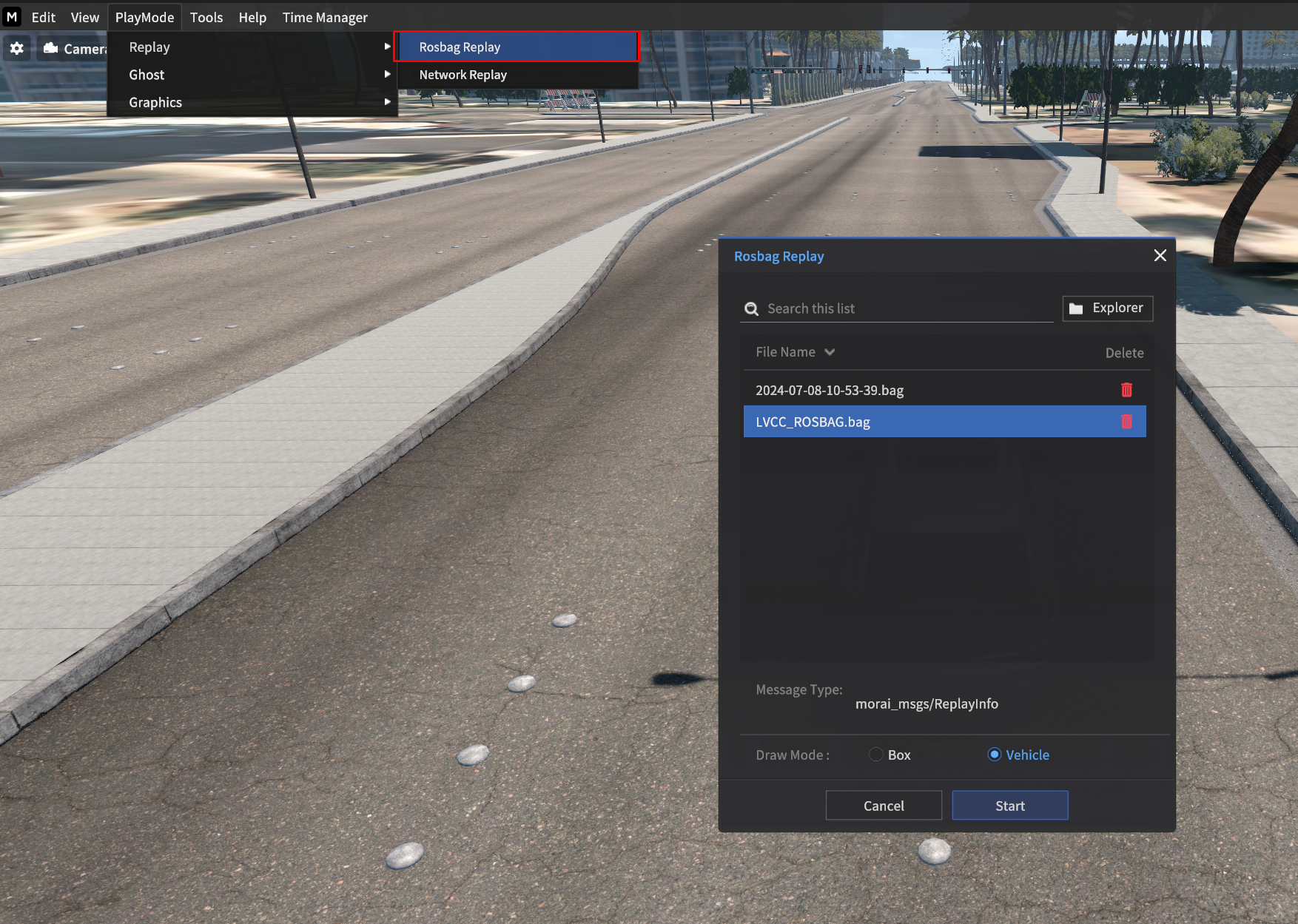
Double-click the desired rosbag file from the top File List.
Once loading is complete, the information about the rosbag file will be displayed in the Message Type section.
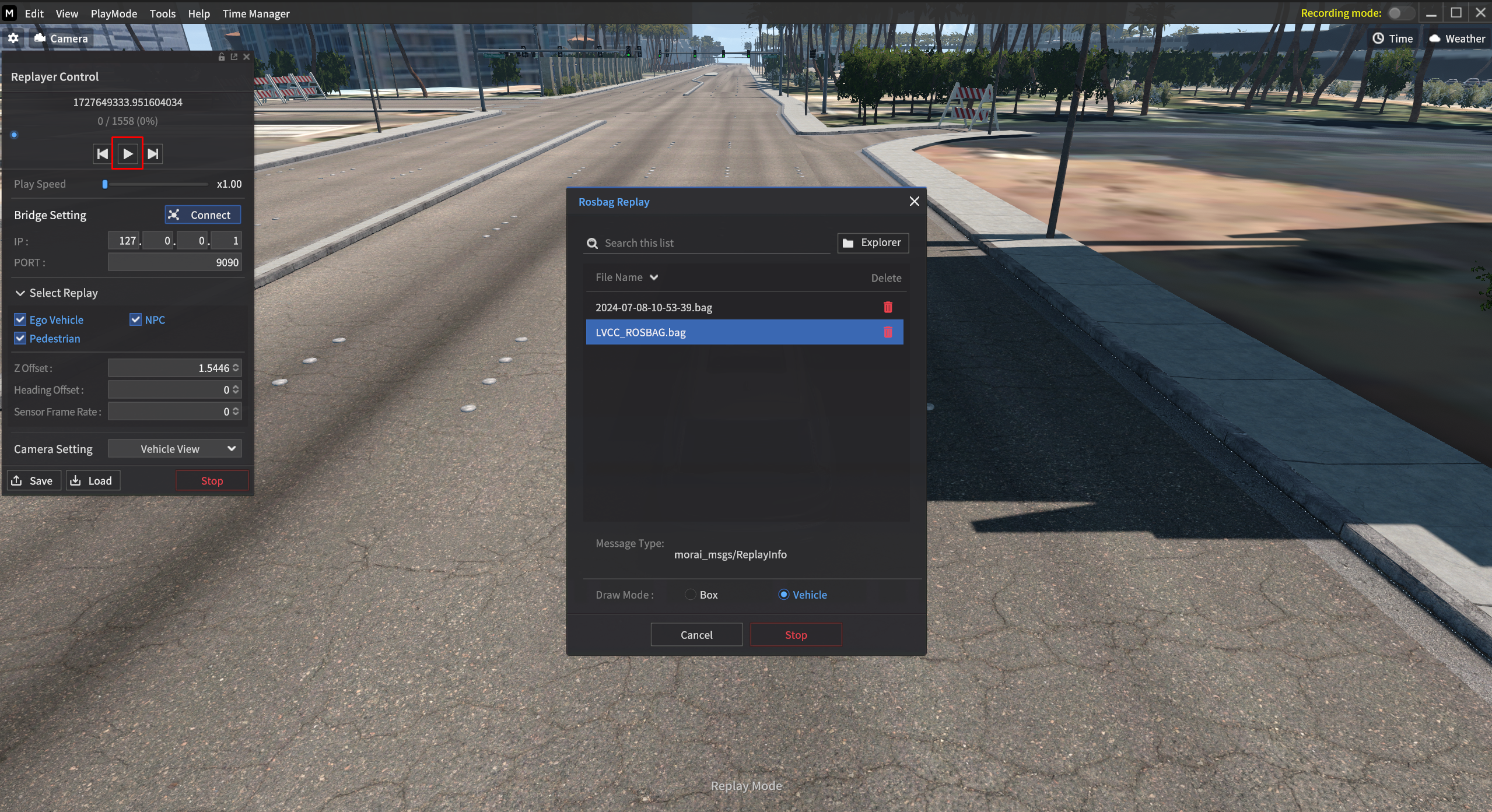
After that, click Start to open the Replayer Control Panel.
Press the Play button in the Replayer Control Panel to run the replay function.
Option
Replayer Control Panel
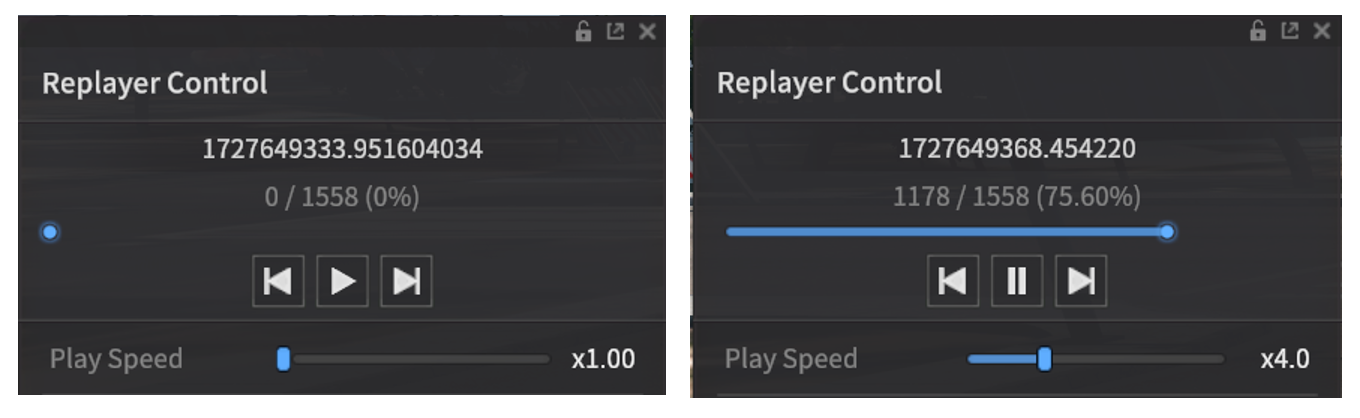
rosbag File Playback Control:
Use the arrow buttons (rewind & fast forward) to adjust the playback.
Adjust the playback point of the rosbag file using the top playback bar.
Control the playback speed of the rosbag file with the bottom playback bar.
The numbers displayed above the playback button: It indicates the UNIX timestamp of the rosbag file and the number of messages stored.
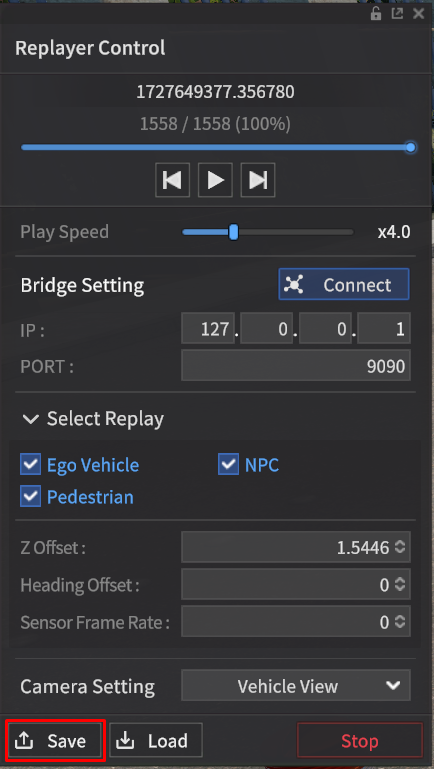
Save the current scenario state
When you click the Save button at the bottom of the Replayer Control Panel, you can save the currently playing scenario state.
To confirm the saved scenario, go to Scenario > Save & Load.
Bridge Setting
You can confirm the currently playing rosbag data published in the ROS environment.
The published data information is as follows:
Message Type : morai_msgs/ReplayInfo
Default Topic : /ReplayInfo_topic
Select Replay / Offset / Sensor Frame Rate
Select Replay : Determines whether to replay information for Ego-vehicles, NPC vehicles, and Pedestrians when playing the rosbag file.
Heading Offset : Adjusts the heading direction offset of the Ego-vehicle.
Sensor Frame Rate : The Sensor Data Storage rate (Hz) spawned to the vehicle during the rosbag replay.
Height Offset : Adjusts the Z-direction position offset of the Ego-vehicle.
If the vehicle appears to be buried in the ground during the rosbag replay, the Height Offset function can be used to adjust the position of the Ego-vehicle.
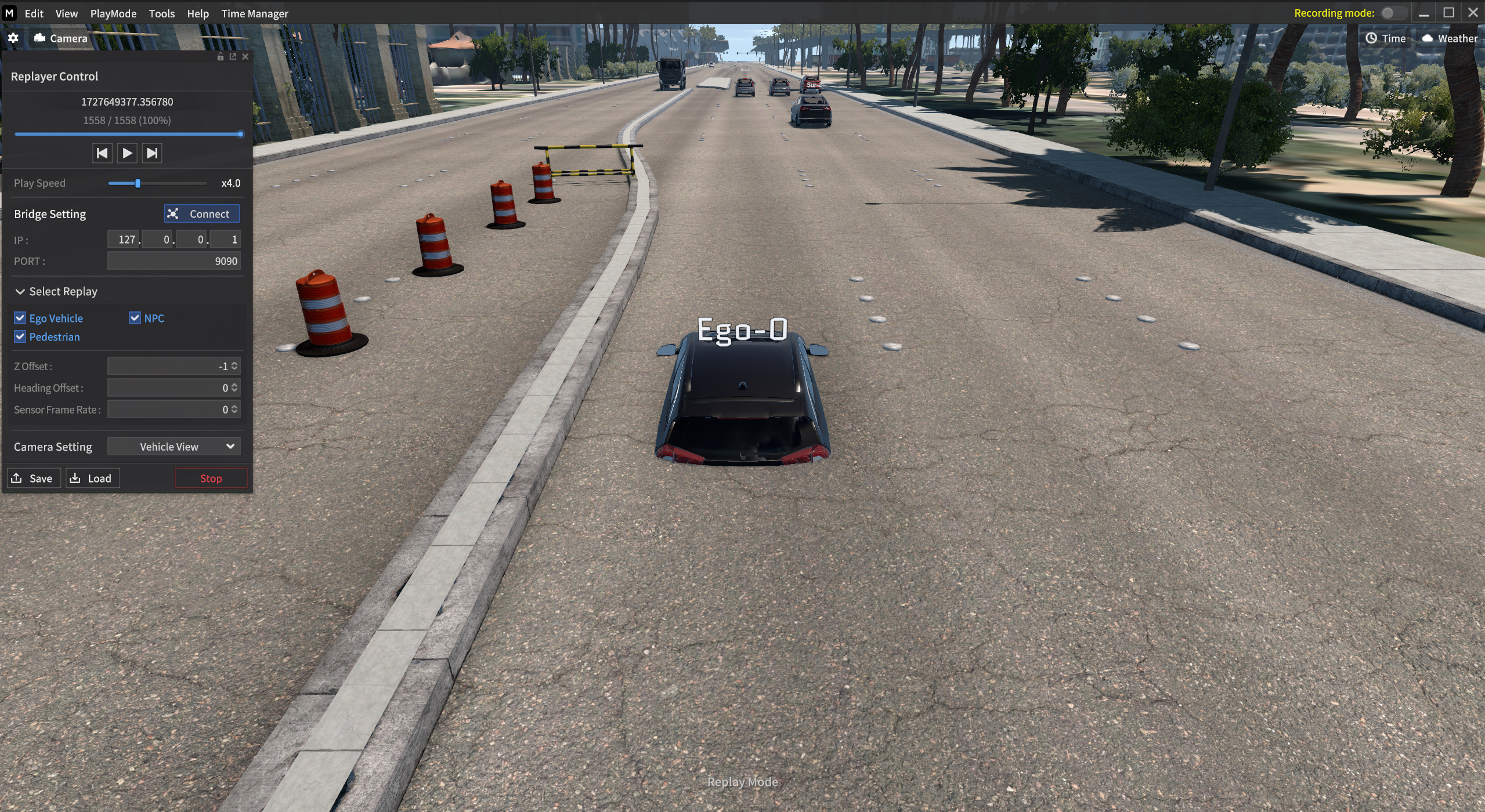
Camera Setting
Perspective View : A camera view that allows free movement and positioning.
Top View : A camera view that looks down from above.
Vehicle View : The camera view displayed as seen from the current position and rotation of the vehicle.
Vehicle View: A camera view centered around the current vehicle.
Rosbag Replay Control using ROS Message
The replay function can be activated and terminated by publishing ROS messages.
Users can control options for the replay function, including playback speed and viewpoint settings.
For more detailed control, please refer to the below page.
Rosbag Replay - Select Mode Option
Vehicle : Sur-vehicles (NPC Vehicles) are displayed as they are on the road.
Box : Sur-vehicles (NPC Vehicles) are displayed as a box shape on the road.
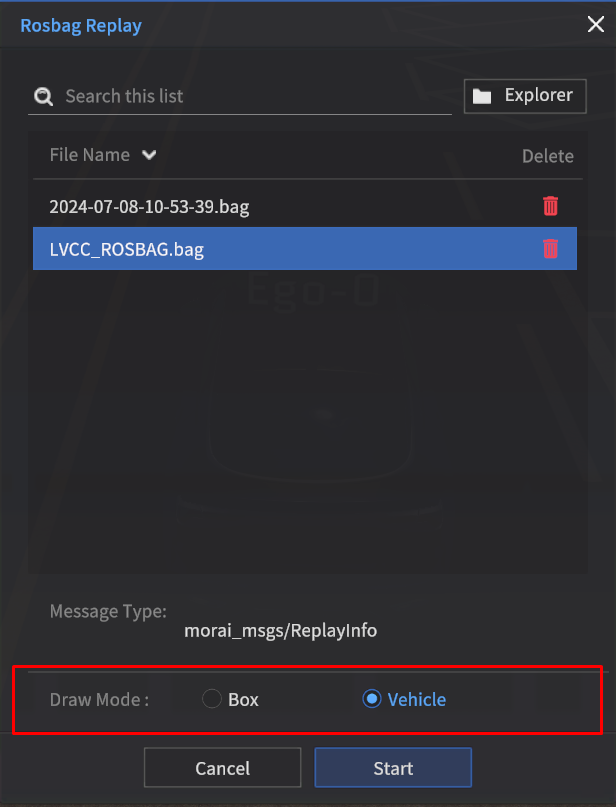
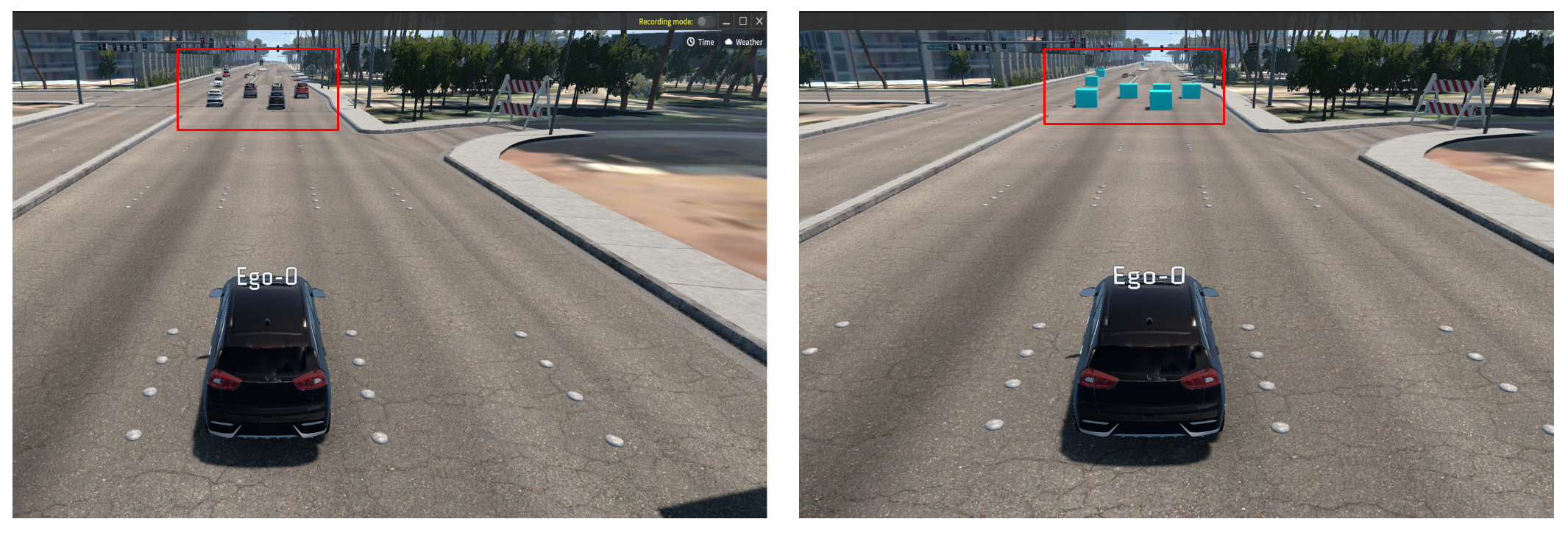
Vehicle & Box
Network Replay
Play the rosbag file in the ROS environment and replay the data by subscribing via rosbridge.
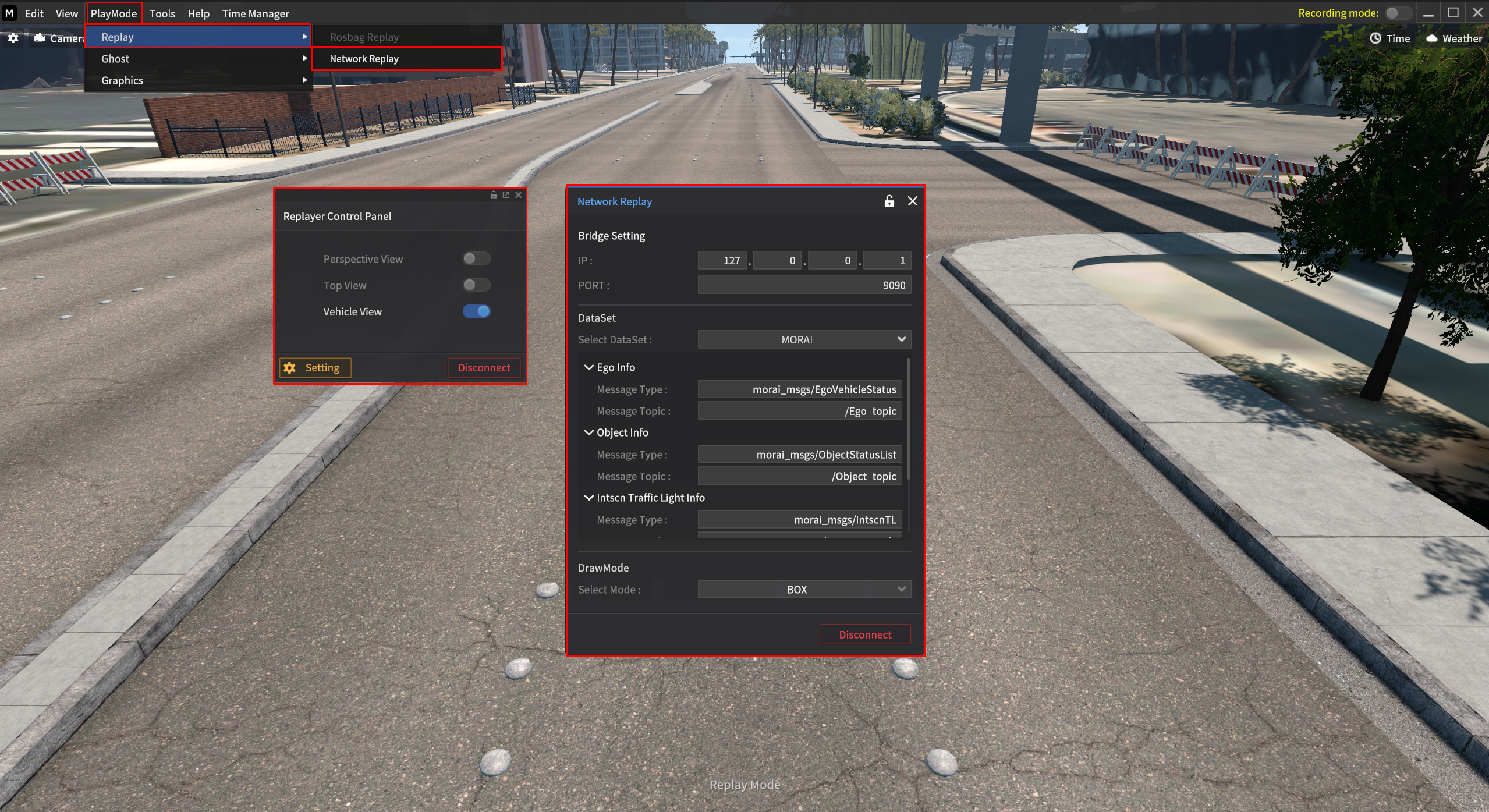
In the Bridge Settings, enter the IP and PORT of the rosbridge in the ROS environment where the rosbag file is being played.
Click Connect and you will find the Replayer Control Panel in the upper left corner.
Check and select the Dataset and Draw Mode.
Play the rosbag file in the ROS environment and confirm it runs well.
Option
Replayer Control Panel
After connecting, you can adjust the viewpoint of the rosbag playback simulation via Replayer Control Panel.
Perspective View : A camera view that allows free movement and positioning.
Top View : A camera view that looks down from above.
Vehicle View : A camera view centered around the current vehicle.
When the Replayer Control Panel appears, the replay proceeds in accordance with the rosbag file being published from Ubuntu.
ROS Environment Setting
Run rosbridge
$ roslaunch rosbridge_server rosbridge_websocket.launch
Play rosbag file
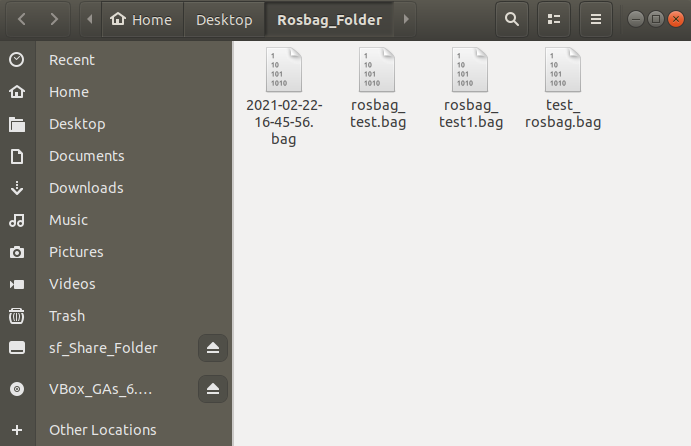
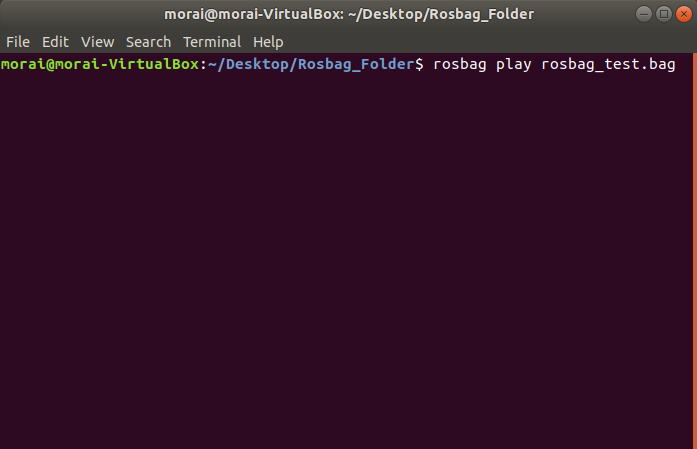
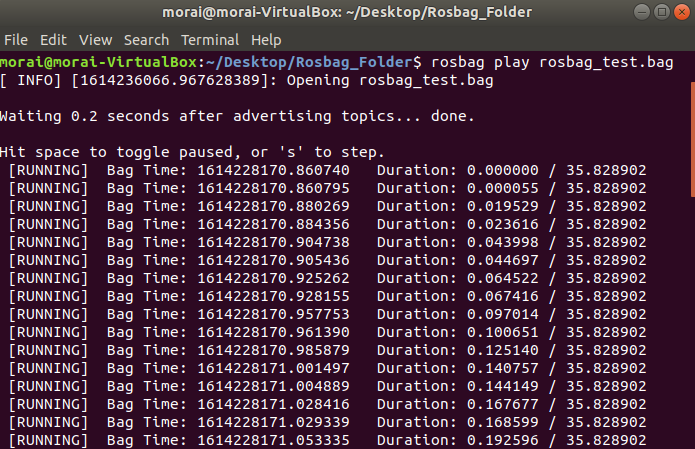
Navigate to the directory where the rosbag file is saved in the terminal.
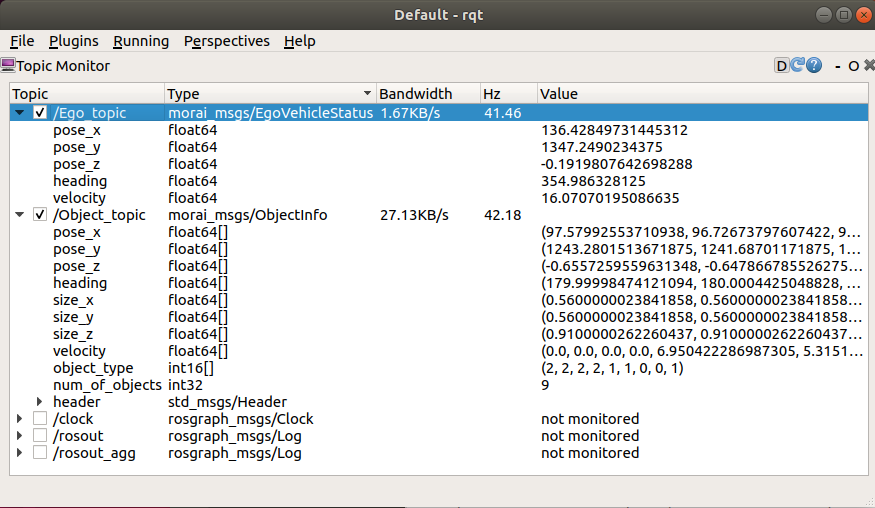
$ rosbag play <replace with your rosbag file name.bag>Using rqt, you can confirm the published data after proceeding with the rosbag Replay.
Create rosbag file
In the Ubuntu environment, you can save rostopic data to create a rosbag file in .bag format.
Connect rosbridge in Ubuntu after running the simulator.
Confirm rostopic.
$ rostopic listYou can check out the current ROS Topic list connected.
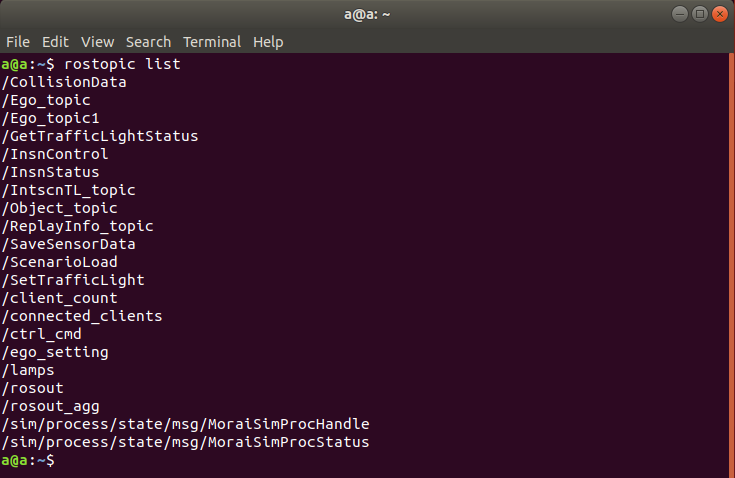
Create rosbag file
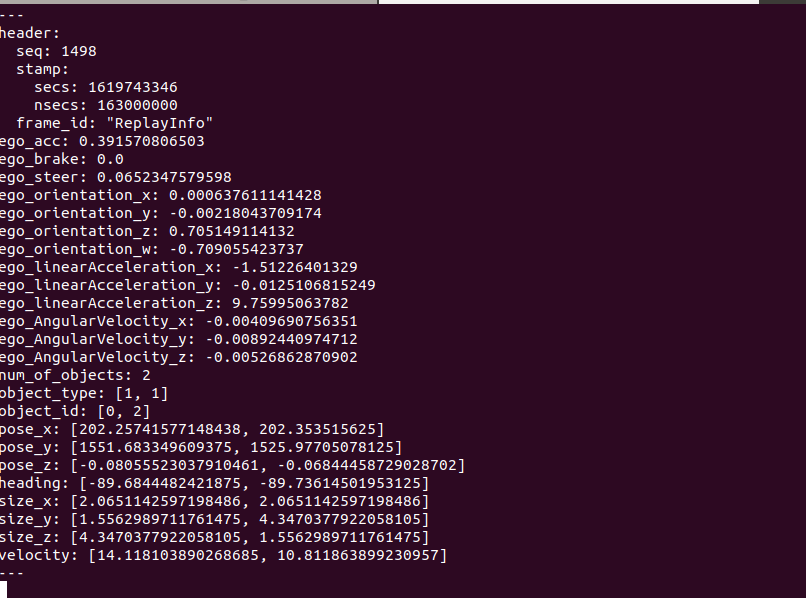
$ rosbag record /ReplayInfo_topicBelow data are included in ReplayInfo_topic.
Ego information
ego_acc
ego_brake
ego_steer
ego_orientation_x
ego_orientation_y
ego_orientation_z
ego_orientation_w
ego_linearAcceleration_x
ego_linearAcceleration_y
ego_linearAcceleration_z
Object (NPC Vehicle, Pedestrian, Obstacle) information
num_of_object
object_type
object_id
pose_x :
pose_y
pose_z
heading
size_x
size_y
size_z
velocity
For more information about ROS message, please refer to this page : Communication Protocols
When you run
rosbag record, a file in .bag format is saved in the current terminal directory.
Save rosbag file
Move the created rosbag file to the
Data\SaveFile\Rosbagfolder within the Launcher directory.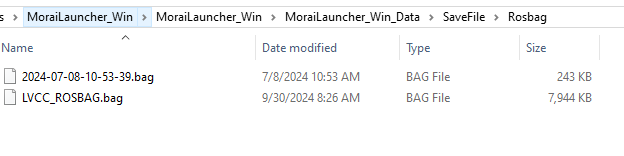
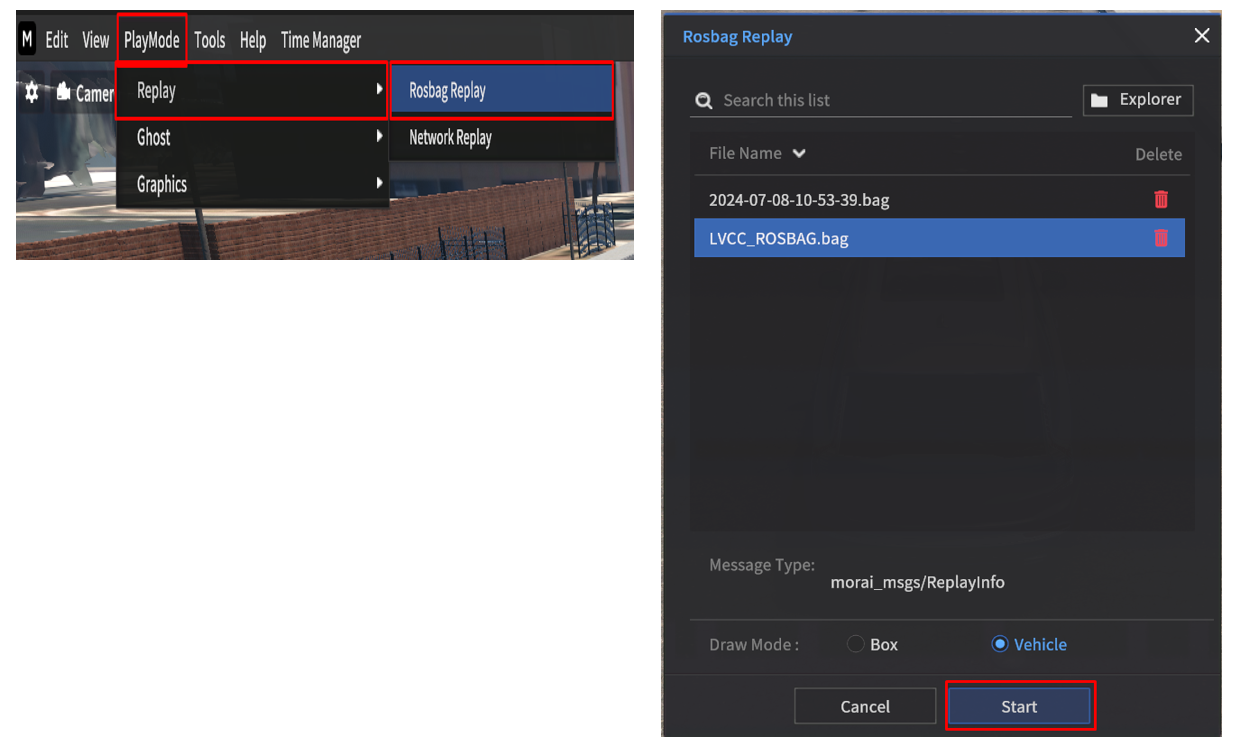
Go to Replay Mode > Rosbag Replay.
After that, Click Start at the bottom, and a folder containing the saved rosbag files appear.
rosbag Replay Example
rosbag Replay Example Bag file
Download the below rosbag Example Bag file link.
LVCC_ROSBAG.bagYou can save the downloaded rosbag file and play it as shown in the video below.
Rosbag Replay Video Tutorial
Replay Feature using rosbag File