Initialize the Ego-vehicle's status
This section describes about the Init Ego State function.
Init Ego State (Initial Ego-vehicle’s state)
Init Ego State is the function that lets you edit, save, or load the initial state of an Ego Vehicle for your current map. When the i Key is clicked, the Ego-Vehicle is returned to the initial state of the current map. This function changes the Ego-vehicle's initial state, so it spawns with the set rotation and position of the Ego-vehicle when you edit its initial state.
Edit Init Ego State
To set the Initial Ego State, go to Edit > Map Init Settings > Edit Init Ego State.
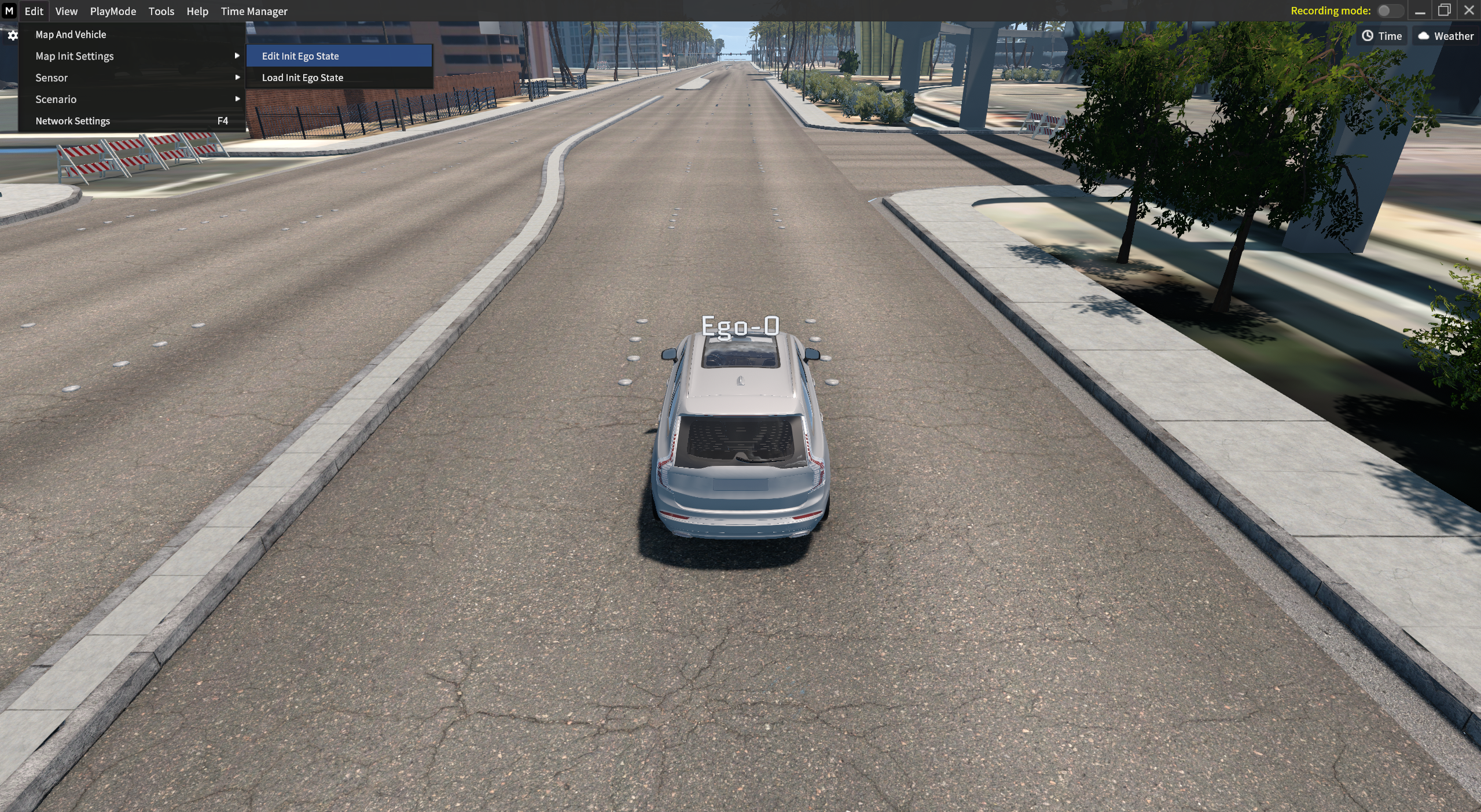
Edit Init Ego State
Edit Initial Ego State
To edit the current Ego-vehicle’s initial state, spawn the Dummy Car and set its position and rotation to the desired direction. When you load it, the set position and rotation of the Dummy Car is applied to the Ego-vehicle’s state.
1] Spawn Dummy Car
Press Shift + Mouse left-click to spawn the Dummy Car.
2] Adjust Position & Rotation
Set the position and rotation of the Dummy Car with a mouse drag & drop.
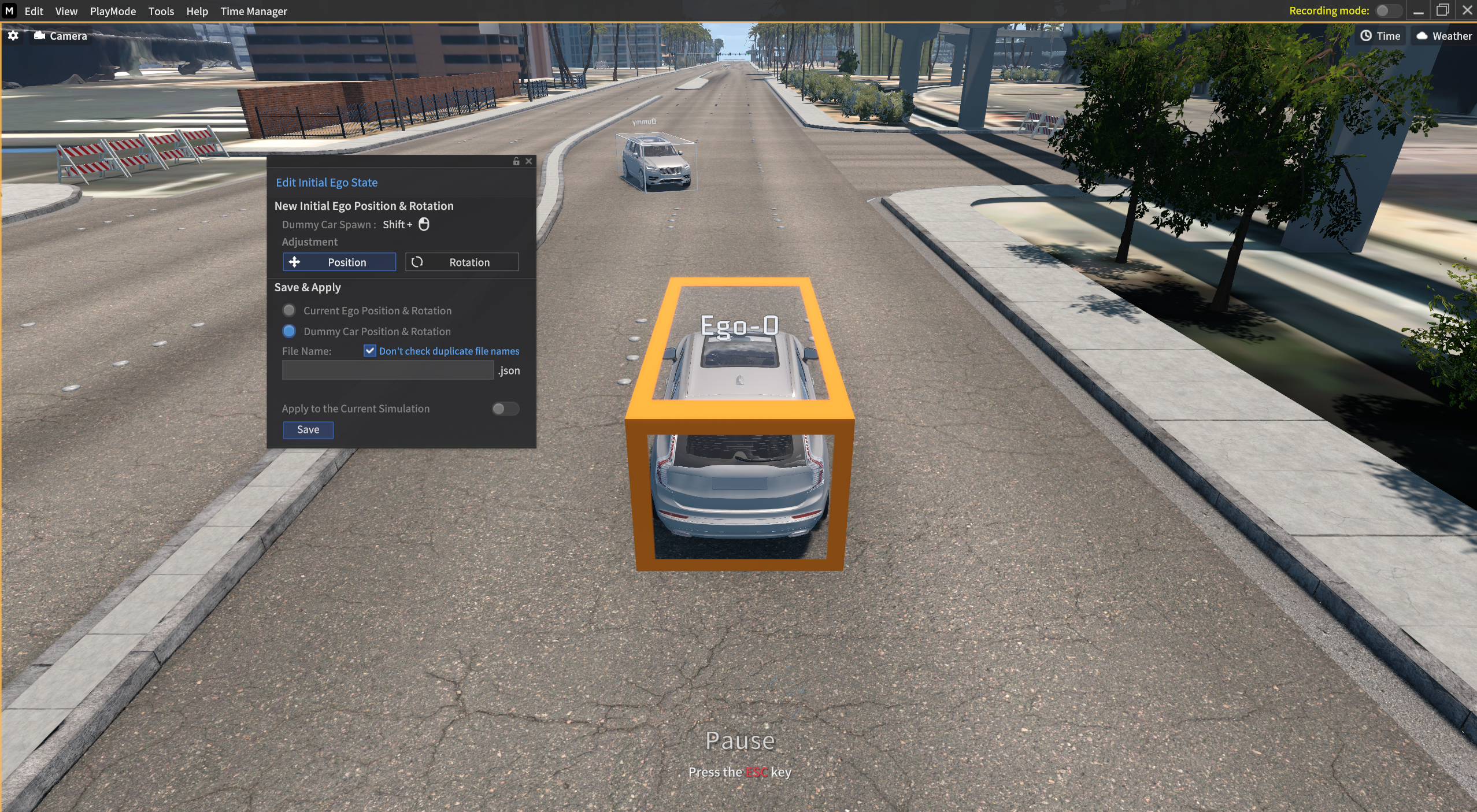
Set the Position & Rotation of Dummy Car
3] After Default Spawn Point completes
Loaded the Default Spawn Point in the map LVCC.
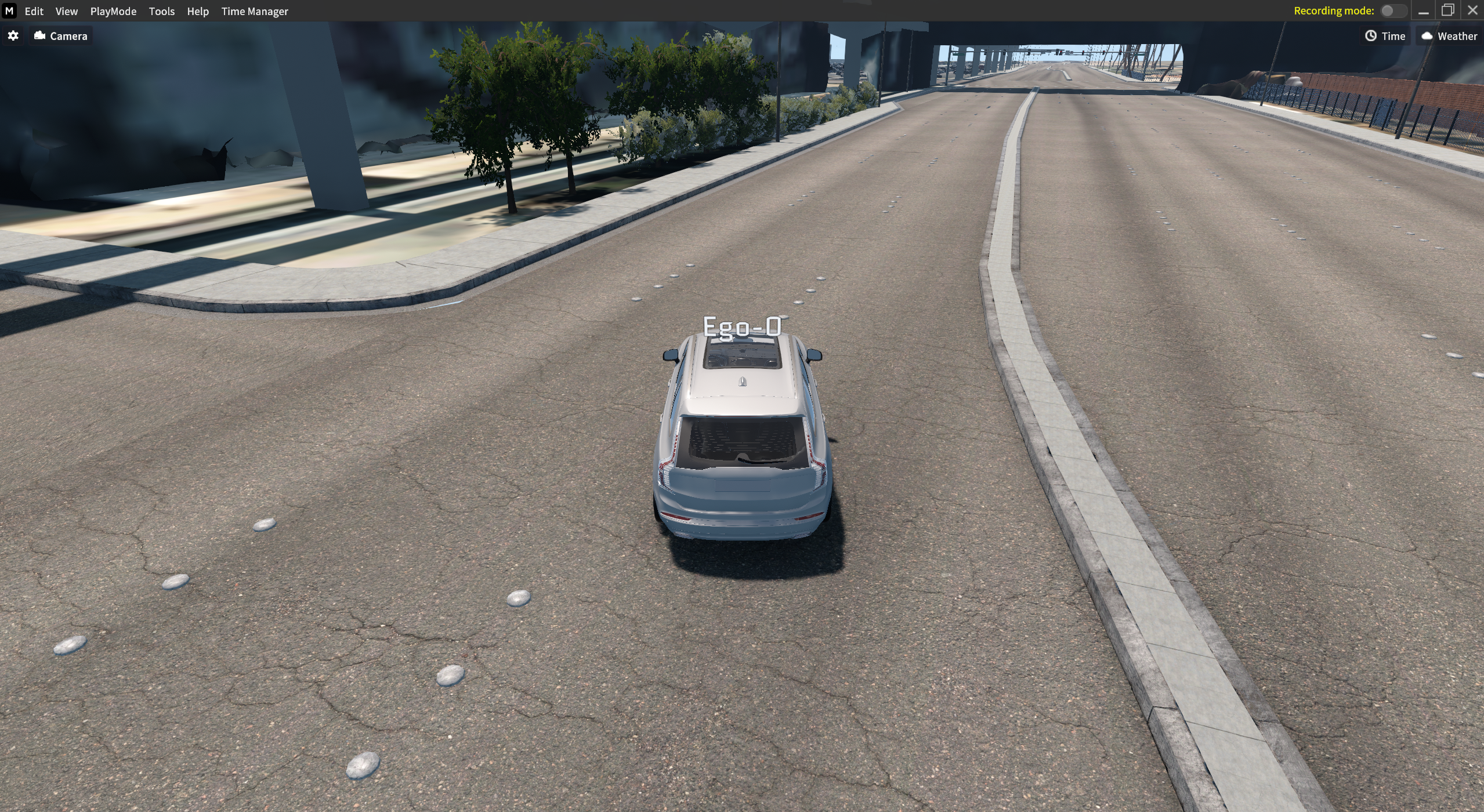
After applying the Default Spawn Point
Save and Load
You can override the Dummy Car’s settings to the Ego-vehicle.
When you save the Dummy Car’s setting in the current map, the files is saved in JSON.
When you save the Ego-Vehicle’s initial state, you can either apply it right away to the simulation instance or load its saved file and apply it to the simulation instance.
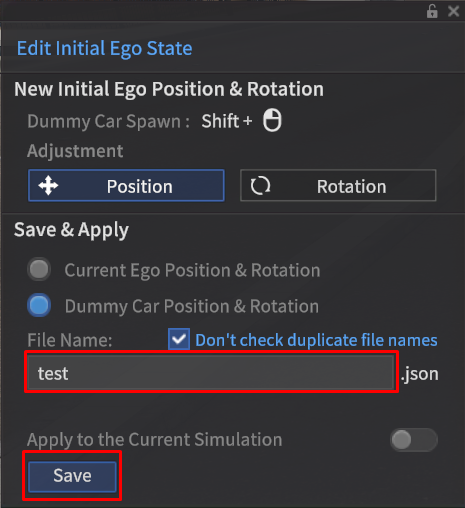
1] Save
After adjusting the Dummy Car settings, enter the File Name and click Save.

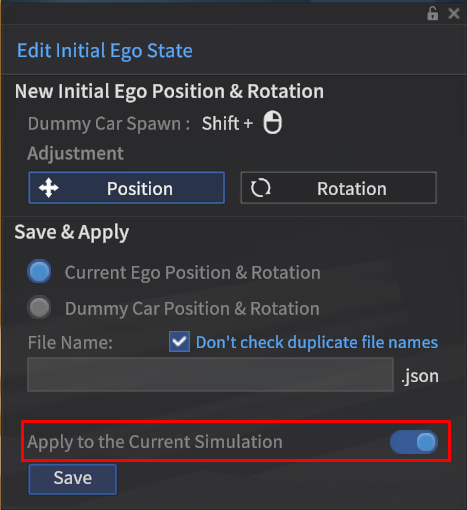
Apply to the Current Simulation toggle switch
If you enable the Apply to the Current Simulation toggle and save it, the Dummy Car settings are immediately applied to the Ego-vehicle's state.
2] Load
Load the revised initial state of the vehicle.
Go to Edit > Map Init Settings > Load Init Ego State, then click the Apply button to load the saved file.
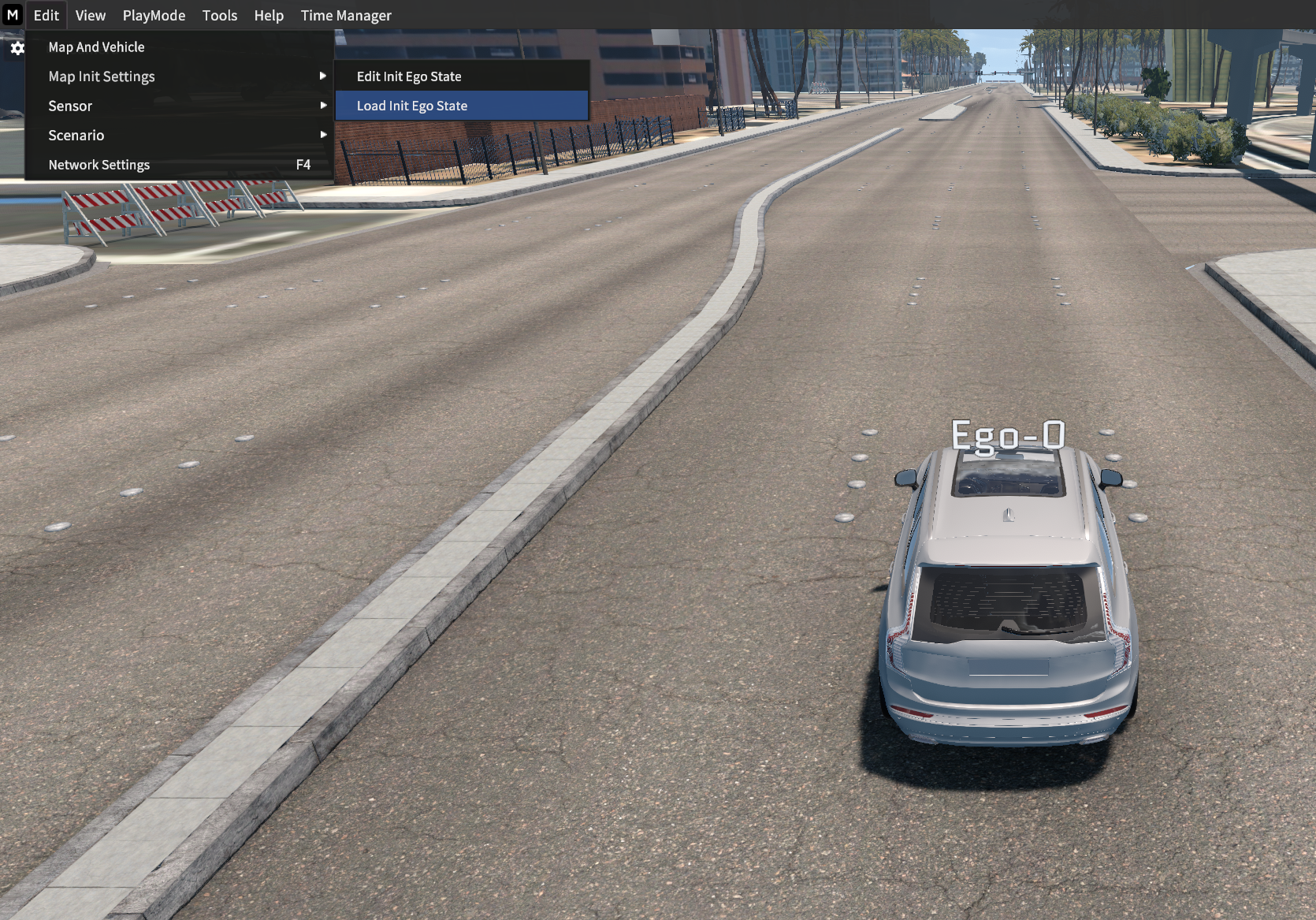
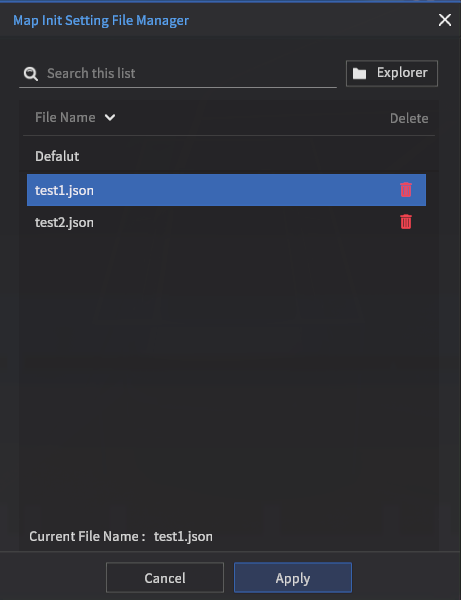
Depending on whether you ON/OFF the Apply to the Current Simulation toggle, there are 2 ways to load the changed Initial vehicle’s state.
Apply to the Current Simulation toggle OFF and save
Apply to the Current Simulation toggle ON and save
Apply to the Current Simulation toggle OFF and save

1) Load the saved file.
2) Go to Edit > Map And Vehicle and select the same map and vehicle as before.
Apply to the Current Simulation toggle ON and save

1) Press i key without the above Load process.
Return to the original Initial Ego State
There are 2 ways to to return to the original initial Ego-vehicle’s state.
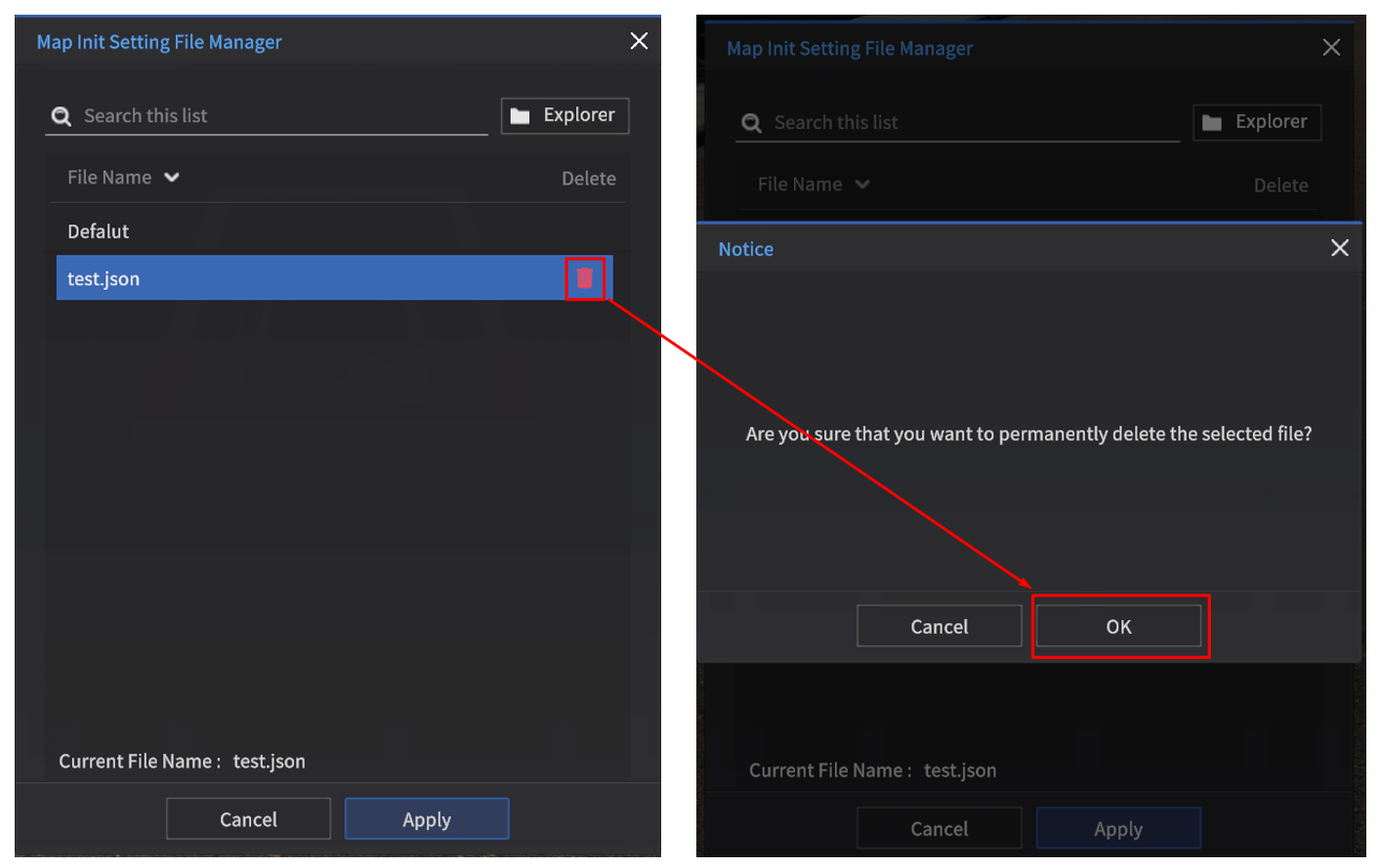
Delete the saved file in Map Init Setting File Manager
Go to Edit > Map Init Settings > Load Init Ego State, then click the
 icon to delete the saved JSON file.
 Restart the simulator.
Go to Edit > Map And Vehicle to select the same map & vehicle as before.
Press
ikey to confirm the Ego-vehicle’s initial state is well returned to original state.
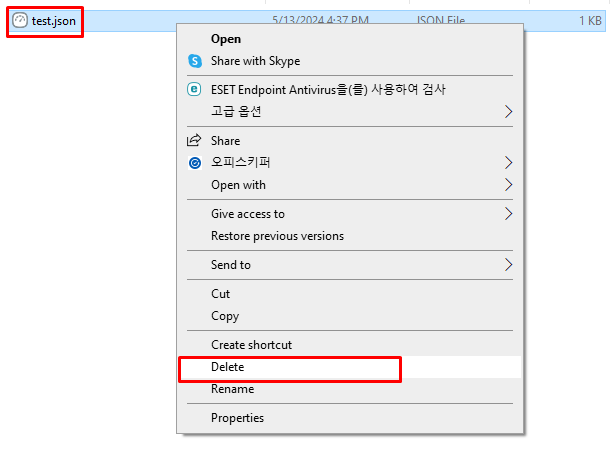
Delete in the Windows File Explorer
Go to the below mentioned directory and delete the saved file.
Restart the simulator.
Go to Edit > Map And Vehicle to select the same map & vehicle as before.
Press
ikey to confirm the Ego-vehicle’s initial state is well returned to original state.
[Directory]: MoraiLauncher_Win\MoraiLauncher_Win\MoraiLauncher_Win_Data\SaveFile\MapInitSetting\Map name