Configure Multi-System
In a multi-system setup, the simulator and the autonomous driving software (e.g., ROS) are executed on different computers, but they need to communicate seamlessly to ensure correct control and data exchange.
Here's a step-by-step guide on how to set up and configure this system:
System Preparation
For your convenience, instead of setting up a separate Linux server, a virtual Linux server is configured on the Windows Host system using Oracle VM VirtualBox.
Oracle VM file: https://www.virtualbox.org/wiki/Downloads (Windows hosts)
ubuntu_edu.vdi file: https://www.dropbox.com/s/8uz41xfqkvpcv9m/Ubuntu_edu.vdi?dl=0
Configure an Ubuntu Virtual Server
Configure an Ubuntu virtual server that runs autonomous driving software and communicates with the simulator by following the steps below.
1. Create a Virtual Hard Disk
After installing Oracle VM on the Windows host operating system, create a virtual hard disk to run the Ubuntu server.
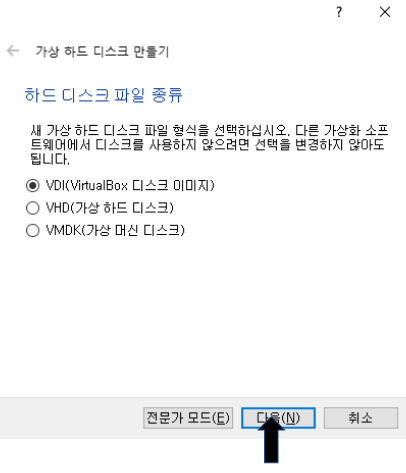
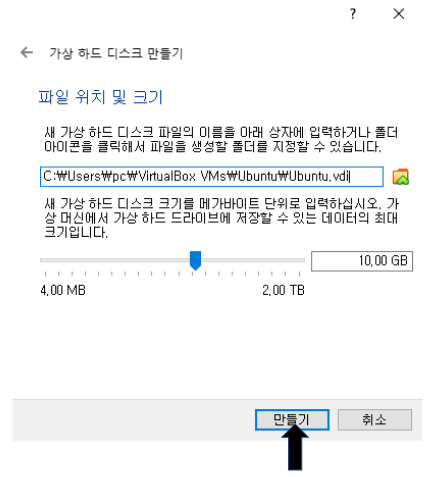
2. Install the Ubuntu System on the Created Virtual Disk
Install the Ubuntu system on the created virtual disk following the steps below.
When the file selection dialog appears, select the downloaded Ubuntu ISO file.
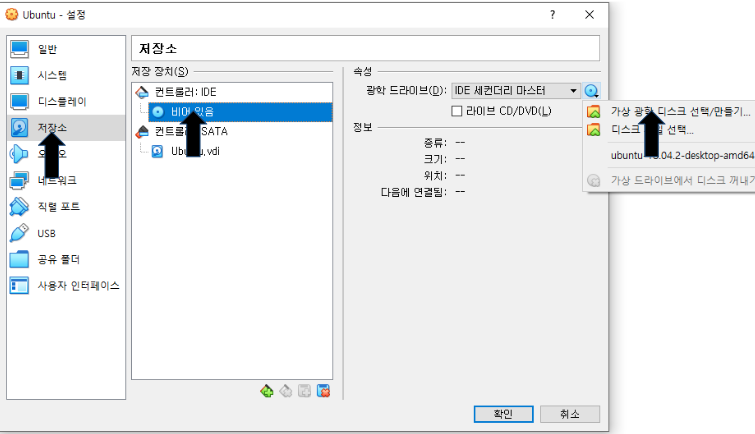
Ensure that the selected ISO file is correctly added to the optical drive, then click the Start button at the top.
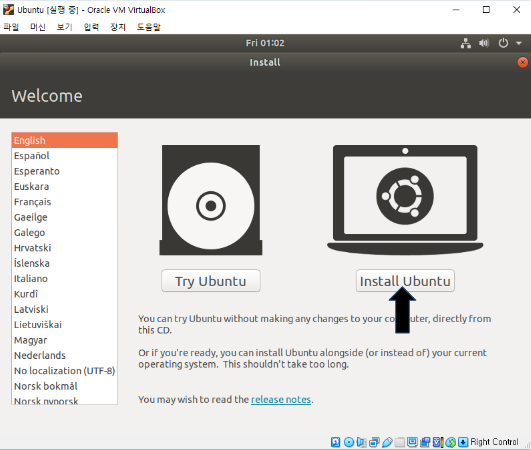
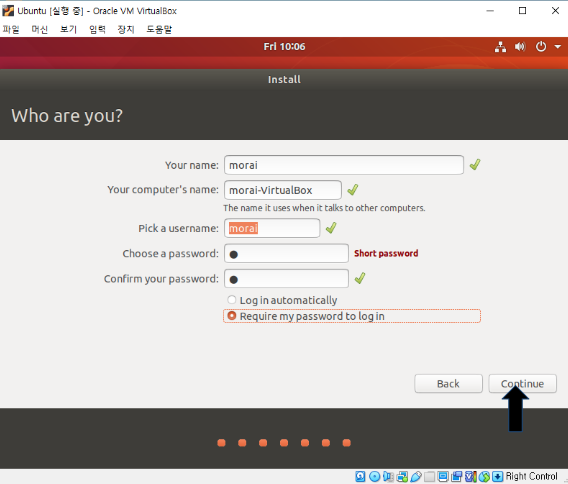
Install Ubuntu
3. Configure Virtual Server Network
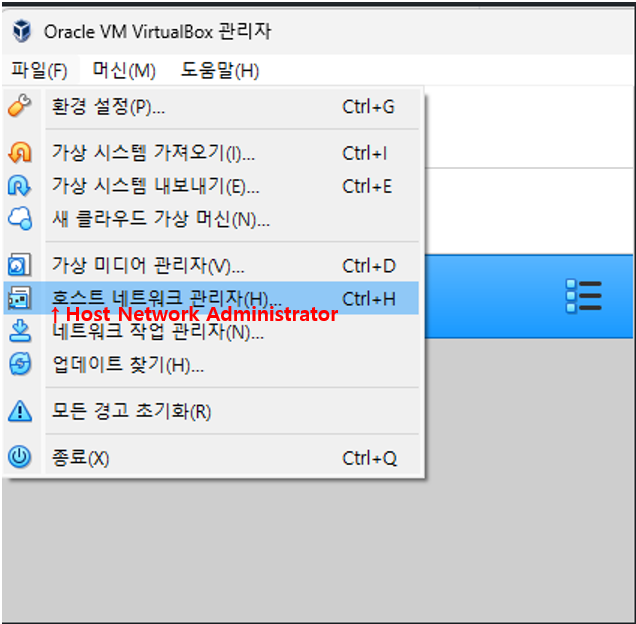
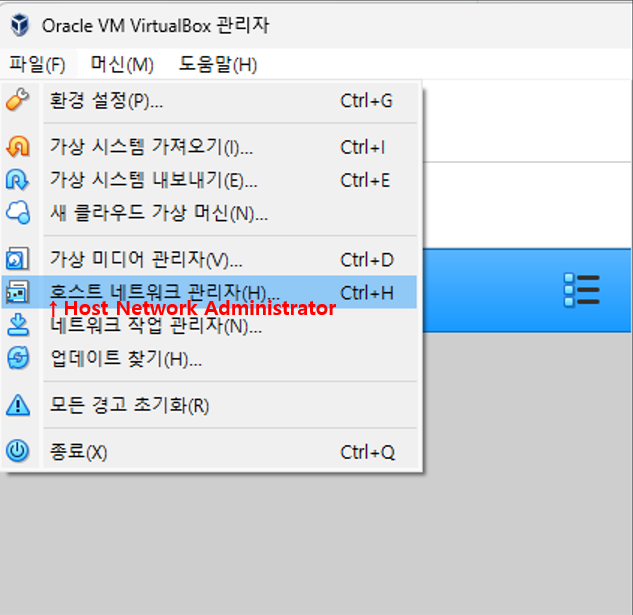
3-1. Before running the Ubuntu server, follow these steps to configure the network for the installed VM:
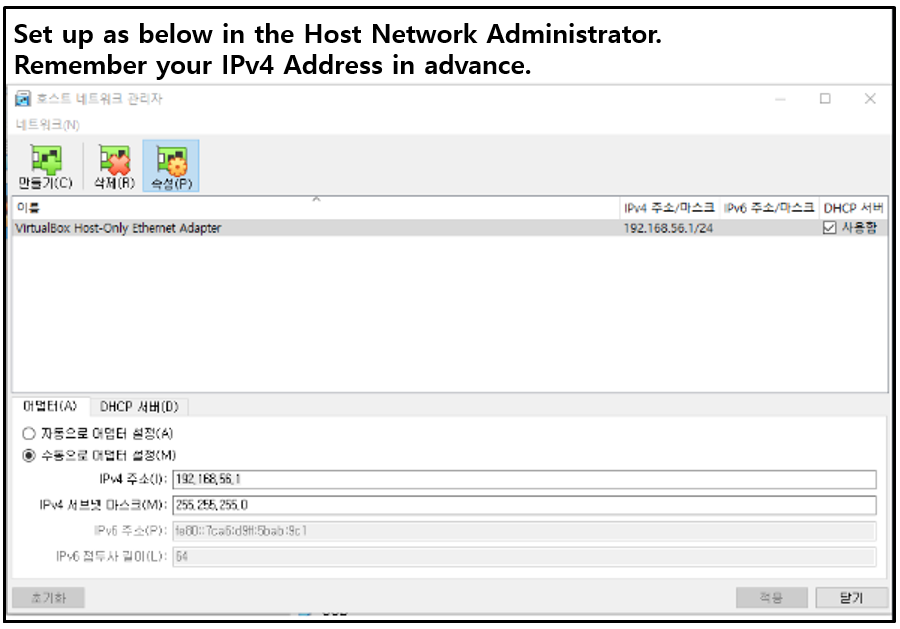
3-2. Ubuntu Network Adapter Settings
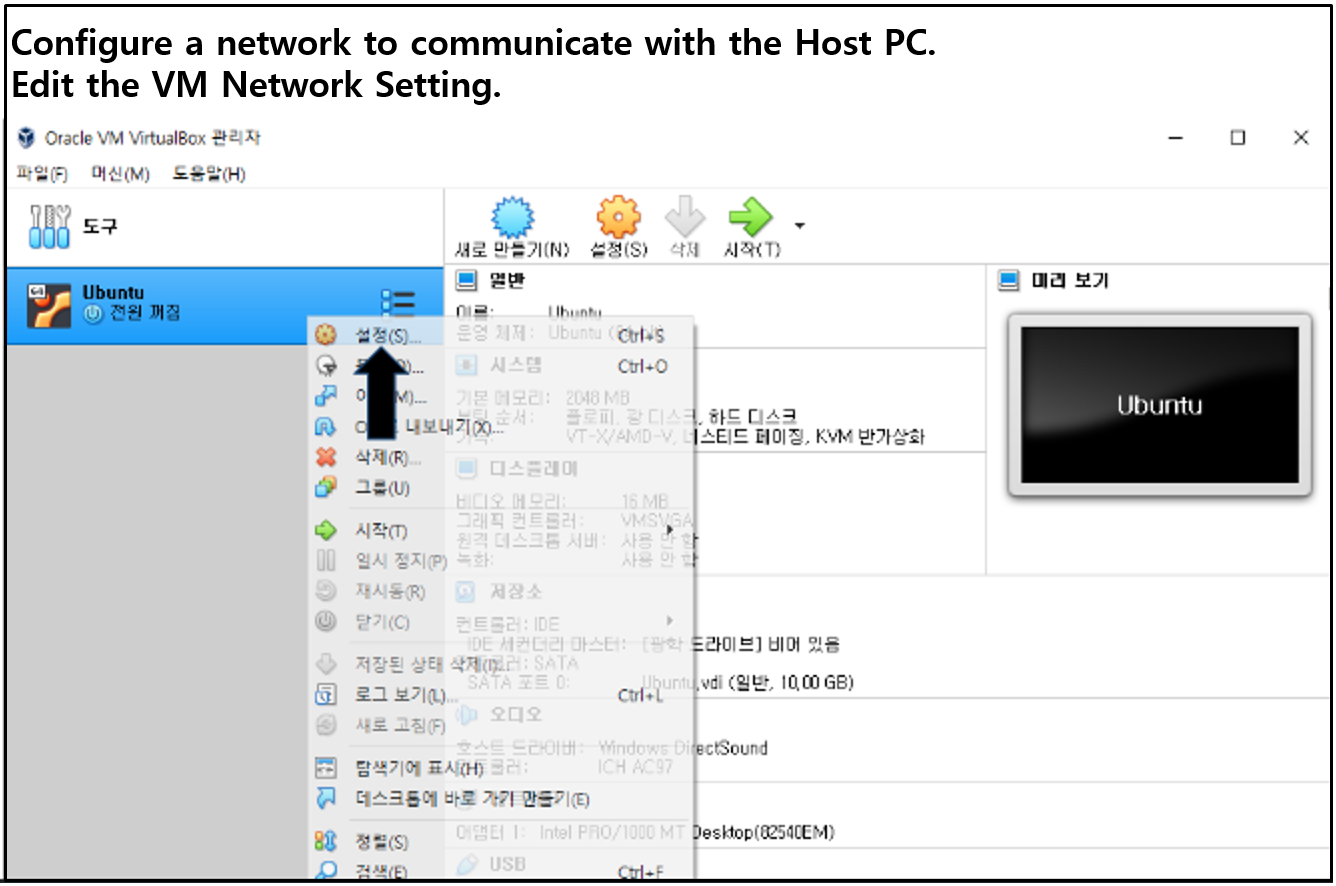
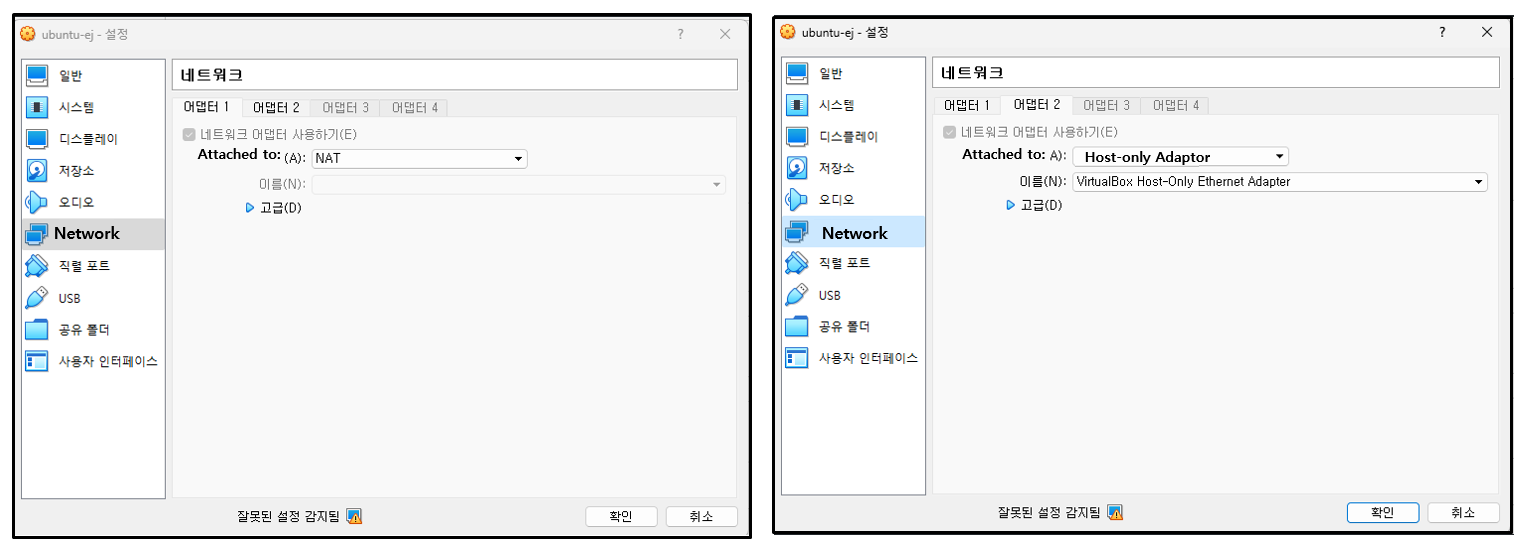
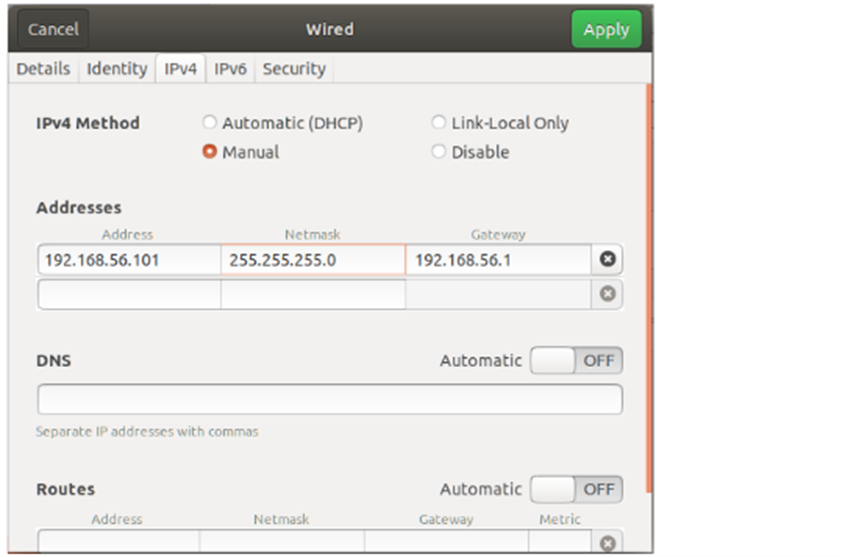
3-3. After starting the Ubuntu server, go to Network > Ethernet settings and change the secondary IP address.
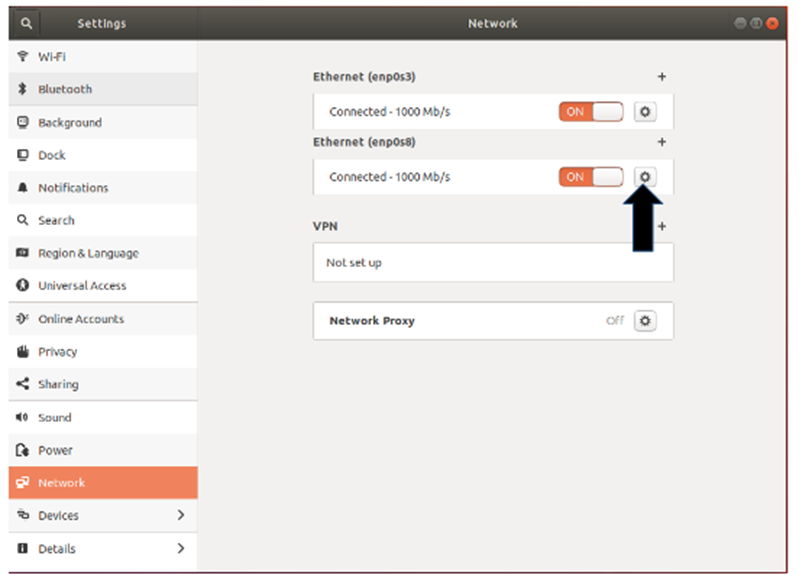
Configure the Ethernet IPv4 address as follows:
Addresses: Keep the value 192.168.56.101, which is an arbitrary setting for the virtual machine.
GateWay: Set to 192.168.56.1, which is the value configured in the host network manager of the virtual machine.
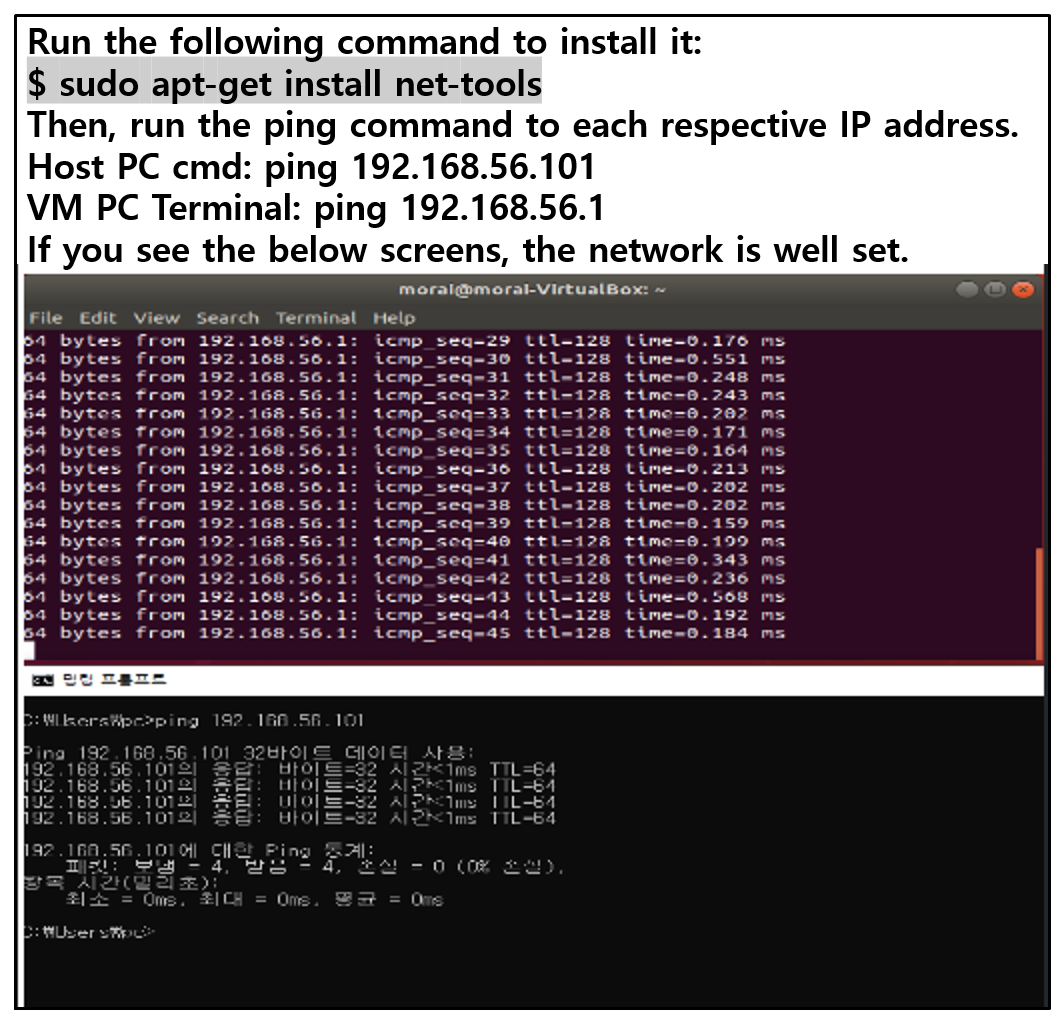
3-4. Use the command prompt on the Windows host and the terminal on the virtual machine to test the connection by executing the ping command to each respective IP address.